
| Tested on | Ubuntu 26.04 LTS (Resolute Raccoon) |
|---|---|
| Package | terraform 1.15.8-1 |
| Applies to | Any host with Terraform installed and an HCP Terraform organization |
| Lab environment | Single Ubuntu VM with Terraform and a free HCP Terraform account — Terraform lab environment on Ubuntu |
| Privilege | Normal user |
| Scope | Moving an existing locally managed state into an HCP Terraform workspace — verifying healthy local state, backing up, stopping concurrent runs, adding a cloud block, answering the migration prompt during terraform init, confirming remote state and a no-recreate plan, and post-migration execution considerations. Does not cover generic S3 or Consul backends, API or base64 state push, variable sets, workspace layout, or greenfield HCP onboarding. |
| Related guides | Terraform state explained terraform init HCP Terraform workspaces and projects |
Until now your state file sat beside your configuration and only your machine could see it. Migration moves that snapshot into an HCP Terraform workspace so colleagues, CI, and the run history can use the same records without recreating infrastructure:
BEFORE

Ubuntu
├── Terraform CLI
└── terraform.tfstate


AFTER

Ubuntu Terraform CLI
        │
        ▼
HCP Terraform workspace
        └── managed state
The commands stay familiar. What changes is where the state lives and, by default, where plan and apply execute. This lesson maps to objective 8d of the Terraform Associate (004) exam, and everything below was run from ~/terraform-labs/terraform-migrate-state-hcp/ against a disposable terraform_data resource in the golinuxcloud-lab organization. That resource type keeps migration proof independent of the worker filesystem, which matters because remote plans execute on HCP Terraform workers rather than your laptop. If you have never connected the CLI to HCP Terraform, run through terraform login once; this article does not repeat that full onboarding flow.
Verify healthy local state before you migrate
Start from a configuration that already applied successfully with local state only. No cloud block and no backend block yet. Use a resource whose identity does not depend on the machine where Terraform runs, so a post-migration remote plan can still refresh it cleanly:
resource "terraform_data" "migration_marker" {
  input = "state-migration-lab-v1"
}

output "marker_id" {
  value = terraform_data.migration_marker.id
}

output "marker_value" {
  value = terraform_data.migration_marker.input
}
Create an isolated lab directory and change into it:
mkdir -p ~/terraform-labs/terraform-migrate-state-hcp && cd ~/terraform-labs/terraform-migrate-state-hcpWrite the configuration above into main.tf, then check the Terraform version that will manage this state. For a migration of an existing environment, HashiCorp recommends using the same Terraform CLI version that was managing that state for the upload rather than combining a state migration with a Terraform version upgrade:
terraform versionSample output:
Terraform v1.15.8
on linux_amd64
Initialize providers against the local backend:
terraform initSample output:
Initializing the backend...

Initializing provider plugins...
- terraform.io/builtin/terraform is built in to Terraform

Terraform has been successfully initialized!
The first line matters: Initializing the backend... without any mention of HCP Terraform means state is still local. Apply once so the state file contains a real resource:
terraform apply -auto-approveSample output:
terraform_data.migration_marker: Creating...
terraform_data.migration_marker: Creation complete after 0s [id=285dc777-149e-4792-a8f8-7669d6385079]

Apply complete! Resources: 1 added, 0 changed, 0 destroyed.

Outputs:

marker_id = "285dc777-149e-4792-a8f8-7669d6385079"
marker_value = "state-migration-lab-v1"
Confirm Terraform's records match what you expect before touching HCP Terraform:
terraform state listSample output:
terraform_data.migration_markerAsk Terraform to print the full resource block when you need the address fields:
terraform state show terraform_data.migration_markerSample output, trimmed to the fields that matter for migration:
# terraform_data.migration_marker:
resource "terraform_data" "migration_marker" {
    id     = "285dc777-149e-4792-a8f8-7669d6385079"
    input  = "state-migration-lab-v1"
    output = "state-migration-lab-v1"
}
Record the id value. After migration, that same identifier is the proof Terraform copied state rather than planning a replacement.
If state list is empty or apply failed silently, fix that first. Migration only copies what is already in a healthy snapshot.
Back up state and stop concurrent Terraform runs
Copy the state file before you change backends. A timestamped name makes the purpose obvious months later:
cp terraform.tfstate terraform.tfstate.backup-before-hcpSample output:
cp succeeds quietly when it works. List the directory to confirm both files are present and the same size:
ls -l terraform.tfstate terraform.tfstate.backup-before-hcpSample output:
-rw-r--r-- 1 user user 1080 Aug 12 16:06 terraform.tfstate
-rw-r--r-- 1 user user 1080 Aug 12 16:06 terraform.tfstate.backup-before-hcp
Treat that copy as read-only insurance. Do not delete it when migration finishes.
Concurrent Terraform operations are dangerous during migration. If a colleague, a CI job, or another terminal tab runs plan or apply against the same state while you are moving it, one run can overwrite the snapshot you intended to copy. Pause automation, confirm no locks are held, and communicate a short maintenance window for production directories. On the destination side, use a new or never-run workspace: one that has never performed a run and therefore has no state history. If the workspace you selected already contains state from previous runs, stop and choose another destination rather than trying to combine or replace state as part of this migration.
Authenticate and choose an empty destination workspace
You need a valid API token before terraform init can reach HCP Terraform. If ~/.terraform.d/credentials.tfrc.json already contains an entry for app.terraform.io from earlier lessons, skip login. Otherwise:
terraform loginThat flow is spelled out in the HCP Terraform tutorial. You do not need to create the destination workspace in the browser first. A cloud block with a new workspace name creates an empty CLI-driven workspace the first time you initialize, which is exactly what you want when that workspace has never performed a run: no prior state versions, no resources counted, nothing to conflict with the snapshot you are about to upload.
Add the cloud block and initialize with migration
Edit main.tf to add the cloud block above the existing terraform_data resource and outputs. The cloud block replaces a backend block; you cannot use both. Keep every resource and output unchanged:
terraform {
  cloud {
    organization = "golinuxcloud-lab"

    workspaces {
      project = "hcp-migrate-lab"
      name    = "hcp-migrate-lab-marker"
    }
  }
}
Swap golinuxcloud-lab and hcp-migrate-lab-marker for your organization and workspace names.
Run plain terraform init. Terraform detects the backend change and asks whether to copy existing state:
terraform initWhen the migration prompt appears, answer yes to copy the latest local snapshot into the workspace. Sample output:
Initializing HCP Terraform...
Do you wish to proceed?
  As part of migrating to HCP Terraform, Terraform can optionally copy
  your current workspace state to the configured HCP Terraform workspace.

  Answer "yes" to copy the latest state snapshot to the configured
  HCP Terraform workspace.

  Answer "no" to ignore the existing state and just activate the configured
  HCP Terraform workspace with its existing state, if any.

  Should Terraform migrate your existing state?

  Enter a value: yes

Acquiring state lock. This may take a few moments...
Releasing state lock. This may take a few moments...

Initializing provider plugins...
- terraform.io/builtin/terraform is built in to Terraform

HCP Terraform has been successfully initialized!
This is the modern migration path for HCP Terraform. Do not reach for terraform init -migrate-state here; that flag pairs with explicit backend blocks in the Terraform backends and remote state lesson, not with the cloud block.
Use a new or never-run destination workspace. If the selected workspace already contains state from previous runs, stop and choose another destination rather than trying to combine or replace state as part of this migration. Answering no on a brand-new workspace attaches the directory to empty remote state, and the next plan will try to create every resource again. Read the prompt carefully.
Verify migration without recreating infrastructure
The success condition is threefold: the real infrastructure still exists, HCP Terraform holds state, and a normal plan does not propose recreating everything.
Start with the resource identifier. The marker_id output before migration was 285dc777-149e-4792-a8f8-7669d6385079. After migration, read it again from remote state:
terraform output -raw marker_idSample output:
285dc777-149e-4792-a8f8-7669d6385079The same ID means Terraform still tracks the original object rather than planning a replacement. List state through the remote backend to confirm the address survived:
terraform state listSample output:
terraform_data.migration_markerNow run the plan that proves migration worked:
terraform planSample output:
Running plan in HCP Terraform. Output will stream here. Pressing Ctrl-C
will stop streaming the logs, but will not stop the plan running remotely.

Preparing the remote plan...

To view this run in a browser, visit:
https://app.terraform.io/app/golinuxcloud-lab/hcp-migrate-lab-marker/runs/run-tJLzMXocWZhzb2v8

Waiting for the plan to start...

Terraform v1.15.8
on linux_amd64
Initializing plugins and modules...
terraform_data.migration_marker: Refreshing state... [id=285dc777-149e-4792-a8f8-7669d6385079]

No changes. Your infrastructure matches the configuration.

Terraform has compared your real infrastructure against your configuration
and found no differences, so no changes are needed.
No changes plus Refreshing state with the original ID is the result you want. A plan that wants to create every resource again means migration did not copy state or pointed at the wrong workspace.
The same run in the browser should tell the same story. Open the plan URL from the CLI output and scroll to the Plan section:
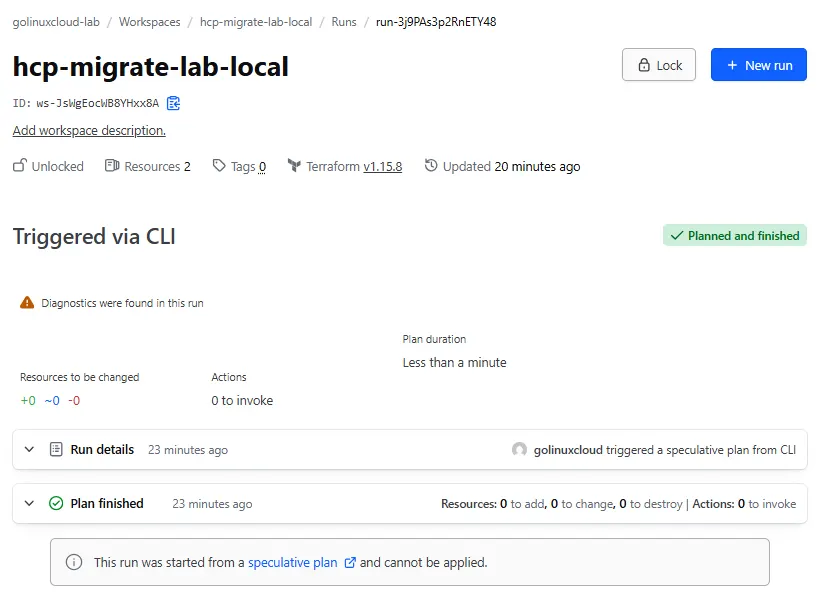
You may see a yellow Value for undeclared variable warning above the plan if a global variable set in your organization defines environment but this configuration does not declare that variable. That warning is harmless for migration verification; the lines that matter are Refreshing state with the unchanged id and No changes.
Check the on-disk artifacts Terraform left behind:
ls -l terraform.tfstate terraform.tfstate.backup terraform.tfstate.backup-before-hcp .terraform/terraform.tfstateSample output:
-rw-r--r-- 1 user user  355 Aug 12 16:07 .terraform/terraform.tfstate
-rw-r--r-- 1 user user    0 Aug 12 16:07 terraform.tfstate
-rw-r--r-- 1 user user 1080 Aug 12 16:07 terraform.tfstate.backup
-rw-r--r-- 1 user user 1080 Aug 12 16:06 terraform.tfstate.backup-before-hcp
The root terraform.tfstate file is now a zero-byte stub. Terraform moved the authoritative snapshot to HCP Terraform and wrote terraform.tfstate.backup automatically during migration. Your manual terraform.tfstate.backup-before-hcp is still the insurance copy from before you touched the backend. The file under .terraform/ holds backend metadata, including the organization and workspace name, not the full resource map.
Open the workspace States tab in the browser to see versioned snapshots on the HCP Terraform side. The first New state row after migration is the upload of your local snapshot; later Triggered via CLI rows are normal post-migration runs.
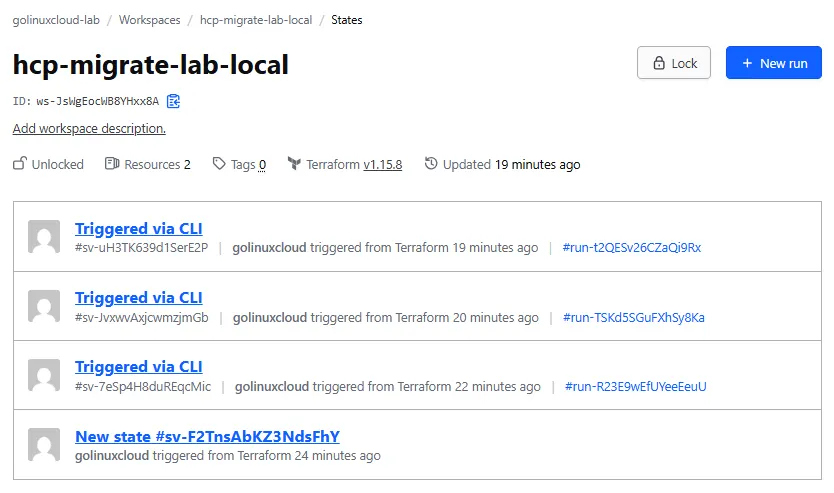
The header strip confirms state arrived: the workspace is unlocked, Terraform v1.15.8 is pinned, and the resource count reflects whatever the latest snapshot contains.
Run Terraform after migration
After migration, terraform plan and terraform apply follow the workspace execution mode. The default is remote: HCP Terraform runs the operation on a disposable worker and streams logs back, which is why the plan output above opened with Running plan in HCP Terraform and printed a run URL.
Prove that updates still work by adding a second terraform_data resource:
resource "terraform_data" "post_migrate_label" {
  input = "migrated-to-hcp"
}

output "migration_status" {
  value = terraform_data.post_migrate_label.input
}
Plan the addition:
terraform planSample output:
Terraform will perform the following actions:

  # terraform_data.post_migrate_label will be created
  + resource "terraform_data" "post_migrate_label" {
      + id     = (known after apply)
      + input  = "migrated-to-hcp"
      + output = (known after apply)
    }

Plan: 1 to add, 0 to change, 0 to destroy.

Changes to Outputs:
  + migration_status = "migrated-to-hcp"
Only the new resource should appear. Apply it:
terraform apply -auto-approveSample output:
Apply complete! Resources: 1 added, 0 changed, 0 destroyed.

Outputs:
marker_id = "285dc777-149e-4792-a8f8-7669d6385079"
marker_value = "state-migration-lab-v1"
migration_status = "migrated-to-hcp"
marker_id is unchanged, which confirms the original terraform_data.migration_marker entry survived migration and the apply only added the new resource.
Rollback and migration safety
Rollback is about principles, not a single dangerous command. When something looks wrong after terraform init, stop immediately and work from backups rather than improvising with terraform state push or manual edits.
- Stop other runs — no CI, no colleague, no second terminal tab against the same directory or workspace until you understand the snapshot.
- Keep pre-migration backups — retain both your manual copy and Terraform's automatic
terraform.tfstate.backupuntil a post-migration plan is clean. - Use an empty destination — migrate into a workspace created for the move, or one that has never performed a run. Do not target a workspace that already holds state from previous runs.
- Verify remote state before changing real infrastructure — read outputs, run
terraform state list, and insist on a no-recreate plan. - Understand the cloud block before reversing — removing the block and reinitializing has consequences; treat reversal as a deliberate restore from backup, not a quick undo button.
If you must abort before applying anything destructive, restore main.tf without the cloud block, copy terraform.tfstate.backup-before-hcp over terraform.tfstate, remove .terraform/, and run terraform init to return to purely local operation in a maintenance window. Before you resume Terraform operations from that restored local state, make sure the HCP Terraform workspace cannot also run against the same infrastructure. Lock it, disable its automation, or remove the failed migration workspace as appropriate. Never allow the restored local state and migrated HCP state to remain independently active against the same resources. When the remote workspace should stay authoritative instead, HCP Terraform provides state-version rollback in the workspace States tab rather than reversing back to local state.
Common migration problems
| Symptom | Likely cause | Fix |
|---|---|---|
| Plan wants to create every resource after migration | Answered no at the migration prompt, or migrated into a workspace that already had state |
Use a new never-run workspace, restore from backup, remove the cloud block, and repeat init answering yes |
terraform init cannot reach HCP Terraform |
Missing or expired token, wrong hostname, or no network path to app.terraform.io |
Run terraform login or set TF_TOKEN_app_terraform_io; confirm the token is valid in user settings |
| Wrong workspace after init | Typo in organization or workspaces.name |
Fix the cloud block and reinitialize; verify with terraform workspace list |
| Migration appeared to work but provider calls fail | Credentials still only exist on your laptop | Add environment-category provider variables to the workspace or a variable set before remote runs |
Error acquiring state lock during migration |
Another run holds the workspace lock | Wait for the other run to finish, or cancel it in the UI; use terraform force-unlock only when you are certain the holder is dead |
| Resource IDs changed after migration | State was not copied; Terraform planned replacements | Do not apply; restore from terraform.tfstate.backup-before-hcp and diagnose the init transcript |
cloud and backend blocks together |
Invalid configuration | Remove the backend block; the cloud block replaces it entirely |
Migration verification checklist
Before you announce the migration done, walk this list in order:
- Local
terraform applysucceeded before anycloudblock existed. terraform versionmatches the CLI that managed the state you are migrating.terraform state listshowed every expected address locally.- You copied
terraform.tfstateto a manual backup path. - No other Terraform process was using the directory or destination workspace.
- Destination workspace was new or had never performed a run.
terraform initprinted the HCP Terraform migration prompt and you answeredyes.terraform outputandterraform state listshow the same resource IDs as before migration.terraform planreportsNo changes(or only expected deltas you can explain).- The workspace States tab in HCP Terraform shows a new version containing your resources.
- Provider credentials and required workspace variables are configured for remote execution.
- A small post-migration apply changes only what you intended.
Clean up the lab
When you are finished experimenting, destroy the disposable resources, delete the workspace, and remove the project. Leave the API token in place if you are continuing with other HCP Terraform lessons in this course.
cd ~/terraform-labs/terraform-migrate-state-hcp && terraform destroy -auto-approveDelete the hcp-migrate-lab-marker workspace from its Destruction and Deletion settings, then delete the hcp-migrate-lab project. Remove the lab directory when you no longer need the working files.
References
- Variables in HCP Terraform — workspace run-specific variables
- Connect to HCP Terraform with the cloud block
- HCP Terraform workspaces
- Terraform state in HCP Terraform
- terraform init
- Backend configuration and
-migrate-state
Summary
Migrating local state to HCP Terraform is a controlled copy operation, not a rebuild. You start from a healthy local apply, take a backup you will not delete early, and pause any other Terraform activity that could touch the same records. Adding a cloud block and running terraform init triggers the migration prompt that uploads your snapshot into an empty destination workspace, leaving a stub terraform.tfstate on disk and the real versioned state in HCP Terraform.
The proof is in the follow-up checks, not in the init banner. The resource ID on terraform_data.migration_marker stayed 285dc777-149e-4792-a8f8-7669d6385079 across the move, terraform state list still showed the same address, and the first remote plan reported No changes while refreshing that ID. If the plan had proposed creating every resource again, you would stop before apply and restore from terraform.tfstate.backup-before-hcp rather than letting Terraform duplicate infrastructure.
After migration, think about execution context and credentials together. Remote runs use HCP Terraform workers by default, so provider authentication must live in the workspace. Keep your backups until the checklist at the end of this article is green, and treat the workspace States tab as the visual confirmation that your snapshot now lives where the rest of the team can reach it.
Frequently Asked Questions
Do I need to recreate infrastructure when migrating state to HCP Terraform?
No, when migration succeeds Terraform copies the existing state snapshot into the destination workspace and the next plan should report no changes for resources that already exist. If the plan wants to create everything again, the migration did not copy state, the workspace name or organization is wrong, or someone ran init and answered no to the migration prompt while the workspace already held different state. Stop and diagnose before applying.
Can I migrate into a workspace that already has state?
Do not use an already-populated workspace as the destination for this workflow. HashiCorp recommends migrating into a new workspace, or an existing workspace that has never performed a run and therefore has no state history. State migration is not a state-merge operation.
What happens to my local terraform.tfstate file after migration?
Terraform uploads the state to HCP Terraform and leaves a zero-byte terraform.tfstate stub in the working directory while storing backend metadata under .terraform/terraform.tfstate. It also writes terraform.tfstate.backup with the pre-migration snapshot when the migration succeeds. Keep your manual backup and the automatic .backup file until you have verified remote state and a clean plan.
Should I use terraform init -migrate-state with a cloud block?
No. The cloud block workflow uses plain terraform init. Terraform detects the backend change from local default to HCP Terraform and asks whether to migrate existing state as part of initializing HCP Terraform. The -migrate-state flag belongs to explicit backend blocks such as S3 or Consul, not to the modern cloud block path covered here.
Why does migration succeed but the next remote run cannot reach my cloud provider?
Because moving state does not move credentials. A configuration that relied on environment variables in your shell or a local credentials file still needs those values in the HCP Terraform workspace or a variable set before remote execution can call the provider API. Migration only relocates state and changes where runs are recorded, not how the worker authenticates.
How do I roll back if migration goes wrong?
Stop all Terraform activity first. If the HCP Terraform workspace should remain authoritative, use state-version rollback in the workspace UI rather than reverting to local state. If you restore local state by removing the cloud block and copying your pre-migration backup, first lock, disable, or delete the HCP workspace so local and remote state cannot both run against the same infrastructure. Do not delete backups until a post-migration plan is clean and resource IDs match what you expect.
