
| Tested on | Ubuntu 26.04 LTS (Resolute Raccoon) |
|---|---|
| Package | terraform 1.15.8-1 |
| Applies to | Any host with Terraform installed and an HCP Terraform organization |
| Lab environment | Single Ubuntu VM with Terraform and a free HCP Terraform account — Terraform lab environment on Ubuntu |
| Privilege | Normal user |
| Scope | Organizing infrastructure in HCP Terraform with projects and workspaces — what a workspace contains, what a project scopes, how HCP workspaces differ from Terraform CLI workspaces, binding a directory to one or many workspaces, the settings that change how runs behave, run triggers between dependent workspaces, and environment layout choices. Does not cover variables and variable sets in depth, team permission matrices, policy authoring, state migration, or VCS integration. |
| Related guides | Terraform backends and remote state Terraform state explained Terraform Associate certification course |
Once your state and runs live in HCP Terraform, the interesting question stops being "where is my state" and becomes "how do I lay this out". A real organization has networking, databases, and applications, several environments of each, and different people allowed to touch different parts.
HCP Terraform gives you two containers for that, one nested inside the other:
Organization
├── Project: Application
│   ├── Workspace: network
│   ├── Workspace: database
│   └── Workspace: application
└── Project: Platform
└── Workspace: shared-services- The organization is the billing and membership boundary
- Projects group workspaces and scope who can reach them
- Workspaces hold the infrastructure
This lesson maps to objectives 8a and 8c of the Terraform Associate (004) exam. Everything below was run against a real organization from an Ubuntu VM, in ~/terraform-labs/hcp-terraform-workspaces-projects/.
If you have not connected the CLI to HCP Terraform yet, the HCP Terraform tutorial covers terraform login and the first remote run.
What is an HCP Terraform workspace?
A workspace is everything Terraform needs to manage one collection of infrastructure.
Locally that job is done by a directory:
- Configuration files
- A state file beside them
- Variables in
.tfvars - Credentials in your shell
A workspace holds the same four things, in a place your whole team can reach:
| Component | Local Terraform | HCP Terraform workspace |
|---|---|---|
| Configuration | Files on disk | Linked VCS repository, or uploaded by the CLI on each run |
| Variable values | .tfvars files, -var flags, or shell environment |
Stored in the workspace |
| State | terraform.tfstate on disk or in a backend |
Stored in the workspace, with previous versions kept |
| Credentials | Shell environment or interactive prompts | Supplied through workspace or variable-set environment settings, or supported dynamic credential mechanisms |
Two extras come with the managed version:
- Run history — every plan and apply leaves a record with its logs and the change that caused it
- State versions — you can look at what state contained last Tuesday
The resource count on the workspace page is read from current state and includes data sources, not only managed resources.
The run list is where that history surfaces, one row per run with who or what started it:
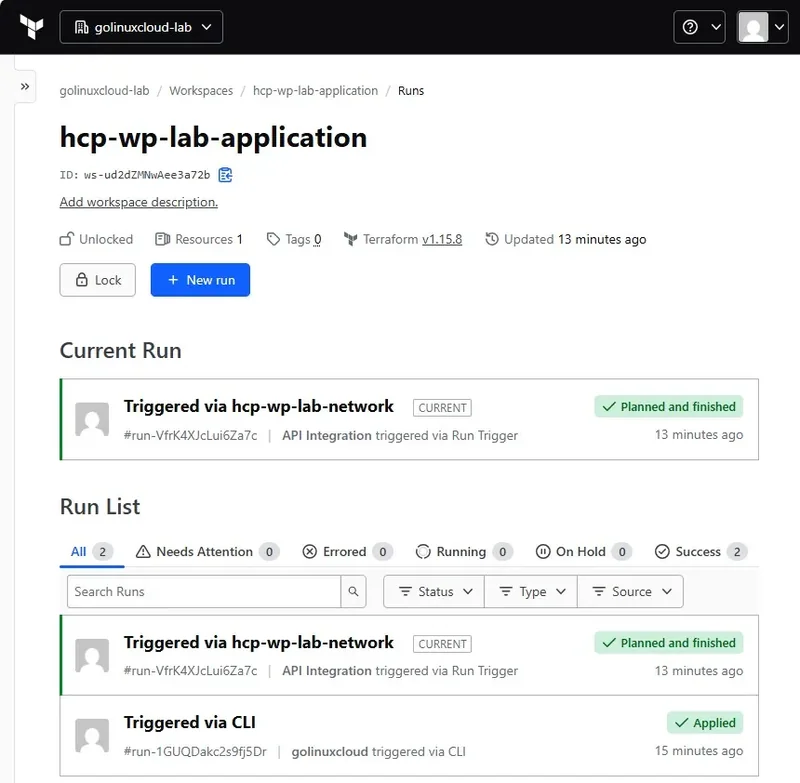
Both runs here ended successfully, but they reached the workspace by different routes:
- One was started by a person typing
terraform apply - The other was started by another workspace finishing its own apply — the run trigger mechanism covered later on
The header strip is worth reading too, since it summarizes the workspace at a glance: unlocked, one resource in state, and pinned to Terraform 1.15.8.
Separate workspaces behave like separate working directories — a run in one cannot see the state of another unless you deliberately share it.
terraform workspace showSample output:
hcp-wp-lab-networkThat name is the HCP Terraform workspace this directory drives, not a local label. Keep that in mind, because the same command means something different in a purely local project.
What is an HCP Terraform project?
A project is a folder that holds workspaces, and more importantly a boundary you can attach permissions to:
- Instead of granting a team access to fourteen workspaces one at a time, you grant it access to the project that contains them
- HashiCorp's own advice is to define projects around the groups that need distinct access rules — business units, departments, or technical teams
Every workspace belongs to exactly one project. When you create a workspace without saying which, it goes into the organization's Default Project, which you can rename but cannot delete.
Organization: golinuxcloud-lab
├── Project: Application          (owned by the app team)
│   ├── hcp-wp-lab-network
│   ├── hcp-wp-lab-application
│   ├── hcp-wp-lab-app-dev
│   └── hcp-wp-lab-app-test
└── Project: Default Project      (where unassigned workspaces land)
The organization workspace list makes the grouping visible, because every workspace names the project it belongs to:
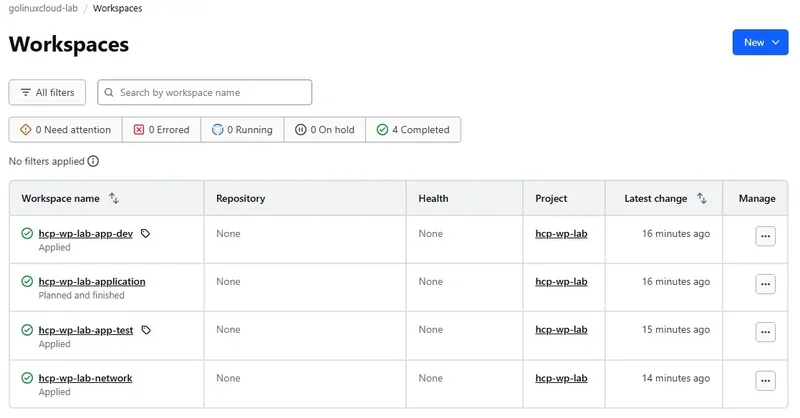
The Project column is the useful one for auditing a layout you inherited:
- A column full of Default Project means nobody has organized anything yet
- The Repository and Health columns read None on all four — these workspaces are CLI-driven, not VCS-connected, and health assessments are a paid feature that stays off
Projects carry a few settings of their own that are easy to miss:
- Default execution mode — a project inherits the organization mode and can override it, and new workspaces in the project inherit the project's choice
- Project tags — key-value tags that workspaces in the project inherit, with a limit of 10 project tags and 10 workspace tags
- Auto-destroy inactive workspaces — a scheduled destroy after a period with no state change, available on paid editions and intended for development only
- Team access — the reason most people reach for projects, though project permissions require the Essentials edition or above
Deleting a project only works when it is empty, so you move or delete its workspaces first.
Resist the urge to create a project per resource group or a project per workspace — if a project would only ever hold one workspace, it is a folder with no purpose.
HCP workspace vs project vs Terraform CLI workspace
Terraform uses the word "workspace" for two unrelated things, and the collision causes more confusion than any other part of HCP Terraform. Hold the three concepts apart like this:
Project
→ groups HCP Terraform workspaces and scopes access to them

HCP Terraform workspace
→ one collection of infrastructure: configuration, variables, state, runs, settings

Terraform CLI workspace
→ multiple named state instances for one working directory and backend
The practical differences matter more than the definitions:
| HCP Terraform workspace | Terraform CLI workspace | |
|---|---|---|
| Required? | Yes, you cannot manage anything without one | No, optional feature of the CLI |
| Scope | An entire collection of infrastructure | Extra state instances for one configuration |
| Holds | Configuration source, variables, state, run history, settings | A state instance only |
| Access control | Yes, per workspace and per project | None, it is a local concept |
| Names must be unique | Within the organization | Within the backend for that directory |
You can watch the distinction bite. This directory binds itself to one named workspace, so the CLI reports exactly one:
terraform workspace listSample output:
* hcp-wp-lab-networkThere is nothing to switch between, and Terraform says so plainly when you ask for another one:
terraform workspace new hcp-wp-lab-scratchSample output:
workspaces not supportedThat error is not a permissions problem or a missing feature:
- The
cloudblock pinned this directory to a single workspace by name - CLI workspace commands have nothing to do in that binding
Later in this article the same commands work, because the binding changes from a name to a set of tags. If you want the local-only feature in full, the Terraform CLI workspaces lesson covers terraform.tfstate.d and when named state instances are worth using.
Create and organize workspaces from the CLI
You can create workspaces in the UI, through the API, or by initializing a directory that names one.
The CLI path keeps the workspace name next to the configuration it belongs to, which is why it suits a repository of small components. The binding lives in a cloud block:
terraform {
  cloud {
    organization = "golinuxcloud-lab"

    workspaces {
      project = "hcp-wp-lab"
      name    = "hcp-wp-lab-network"
    }
  }
}

resource "terraform_data" "network_id" {
  input = "net-lab-0a1b2c3d"
}

output "network_id" {
  value = terraform_data.network_id.output
}
The project argument decides where the workspace lands, so the workspace never has to be moved out of Default Project afterwards. Initializing the directory sets up the connection:
terraform initSample output:
Initializing HCP Terraform...

Initializing provider plugins...
- terraform.io/builtin/terraform is built in to Terraform

HCP Terraform has been successfully initialized!
Neither the project nor the workspace existed before terraform init, and both existed afterwards.
Terraform 1.6+ supports this implicit project creation workflow:
- When
workspaces.projectnames a project that does not yet exist, HCP Terraform attempts to create it during initialization - For production organization design, creating projects deliberately first is still useful when you want to configure permissions, execution mode, tags, or auto-destroy settings before workspaces arrive
With the directory bound, a plan and apply run on HCP Terraform's workers and stream back to you:
terraform apply -auto-approveSample output:
Running apply in HCP Terraform. Output will stream here.

To view this run in a browser, visit:
https://app.terraform.io/app/golinuxcloud-lab/hcp-wp-lab-network/runs/run-dPAaub3mnxU4PrFe

Waiting for the plan to start...

Terraform v1.15.8
on linux_amd64
Initializing plugins and modules...

  # terraform_data.network_id will be created
  + resource "terraform_data" "network_id" {
      + input  = "net-lab-0a1b2c3d"
    }

Plan: 1 to add, 0 to change, 0 to destroy.

terraform_data.network_id: Creation complete after 0s [id=3ecec6e2-51a8-34df-9edf-557a8b3da41d]

Apply complete! Resources: 1 added, 0 changed, 0 destroyed.

Outputs:
network_id = "net-lab-0a1b2c3d"
The run URL is the useful part:
- It names the organization and the workspace the run went to
- That is the quickest way to catch a
cloudblock pointing somewhere unintended
Everything else reads like a local apply.
A second component gets a second directory and a second workspace in the same project, differing only in the cloud block and the resources:
terraform {
  cloud {
    organization = "golinuxcloud-lab"

    workspaces {
      project = "hcp-wp-lab"
      name    = "hcp-wp-lab-application"
    }
  }
}

resource "terraform_data" "app_release" {
  input = "app-1.4.0"
}
After initializing and applying that directory too, both workspaces hold infrastructure. Ask each one what it manages, starting with the application workspace:
terraform state listSample output:
terraform_data.app_releaseOnly its own resource appears. Run the same command in the network directory to see the other side of the boundary:
terraform state listSample output:
terraform_data.network_idTwo workspaces in one project, two separate states, no overlap. That isolation is what lets two people apply at the same time without fighting over a lock.
Naming and grouping. HashiCorp recommends:
- Splitting a monolithic configuration into components and giving each one a workspace
- Naming workspaces so the component and the environment are both visible — such as
networking-prod-us-eastandnetworking-staging-us-east - Remembering that workspace names must be unique across the whole organization — a bare
networkis a name you will regret the first time a second team needs one
Group with the project and be specific with the name.
Workspace settings that matter
A workspace has many settings pages and most of them are situational. These are the ones that change how runs behave, and they are worth knowing before you create your twentieth workspace:
| Setting | What it decides | Watch out for |
|---|---|---|
| Terraform version | The version every run in the workspace uses | Defaults to the most recent Terraform release at the moment the workspace is created, so workspaces created months apart end up on different versions |
| Execution mode | Whether runs happen on HCP Terraform, on your machine, or on an agent | Inherits from the project by default; changing it after a plan makes that plan error on apply |
| Version control | Which repository and branch drive runs | Only relevant with remote execution; adding VCS changes how runs are queued |
| Health assessments | Drift detection and continuous validation on a schedule | Paid editions only, and off by default |
| Team access | Who can read, plan, apply, or administer the workspace | Project-level access often covers this better than per-workspace grants |
| Run triggers | Which source workspaces queue runs here | Triggered runs do not auto-apply unless you enable their own setting |
| Remote state sharing | Which workspaces may read this workspace's state with terraform_remote_state |
New workspaces share with none, so a state read fails until you list the consumer; these controls do not apply to tfe_outputs |
| Locking | Temporarily blocks plans and applies | A workspace someone locked and forgot looks exactly like a broken pipeline |
The defaults are quietly opinionated. The workspace created earlier from the CLI came out with:
- Remote execution inherited from its project rather than set on the workspace
- Terraform version set to HCP Terraform's current default release at workspace creation — 1.15.8 in this lab
- Auto-apply off
- Run-trigger auto-apply off separately
- Health assessments off
- Remote State Sharing closed — no other workspace can read its state
That last default is the one that surprises people, and the run triggers section below explains when it bites.
Two settings deserve special care because they change behavior for other people:
- Moving a workspace to another project changes who can see it, since permissions follow the project
- Setting a working directory changes what the CLI uploads on a remote run — Terraform then expects the whole configuration directory to be available and may upload parent directories
Connect workspaces with run triggers
Splitting infrastructure into components creates a coordination problem: when the network changes, the application that sits on it may need to run too. A run trigger is the explicit way to say so:
network workspace succeeds
          ↓
application workspace queues a run
You configure it on the target workspace, the one that should react, under Settings then Run Triggers, by adding the source workspace it should watch:
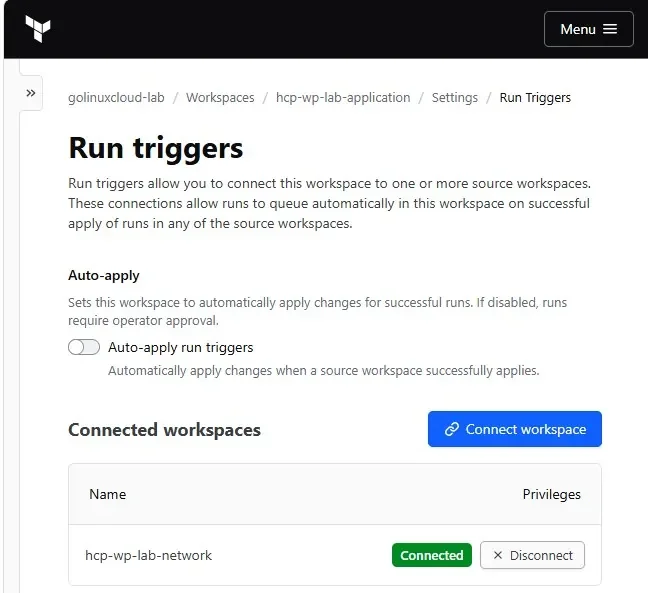
Two things on that page decide the behavior:
- The connected workspaces list holds the sources — up to 20 of them; creating a connection needs admin access on this workspace plus permission to read runs on the source
- The Auto-apply run triggers toggle sits above it and ships disabled, which is why a triggered run stops and waits for approval instead of changing infrastructure on its own
In the lab I connected hcp-wp-lab-network as a source for hcp-wp-lab-application, then applied a change in the network directory:
terraform apply -auto-approveSample output:
Apply complete! Resources: 0 added, 1 changed, 0 destroyed.That successful apply was enough. A new run appeared in the application workspace within seconds, and its page names the workspace responsible:
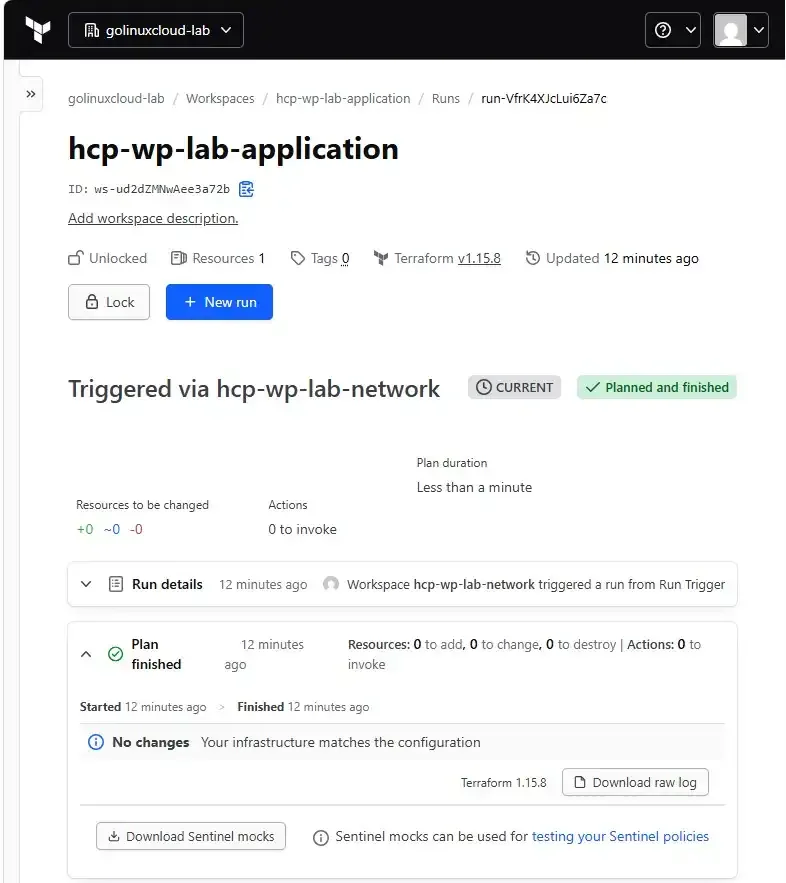
The run stopped at Planned and finished with nothing to add, change, or destroy, because the application configuration did not depend on the value the network workspace had just changed.
Its run details line records which workspace triggered it — the trail you follow when a cascade fires and you need to know why. Nobody approved anything and nothing was applied here.
The detail that catches people out is what a trigger does not move:
- Nothing about the network's outputs reached the application workspace
- All that crossed the boundary was the fact that an apply had succeeded
tfe_outputs data source because it retrieves outputs without requiring access to the complete state snapshot. Configure the tfe provider with credentials that have permission to read the source workspace's outputs. If you use terraform_remote_state instead, the source workspace must explicitly permit the consuming workspace through its Remote State Sharing settings.
Use triggers where a real dependency exists and the direction is stable — such as a shared network that applications sit on.
Do not:
- Chain five workspaces into a pipeline nobody can read
- Use a trigger to paper over a value that should have been passed as a variable or an output
The Terraform data sources lesson covers the read side of that boundary.
Organize environments across projects and workspaces
There is no single correct hierarchy for dev, test, and production. The layout that works is the one where the access boundary and the deployment boundary match:
projects    → by team, application, or business unit
workspaces  → by independently managed configuration, usually component + environment
Two shapes are both common and both defensible:
- One project per application with
app-dev,app-test, andapp-prodworkspaces inside it — suits a team that owns all its environments - One project per environment, with production in a project only a few people can reach — suits an organization where production access is the thing being controlled
Pick based on who needs to be kept out, not on which diagram looks tidier.
When several environments share one configuration, you do not need one directory each. Swap the name argument for tags and Terraform links the directory to every workspace carrying them:
terraform {
  cloud {
    organization = "golinuxcloud-lab"

    workspaces {
      project = "hcp-wp-lab"

      tags = {
        layer = "app"
        env   = "nonprod"
      }
    }
  }
}

resource "terraform_data" "environment" {
  input = terraform.workspace
}

output "workspace_name" {
  value = terraform_data.environment.output
}
Nothing carries those tags yet, so a non-interactive init has nothing to attach to:
terraform init -input=falseSample output:
Initializing HCP Terraform...

Error: No existing workspaces.

Use the "terraform workspace" command to create and select a new workspace.
That error is what a pipeline sees when the workspaces do not exist yet. Run init interactively and Terraform offers to create the first one for you:
terraform initSample output:
  There are no workspaces with the configured tags (env=nonprod, layer=app)
  in your HCP Terraform organization. To finish initializing, Terraform needs at
  least one workspace available.

  Terraform can create a properly tagged workspace for you now. Please enter a
  name to create a new HCP Terraform workspace.

  Enter a value: hcp-wp-lab-app-dev

HCP Terraform has been successfully initialized!
Terraform created that workspace in the named project and attached both tags, env = nonprod and layer = app, so the next init in this directory finds it by tag rather than prompting. Adding the second environment is now a CLI operation:
terraform workspace new hcp-wp-lab-app-testSample output:
Created and switched to workspace "hcp-wp-lab-app-test"!

You're now on a new, empty workspace. Workspaces isolate their state,
so if you run "terraform plan" Terraform will not see any existing state
for this configuration.
Here the CLI workspace commands do work, because the directory addresses a set of workspaces rather than one. Applying now creates infrastructure in whichever one is selected:
terraform apply -auto-approveSample output:
Apply complete! Resources: 1 added, 0 changed, 0 destroyed.

Outputs:
workspace_name = "hcp-wp-lab-app-test"
Note what terraform.workspace evaluated to: the full HCP Terraform workspace name, not a short environment label.
Configurations that branch on terraform.workspace need rewriting when they move to HCP Terraform:
- The value changes from
testto something likehcp-wp-lab-app-test - Old
dev/prodcomparisons quietly stop matching
Switch to the other workspace to prove the states really are separate:
terraform workspace select hcp-wp-lab-app-devTerraform confirms the switch in one line, and the state question is the interesting one. Ask what the newly selected workspace manages:
terraform state listSample output:
State management commands require a state file. Run this command
in a directory where Terraform has been run or use the -state flag
to point the command to a specific state location.
Same directory, same configuration, and yet no state at all — this workspace has never been applied.
After an apply here the output reads hcp-wp-lab-app-dev, and the test workspace is untouched. One configuration, two environments, two independent states.
Common design mistakes
Most HCP Terraform layouts that hurt to work with went wrong in the first week. These are the patterns worth avoiding:
| Mistake | Why it hurts |
|---|---|
| Treating HCP workspaces like CLI workspaces | CLI workspaces are extra state for one configuration; HCP workspaces are separate collections with their own access control and names unique across the organization |
| One giant workspace for unrelated infrastructure | Every apply touches everything, one failure blocks unrelated changes, and permissions cannot be delegated |
| Hundreds of micro-workspaces | Each boundary you add is a coordination problem; split on lifecycle and ownership, not on resource type |
| Projects used as cosmetic folders | The point of a project is scoped access; if you never set team access, you have added a label |
| Hidden dependencies between workspaces | An undeclared reliance on another workspace's output breaks silently when that workspace changes, and new workspaces do not share their full state with anyone by default |
| Run triggers as a data channel | A trigger only says an apply succeeded; values need tfe_outputs with permission to read the source workspace, or terraform_remote_state plus a Remote State Sharing decision |
Branching on terraform.workspace after migrating |
The value becomes the full HCP workspace name, so old dev/prod comparisons quietly stop matching |
The last one is easy to catch before it bites:
- If a configuration contains
terraform.workspace == "prod", rewrite it as an input variable set per workspace while you still remember it is there - Variables per workspace are the intended replacement, and they are a topic of their own
Clean up the lab
Everything here created real objects in a real organization, so unwind them in order. Destroy the infrastructure in each directory first, starting with the two single-workspace components:
for d in network application; do (cd ~/terraform-labs/hcp-terraform-workspaces-projects/$d && terraform destroy -auto-approve); doneThe tags directory needs one destroy per selected workspace, since each holds its own state:
cd ~/terraform-labs/hcp-terraform-workspaces-projects/tags-multi && for w in hcp-wp-lab-app-dev hcp-wp-lab-app-test; do terraform workspace select $w && terraform destroy -auto-approve; doneEmpty workspaces still count against your organization, and a project cannot be deleted while it contains any, so delete the four workspaces in the UI under each workspace's Destruction and Deletion settings, then delete the hcp-wp-lab project from its own settings page. Finish by removing the API token from the machine:
terraform logoutThat leaves the credentials file present but empty, which is the expected result rather than a failure. The lab directories only hold cloud blocks and a terraform_data resource each, so delete them whenever you are done experimenting.
References
- HCP Terraform workspaces
- Projects overview
- Manage projects
- Workspace settings
- Run triggers
- Terraform state in HCP Terraform and remote state sharing
- tfe_outputs data source
- Connect to HCP Terraform with the cloud block
Summary
HCP Terraform gives you two containers and they answer different questions:
- A workspace answers "what is this collection of infrastructure and what state does it have" — holding the configuration source, variables, state versions, run history, and the settings that decide how runs execute
- A project answers "who should be able to touch this group of workspaces" — every workspace lives in exactly one, defaulting to Default Project until you say otherwise
Binding a directory to a workspace takes one cloud block, and the run URL that a remote apply prints is the fastest confirmation that you bound it to the right one.
The word "workspace" doing double duty is the single biggest source of confusion. The lab made the difference concrete:
- In a directory pinned with
name,terraform workspace newsimply answersworkspaces not supported— there is nothing to switch between - Change that binding to
tagsand the same commands start creating and selecting real HCP workspaces, each with its own state - A freshly selected workspace reported no state file at all until it was applied
Watch out for terraform.workspace while you are there — it evaluates to the full HCP workspace name, so configurations that compared it against dev or prod need rewriting when they move.
For layout:
- Split configurations into components small enough to own
- Name workspaces so the component and environment are both visible
- Choose between project-per-application and project-per-environment based on who you need to keep out rather than on tidiness
Connect genuinely dependent workspaces with run triggers:
- A trigger queues a run and carries no data
- Triggered runs wait for a human unless you opt into their separate auto-apply setting
When one workspace really does need another's values:
- Read them with
tfe_outputsand a token allowed to see that workspace's outputs - Or fall back to
terraform_remote_stateand open Remote State Sharing on the source workspace first — new workspaces do not share their full state with anyone by default
Frequently Asked Questions
What is the difference between an HCP Terraform workspace and a Terraform CLI workspace?
An HCP Terraform workspace is a managed container for one collection of infrastructure, holding its configuration source, variables, state, run history, and settings, and it is also the unit that access control is attached to. A Terraform CLI workspace is only a way to keep several named state instances for one working directory and one backend. The names collide but the concepts do not, and HCP Terraform requires at least one workspace while CLI workspaces are optional.
Does every HCP Terraform workspace have to belong to a project?
Yes. Every workspace belongs to exactly one project, and workspaces you create without naming a project land in the organization's Default Project. You can rename the default project but you cannot delete it, and you can move a workspace to another project later from its General settings. Moving a workspace changes who can see and use it, because team access is granted at the project level as well as per workspace.
Can one configuration directory drive several HCP Terraform workspaces?
Yes, by replacing the workspaces name argument in the cloud block with tags. Terraform then links the directory to every workspace in the organization carrying those tags, and the terraform workspace commands select between them. That is the supported way to run one configuration for several environments, and each selected workspace still keeps its own state and run history.
Do run triggers pass outputs or resource data between workspaces?
No. A run trigger only queues a run in the target workspace after a successful apply in the source workspace, and it does not pass values. Use the tfe_outputs data source to read workspace outputs with appropriate HCP Terraform permissions, or terraform_remote_state when the source workspace explicitly permits state sharing. New workspaces do not share their full state with other workspaces by default, so a terraform_remote_state read fails until someone changes that setting.
How many HCP Terraform workspaces should I create?
One per collection of infrastructure that is deployed and destroyed as a unit, which usually means one per configuration per environment rather than one per resource. HashiCorp recommends breaking monolithic configurations into smaller ones so teams can work in parallel and permissions can be delegated. Hundreds of tiny workspaces create ordering problems and coordination overhead, so split on lifecycle and ownership boundaries instead of on resource types.
Why does terraform workspace new fail with workspaces not supported?
Because the cloud block in that directory binds it to a single workspace with the name argument, so there is nothing to switch between. Terraform reports the working directory as that one workspace and refuses to create another. Switch the cloud block to the tags argument if you want one directory to address several workspaces, then create the additional workspaces with terraform workspace new.
