
| Tested on | RHEL 10.2 (Coughlan) |
|---|---|
| Package | vim-enhanced 9.1.083-9.el10_2.12nano 8.1-3.el10coreutils 9.5-8.el10_2 |
| Applies to | Ubuntu, Debian, Kali Linux, Linux Mint, Pop!_OS, Raspberry Pi OS, elementary OS, Zorin OS, Parrot OS, MX Linux, RHEL, Rocky Linux, AlmaLinux, Oracle Linux, CentOS Stream, Fedora, Arch Linux |
| Privilege | Normal user for local files; sudo for system configuration paths |
| Scope | Empty file creation, shell redirection and here documents, Vim and Nano editing basics, sudo-backed config edits with backup and validation, and recovery from common editor mistakes. Does not cover Emacs, advanced Vim scripting, or GUI desktop editors in depth. |
Servers and certification labs rarely give you a graphical editor. You create notes, scripts, and configuration snippets from the shell, so knowing when to use touch, redirection, Vim, or Nano saves time and prevents accidental data loss.
Ways to Create and Edit Text Files in Linux
Linux stores plain text as a byte stream. You can create or change files entirely from the terminal.
| Tool or method | Best when |
|---|---|
| Vim | Multi-line edits, configuration review, servers without a GUI |
| Nano | Quick changes with on-screen shortcut hints |
cat / redirection |
Copy stdin into a file, or type a few lines without an editor |
echo / printf |
One line or formatted text from a script |
| Here documents | Several fixed lines in a shell script |
Pick the smallest tool that fits the job. One-line updates belong in redirection; reviewing ten lines of /etc belongs in Vim or Nano. Deeper pipe and stderr ordering lives in the redirection and pipes lesson; copy and delete workflows sit in Linux file management.
Linux Text Editing Quick Reference
| Task | Command or keystroke |
|---|---|
| Open with Vim | vim file.txt |
| Insert text | i (then Esc to leave insert mode) |
| Save Vim file | :w |
| Save and exit | :wq |
| Exit without saving | :q! |
| Search in Vim | /pattern then n / N |
| Replace throughout file | :%s/old/new/g |
| Open with Nano | nano file.txt |
| Save in Nano | Ctrl+S |
| Write out in Nano | Ctrl+O, Enter |
| Exit Nano | Ctrl+X |
| Search in Nano | Ctrl+W |
| Append one line | echo "text" >> file.txt |
| Create empty file | touch file.txt or : > file.txt |
Create an Empty Text File
An empty file has zero bytes. Use one when a program expects a path to exist, as a placeholder before you edit, or to refresh a timestamp.
touch creates the file if missing and updates timestamps if it already exists:
touch empty-by-touch.txtls -l empty-by-touch.txt-rw-r--r--. 1 root root 0 Aug 7 22:59 empty-by-touch.txtShell redirection with no command output also creates or truncates a path:
: > empty-by-redir.txtstat -c '%n %s bytes' empty-by-redir.txtempty-by-redir.txt 0 bytesWhen the path already holds data:
touch existing.txtupdates timestamps but does not remove content.> existing.txtor: > existing.txttruncates the file to zero bytes before any new data is written.
Treat a single > as destructive on existing files. Copy the original first when you need a backup.
Write Text Without an Interactive Editor
Run the examples in a directory you own, such as ~/edit-lab or /tmp/edit-lab.
One line with echo
echo 'first line' > oneline.txtcat oneline.txtfirst lineFormatted lines with printf
printf 'line one\nline two\n' > printf-demo.txtcat printf-demo.txtline one
line twoAppend with >>
echo 'appended' >> oneline.txtcat oneline.txtfirst line
appendedRedirect piped input with cat
printf 'typed line one\ntyped line two\n' | cat > typed.txtcat typed.txttyped line one
typed line twoHere document
cat > heredoc-demo.txt << 'EOF'
server_name example.local
port 8080
enabled yes
EOFcat heredoc-demo.txtserver_name example.local
port 8080
enabled yesQuoting the delimiter ('EOF') prevents variable expansion inside the block. For stdout, stderr, and pipe ordering beyond > and >>, see redirection and pipes.
Truncation warning
A single > replaces existing content:
echo 'original content' > overwrite-demo.txt
echo 'new only' > overwrite-demo.txtcat overwrite-demo.txtnew onlyThe second redirection removed original content entirely.
Understand Vim Modes
Vim behavior depends on the active mode. Certification labs and rescue images expect you to move between them without thinking.
| Mode | How you enter | What you do there |
|---|---|---|
| Normal | Default after launch; press Esc from other modes | Move, delete, copy, start searches |
| Insert | i, a, o, and related keys from normal mode |
Type new text into the buffer |
| Command-line | : from normal mode |
Run :w, :q, :s, and other ex commands |
| Visual | v, V, or Ctrl+v from normal mode |
Select text, then run an operator on the selection |
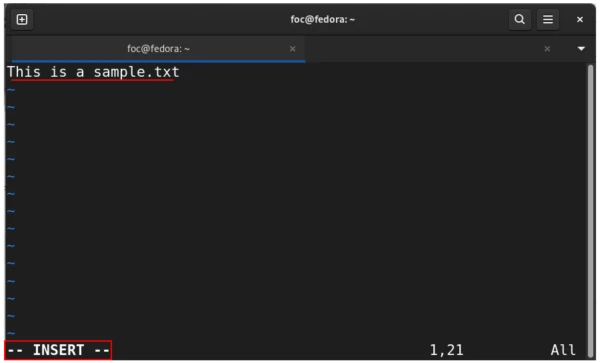
The status line shows -- INSERT -- while you are in insert mode. Always press Esc before :wq or other command-line actions.
On RHEL and Fedora, vim-enhanced provides /usr/bin/vim. Minimal images may ship only vi from vim-minimal—install the full package with sudo dnf install vim-enhanced when the vim binary is missing.
Open, Edit, Save, and Exit with Vim
Open an existing file or create a new path:
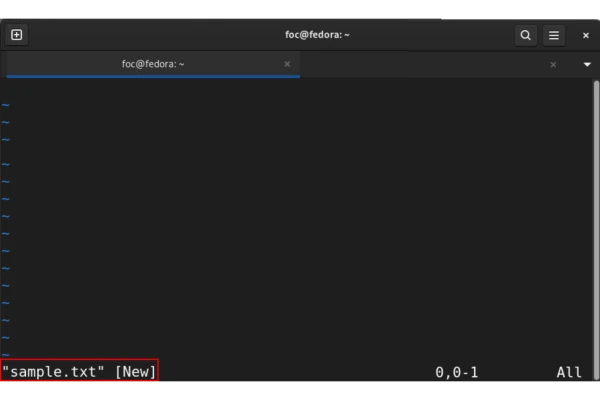
vim sample.txtIf the path is new, Vim shows a [New File] hint at the bottom:
From normal mode, press i to insert before the cursor. The status line shows insert mode:
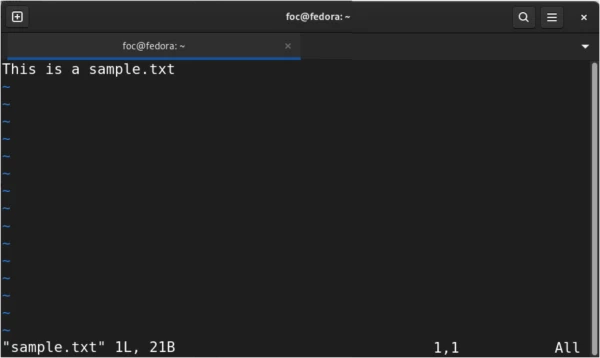
Type your text, press Esc, then save and quit with :wq:
Other exits you will use often:
:w— write without quitting:q— quit when the buffer is unchanged:q!— quit without saving
If you type :q after edits, Vim reports E37: No write since last change. Use :wq to save or :q! to discard.
Practice open → i → type → Esc → :wq on a scratch file until the sequence is automatic.
Navigate Inside Vim
Movement happens in normal mode. Arrow keys work; these keys keep your hands on the main keyboard:
| Movement | Keys |
|---|---|
| Character left / right | h / l |
| Line up / down | k / j |
| Word forward / backward | w / b |
| Start of line | 0 or ^ |
| End of line | $ |
| First line of file | gg |
| Last line of file | G |
| Go to line N | NG (for example 10G for line 10) |
Show line numbers when you compare a file to documentation:
:set numberTurn them off with :set nonumber. For relative and hybrid numbering, see Vim line numbers.
Search and Replace Text in Vim
Search forward from normal mode with /pattern or backward with ?pattern. Press n for the next match and N for the previous match.
Replace on the current line:
:s/old/new/gReplace on every line:
:%s/old/new/gAdd c to confirm each replacement:
:%s/old/new/gcExample workflow on a scratch file—create it, edit in Vim, then verify:
printf 'find old\nfind old again\n' > srdemo.txtInside Vim: :%s/old/new/g, then :wq.
cat srdemo.txtfind new
find new againCopy, Delete, Paste, Undo, and Redo in Vim
Run these in normal mode:
| Action | Keys |
|---|---|
| Delete current line | dd |
| Copy (yank) current line | yy |
| Paste below cursor | p |
| Undo | u |
| Redo | Ctrl+r |
| Replace one character | r then the new character |
Delete the first line of a demo file:
printf 'delete this line\nkeep this\npaste below\n' > modify-demo.txtIn Vim: gg, dd, :wq.
cat modify-demo.txtkeep this
paste belowTo copy a line: position the cursor, yy, move with j or k, then p.
Edit Files with Nano
Nano is a simpler full-screen editor. Shortcuts are listed at the bottom; ^ means Ctrl.
nano notes.txt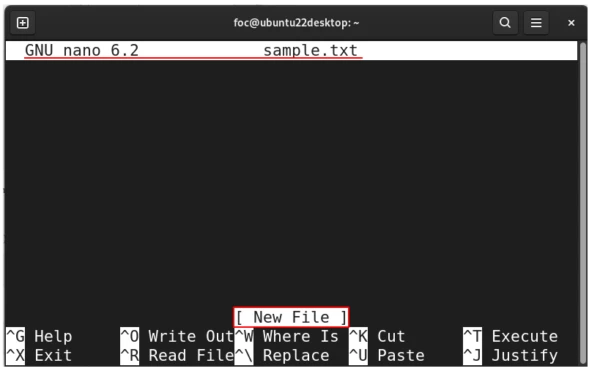
| Keys | Action |
|---|---|
| Ctrl+S | Save current file |
| Ctrl+O | Write out / choose filename |
| Ctrl+X | Exit — prompts to save if the buffer changed |
| Ctrl+W | Search |
| Ctrl+K | Cut the current line |
| Ctrl+U | Paste the cut line |
Nano fits quick edits when you do not want to memorize Vim modes. Servers and exam environments still expect terminal editing—this guide stays on the command line.
Edit System Configuration Files
Paths under /etc usually belong to root. Read when permissions allow; save with elevation. The example below touches OpenSSH server settings—confirm you still have SSH access before you change listener or authentication options.
Back up before you edit:
BACKUP="/etc/ssh/sshd_config.bak-$(date +%F-%H%M%S)"
sudo cp -a /etc/ssh/sshd_config "$BACKUP"
-a preserves permissions and timestamps on the copy.
Open the file with elevation:
sudo vim /etc/ssh/sshd_configReplace vim with nano if you prefer. Elevation applies to the editor process so you can write the protected path.
Validate before you reload — editing the file does not apply changes until the service reloads. Many daemons ship a syntax check:
sudo sshd -tWhen the file is valid, sshd -t exits silently with status 0. Fix reported line numbers before you reload with systemctl (for example systemctl reload sshd). Shell scripts use bash -n script.sh for the same kind of syntax-only check.
Compare Two Versions After Editing
After you change a file, compare it to the backup you kept:
sudo diff -u "$BACKUP" /etc/ssh/sshd_configThe -u unified format shows removed lines with - and added lines with +.
To check one setting without scrolling the whole file, use grep:
grep -n '^#*Port' /etc/ssh/sshd_configKeep cp file file.bak or a timestamped copy in your routine before you touch production configuration.
Common Vim Problems
| Symptom | Likely cause | Fix |
|---|---|---|
Typing shows ^? or nothing happens |
Still in normal mode, or a partial command waiting | Press Esc once or twice; then :q! to quit without saving |
| Cannot figure out how to exit | In insert or command-line mode | Esc, then :wq or :q! |
E45: 'readonly' option is set |
Opened with -R, view, or readonly was enabled |
:w! if you intend to overwrite and have permission, or :set noreadonly then :w |
E212: Can't open file for writing |
No write permission on the path | sudo vim, sudoedit, or :w /tmp/copy then sudo cp |
| Swap file warning on open | Stale .filename.swp from a crash or second session |
If no other editor holds the file, press D to delete the swap or O to open read-only |
E37: No write since last change on :q |
Unsaved buffer | :wq to save, or :q! to discard |
Search returns Pattern not found |
Wrong mode, wrong case, or no match | Press Esc, confirm normal mode, try /pattern with exact spelling |
| Wrong mode after startup | Started typing before i |
Esc, verify normal mode, then i to insert |
Permission denied from the shell
Run this example as a normal, non-root user. Root can bypass ordinary write-permission checks on many systems, so the failure below is not reproducible from a root shell.
A file without the write bit rejects redirection even in /tmp:
printf 'secret\n' > /tmp/protected.txt
chmod 444 /tmp/protected.txt
echo 'fail' >> /tmp/protected.txtbash: /tmp/protected.txt: Permission deniedUse sudo with your editor or restore write permission when appropriate.
Common Nano Problems
| Symptom | Likely cause | Fix |
|---|---|---|
| Cannot save | Path not writable | Save to /tmp/name, then sudo cp to the target |
| Exit without saving changes | Ctrl+X then answered N |
Reopen the file; Nano does not keep discarded buffers |
| Search finds nothing | Wrong string or case | Ctrl+W again; toggle case with Alt+C in some versions |
| Shortcuts do not work | Terminal eats Ctrl keys | Try Alt combinations shown in the footer, or another terminal emulator |
Practical Editing Example
This walkthrough edits a small application-style config in a lab directory—not a production system file.
Create the starting file:
mkdir -p /tmp/edit-lab && cd /tmp/edit-lab
cat > app.conf << 'EOF'
# Sample app settings
debug no
timeout 30
log_level info
EOFcp -a app.conf app.conf.bakOpen app.conf in Vim (vim app.conf). In normal mode:
- Search for the timeout line:
/timeoutthen Enter. - Move to the value word:
w(next word aftertimeout). - Change that word:
cw, type60, then Esc. - Move to the last line with
G, pressoto open a new line below, typeretry 3, then Esc. - Save and quit with
:wq.
After /timeout, the cursor sits on the word timeout—w advances to 30, and cw replaces that word and enters insert mode for the new value.
Verify the change without re-opening the editor:
grep -E 'timeout|retry' app.conftimeout 60
retry 3Compare against the backup:
diff -u app.conf.bak app.conf--- app.conf.bak 2026-08-07 22:59:16.925079644 +0530
+++ app.conf 2026-08-07 22:59:26.638617614 +0530
@@ -1,4 +1,5 @@
# Sample app settings
debug no
-timeout 30
+timeout 60
log_level info
+retry 3The diff shows exactly what changed before you would deploy the same rhythm on /etc paths with sudo, sshd -t, and a service reload.
References
Summary
You can create and change text files entirely from the shell. Empty placeholders come from touch or : > file, quick updates from echo, printf, and >>, and scripted blocks from here documents—each with a different risk when the target path already exists.
Vim is the editor to learn for servers and labs: normal, insert, and command-line modes plus a small set of motion and editing commands cover most configuration work. Nano remains a friendly alternative when the shortcut bar at the bottom is enough.
Protected files need a slower rhythm: sudo your editor, keep a timestamped backup, run a validator such as sshd -t or bash -n when one exists, and read diff -u before you reload a service. Treat a lone > as truncate, watch for Vim swap files, and rehearse the open → insert → save sequence on scratch files before you edit live configuration.
Next, practice copy and delete workflows in Linux file management, or return to Linux command line basics for quoting and tab completion.
Frequently Asked Questions
What is the easiest way to create an empty file in Linux?
Use touch filename to create a zero-byte file or update its timestamp, or use shell redirection with : > filename. Both create an empty path you can open in an editor later.
How do I save and exit Vim?
Press Esc to return to normal mode, then type :wq and press Enter to write the file and quit. Use :q! to quit without saving changes.
Does the greater-than sign overwrite an existing file?
Yes. Redirecting with a single greater-than sign truncates the target file before writing. Use double greater-than to append instead, or copy the file first when you need a backup.
When should I use Nano instead of Vim?
Nano shows common shortcuts at the bottom of the screen and is easier for quick edits when you do not need Vim muscle memory. Vim is still worth learning because it is available on almost every server and certification lab image.
How do I edit a system configuration file that requires root?
Open the file with sudo and your editor, for example sudo vim /etc/ssh/sshd_config. Copy the file to a backup path first, then run the service validation command your distribution documents before you reload the daemon.
