
If you have not integrated Linux servers into a central user authentication such as LDAP/Active Directory, you will have to create local users many times.
Use the adduser on Ubuntu and Debian, or the useradd for scripts and RHEL-family distros. This guide walks through both tools with examples.
Introduction to useradd and adduser command
Do not assume adduser and useradd are the same everywhere.
On Red Hat–based systems, /usr/sbin/adduser is usually a symlink to useradd:
lrwxrwxrwx. 1 root root 7 Dec  3  2021 /usr/sbin/adduser -> useradd
-rwxr-xr-x. 1 root root 142376 Dec  3  2021 /usr/sbin/useradd
On Debian and Ubuntu, useradd is the low-level shadow-utils binary, but adduser is a separate Perl wrapper with different defaults and interactive prompts. See the adduser and useradd for copy-paste reference tables.
You must run adduser or useradd with sudo privilege or as root user,
otherwise you will get the following warning:
[foc@rhcsa-1 ~]$ adduser golinux
adduser: Permission denied.
adduser: cannot lock /etc/passwd; try again later.
If you run this command for a previously created user you may get the following warnings:
[foc@rhcsa-1 ~]$ sudo useradd golinux
useradd: warning: the home directory /home/golinux already exists.
useradd: Not copying any file from skel directory into it.
Creating mailbox file: File exists
Creating users in Redhat based OS
If you run useradd (adduser) in a terminal like this:
[foc@rhcsa-1 ~]$ sudo useradd golinux
This command will create home directory, mail directory, update
/etc/passwd, /etc/group and /etc/shadow file as shown below:
/home/golinux//var/mail/golinux/etc/passwd----------------golinux:x:1001:1001::/home/golinux:/bin/bash/etc/shadow----------------golinux:!!:19399:0:99999:7:::/etc/group----------------golinux:x:1001:
The useradd command has many parameters. The most commonly used parameters are:
-m,--create-homecreate the user's home directory-d,--home-dir HOME_DIRhome directory of the new account-e,--expiredate EXPIRE_DATEexpiration date of the new account-s,--shell SHELLlogin shell of the new account-G,--groups GROUPSlist of supplementary groups of the new account-u,--uid UIDuser ID of the new account-U,--user-groupcreate a group with the same name as the user account-p,--password PASSWORDencrypted password of the new account
If you want to create a non-standard user, you can give multiple values in a single line using these parameters:
sudo useradd golinux -m -d /home/golinux -s /bin/sh -G wheel -u 1111 -U -p '$6$/Rq89GYp6zd/D2dF$tlgruRwrnH0f1bqACj4GZtdbzVgqhkP5nEa7yZW5Gpo/IYkLdtmOwTmsfhPUce8o8plxo0r/Za1yQVFAQ4wej0'
You can use the following command to generate the password (With SHA512 based password algorithm). On Ubuntu, see install OpenSSL on Ubuntu:
openssl passwd -6 -stdin
The home directory has been created with the specified name.
[foc@rhcsa-1 ~]$ ls /home/
golinuxs
User expire date defined.
[foc@rhcsa-1 ~]$ sudo chage -l golinux
...
Account expires                     : Dec 31, 2024
...
Shell information is given as /bin/sh
[foc@rhcsa-1 ~]$ cat /etc/passwd
golinux:x:1111:1111::/home/golinux:/bin/sh
The user is included in the wheel group.
[foc@rhcsa-1 ~]$ cat /etc/group
wheel:x:10:foc,golinux
User ID information was given as 1111.
[foc@rhcsa-1 ~]$ id golinux
uid=1111(golinux)
A group with the same name as the username has been created.
[foc@rhcsa-1 ~]$ cat /etc/group
golinux:x:1111:
Password information is given as a hash.
[foc@rhcsa-1 ~]$ sudo cat /etc/shadow
golinux:$6$/Rq89GYp6zd/D2dF$tlgruRwrnH0f1bqACj4GZtdbzVgqhkP5nEa7yZW5Gpo/IYkLdtmOwTmsfhPUce8o8plxo0r/Za1yQVFAQ4wej0 ...
To delete the created user, follow the steps below:
[foc@rhcsa-1 ~]$ sudo userdel golinux
[foc@rhcsa-1 ~]$ sudo rm -rf /home/golinux
[foc@rhcsa-1 ~]$ sudo rm -rf /var/mail/golinux
Creating users in Debian based OS
We mentioned that the useradd command in Debian-based operating
systems is the same low-level binary as on Red Hat–based systems. For
interactive work on Ubuntu and Debian, use the Debian adduser command cheat sheet. For portable flags, see the portable useradd command cheat sheet.
User can be created in 3 different ways with adduser.
Method-1: Interactive CLI
Type the username you want to add after the adduser command, then
enter the requested information:
foc@ubuntu22:~$ sudo adduser golinux
[sudo] password for foc:
Adding user `golinux' ...
Adding new group `golinux' (1001) ...
Adding new user `golinux' (1001) with group `golinux' ...
Creating home directory `/home/golinux' ...
Copying files from `/etc/skel' ...
New password:
Retype new password:
passwd: password updated successfully
Changing the user information for golinux
Enter the new value, or press ENTER for the default
    Full Name []: Golinux
    Room Number []: 1
    Work Phone []: +905122454787
    Home Phone []: +903327412547
    Other []:
Is the information correct? [Y/n] Y
Method-2: Non-Interactive CLI
Create a user by entering the parameters after the adduser command.
Create a user by typing the home directory, shell information and user
id information after adduser:
foc@ubuntu22:~$ sudo adduser --system golinux --shell /bin/sh --uid 1234 --home /home/golinuxs
Adding system user `golinux' (UID 1234) ...
Adding new user `golinux' (UID 1234) with group `nogroup' ...
Creating home directory `/home/golinuxs' ...
Method-3: Non-Interactive via input config file
Information is defined in a configuration file. This file is named after
the adduser --conf parameter. User(s) are created using the
information in this file.
Example information is found in the /etc/adduser.conf file. Either
edit this file or create a new file. Let's create an example file:
foc@ubuntu22:~$ nano user_add.txt

DSHELL=/bin/sh
DHOME=/home/
FIRST_UID=1111
LAST_UID=59999
USERGROUPS=yes
USERS_GID=1111
EXTRA_GROUPS="cdrom floppy audio video plugdev users sudo"
ADD_EXTRA_GROUPS=1
Then type the user_add.txt file after the adduser command and create
the user:
foc@ubuntu22:~$ sudo adduser golinux --conf user_add.txt
Adding user `golinux' ...
Adding new group `golinux' (1001) ...
Adding new user `golinux' (1111) with group `golinux' ...
Creating home directory `/home//golinux' ...
Copying files from `/etc/skel' ...
New password:
Retype new password:
passwd: password updated successfully
Changing the user information for golinux
Enter the new value, or press ENTER for the default
    Full Name []: Golinux
    Room Number []: 1
    Work Phone []: +905122454787
    Home Phone []: +903327412547
    Other []:
Is the information correct? [Y/n] Y
Adding new user `golinux' to extra groups ...
Adding user `golinux' to group `cdrom' ...
Adding user `golinux' to group `floppy' ...
Adding user `golinux' to group `audio' ...
Adding user `golinux' to group `video' ...
Adding user `golinux' to group `plugdev' ...
Adding user `golinux' to group `users' ...
Adding user `golinux' to group `sudo' ...
If you want to delete the user for any reason, you can use the following commands:
$ sudo userdel golinux
$ sudo rm -rf /home/golinux
Creating users With GUI Interface
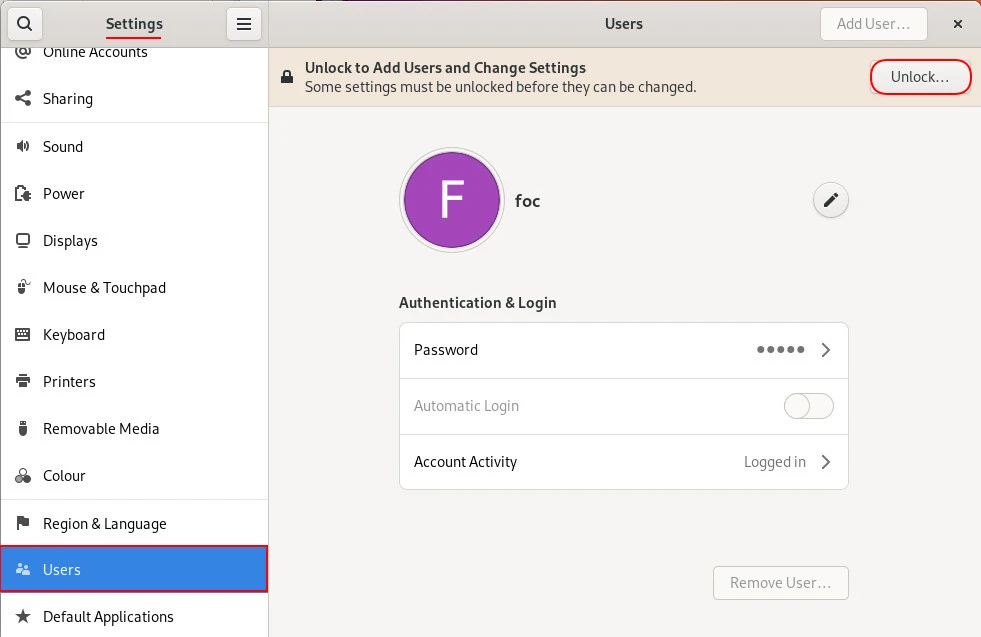
Adding users from the terminal in Linux can also be done from the interface in operating systems with GUI. For this, System> Users path is followed. Then add user is unlocked and the password of the authorized user is entered:
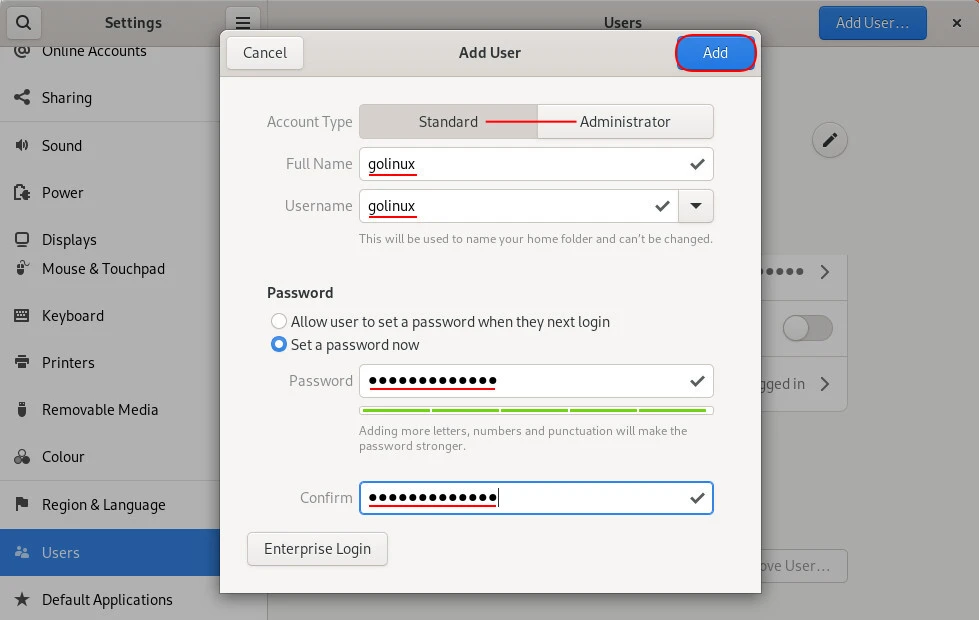
Then the Add User button is clicked and the information about the user is entered, the Add button is clicked:
After this process, the user is created successfully:
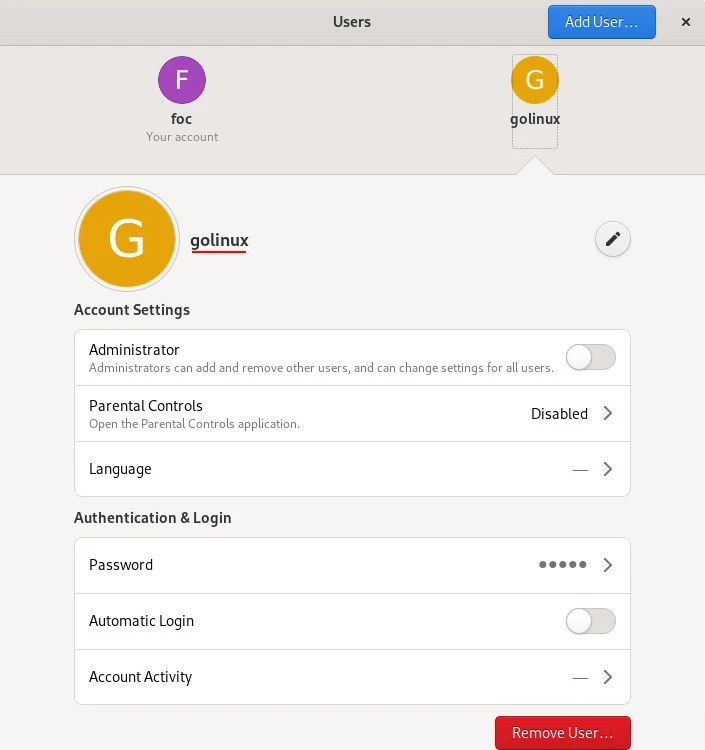
The user can be deleted from the same screen, the Admin role can be given, many features such as automatic login feature can be activated.
What is NEXT
- Configure OpenLDAP Client with SSSD on RHEL-Based Linux
- Install and Configure OpenLDAP on RHEL-Based Linux
- Add Linux to Windows Domain using realm (CentOS/RHEL 7/8)
Summary
We explained how to create a user with two different commands and their parameters. You can get help from the --help and man pages of both commands. You can further customize the user you want to create with these parameters.
Although it is not as extensive as the adduser and useradd commands, you can also create a user with the following commands:
- Debian adduser command cheat sheet
- Portable useradd command cheat sheet
- newusers — update and create new users in batch
- lnewusers — Create new user accounts
References
askubuntu.com - How can I add a user and set the password for them at the same time?
