
| Tested on | Ubuntu 26.04 LTS (Resolute Raccoon, GNOME 50 Desktop) |
|---|---|
| Package | pipewire 1.6.2-1ubuntu1.1wireplumber 0.5.13-1ubuntu1pavucontrol 6.1-1build1 (optional) |
| Applies to | Standard Ubuntu 26.04 LTS and 24.04 LTS using the default GNOME desktop. Other Ubuntu flavors such as Kubuntu or Xubuntu use different sound settings. CLI steps require PipeWire and WirePlumber |
| Privilege | Normal user for volume; sudo only to install optional packages |
| Scope | Boost Ubuntu output above the normal 100% ceiling with GNOME Over-Amplification, wpctl, optional gsettings, and optional pavucontrol. Short checks when sound is quiet before you boost. Does not cover reinstalling PipeWire, driver fixes, Bluetooth codecs, or full desktop audio troubleshooting. |
| Related guides | Linux commands cheat sheet Check Ubuntu version |
Ubuntu can raise speaker or headphone volume above the normal 100% limit using GNOME Over-Amplification. On Ubuntu 26.04, enable it from Settings → Sound; if you want an exact percentage such as 130%, use the PipeWire wpctl command instead. The GUI steps below are for the standard Ubuntu desktop (not Kubuntu, Xubuntu, or other flavors).
Use over-amplification only when normal 100% output is still too quiet. Extra software gain can cause clipping (the boosted audio exceeds what the digital signal can represent cleanly), which makes already-loud material sound harsh or distorted.
Quick answer
Ubuntu increases volume above the normal 100% level with Over-Amplification.
On Ubuntu 26.04:
- Open Settings → Sound.
- Enable Over-Amplification.
- Raise the output volume above 100%.
For an exact command-line level on PipeWire:
wpctl set-volume @DEFAULT_AUDIO_SINK@ 130%Start with a modest boost (for example 120% or 130%). More gain does not always sound clearer once clipping starts.
Increase Ubuntu volume above 100% from Settings
This is the recommended method when you want the GNOME desktop to remember that volumes above 100% are allowed.
Enable Over-Amplification
- Open Settings from the application menu.
- Select Sound.
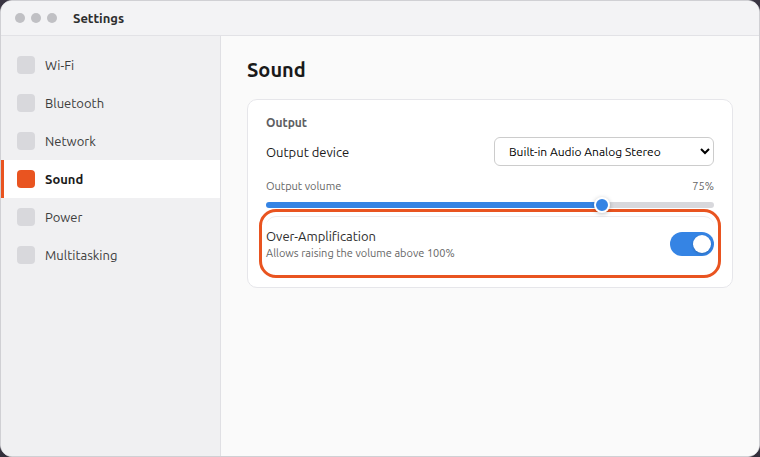
- Turn on Over-Amplification.
In Settings → Sound, the Over-Amplification row should switch on and stay enabled after you leave the panel:
With over-amplification on, drag Output volume past the usual 100% mark (for example 130%):
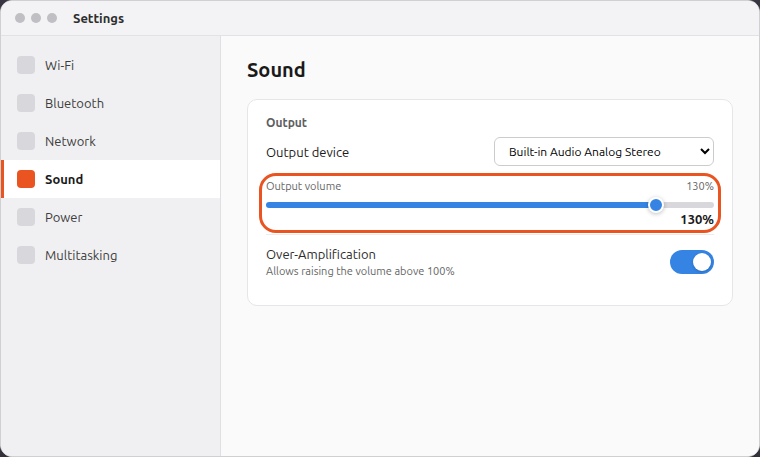
The percentage label beside the slider should read above 100% only when the toggle is on.
Return the volume to 100%
Drag the output slider back to 100%, or turn Over-Amplification off to restore the usual range.
Increase Ubuntu volume above 100% from the command line
Use the command line when you want a specific percentage, a scriptable one-liner, or a quick check of the default output device.
Open the Terminal application from the Ubuntu app menu before running the commands below. Run wpctl, gsettings, and pactl as your normal logged-in desktop user; you do not need sudo for volume changes.
Check the current output device
In PipeWire, an output device such as your laptop speakers, headphones, or HDMI audio is called a sink. Run wpctl status to see the audio devices PipeWire manages, then look under Audio → Sinks:
wpctl statusOn a desktop with built-in speakers or headphones connected, look for a line marked with * under Sinks. That star marks the default output WirePlumber routes sound to.
Set volume above 100% with wpctl
wpctl is WirePlumber’s command-line tool for controlling PipeWire audio. It accepts percentages, where 100% is the normal level (1.0 on WirePlumber’s scale):
wpctl set-volume @DEFAULT_AUDIO_SINK@ 130%@DEFAULT_AUDIO_SINK@ is a built-in alias that means “use my current default output device,” so you do not have to type a device number. Numeric sink IDs can still change when you plug in USB headsets or HDMI displays.
GNOME Over-Amplification controls whether GNOME’s own volume UI and media keys can go above 100%. wpctl sets the PipeWire sink level directly and does not require that GUI toggle.
wpctl usually prints nothing when the command succeeds. Confirm the level while logged into your normal Ubuntu desktop:
wpctl get-volume @DEFAULT_AUDIO_SINK@WirePlumber prints the level on a 1.0 = 100% scale (so 130% often appears as 1.30). Exact formatting can vary slightly by version; read the number your system returns rather than expecting a percentage suffix in the output.
Return to normal listening level:
wpctl set-volume @DEFAULT_AUDIO_SINK@ 100%Enable Over-Amplification with gsettings
gsettings lets you read or change GNOME desktop settings from the terminal. The command below checks the same setting controlled by the Over-Amplification switch in Settings → Sound:
gsettings get org.gnome.desktop.sound allow-volume-above-100-percentfalsefalse means Over-Amplification is disabled; true means it is enabled.
Enable over-amplification from the terminal:
gsettings set org.gnome.desktop.sound allow-volume-above-100-percent trueDisable it again:
gsettings set org.gnome.desktop.sound allow-volume-above-100-percent falseAfter you set the key to true, the Sound panel slider can exceed 100% the same way as using the GUI toggle. Use wpctl when you also need to set the numeric level.
Compatible alternative: pactl
Ubuntu 26.04 uses PipeWire, but it provides a PulseAudio-compatible interface so older commands such as pactl can still work. You do not need to install or switch back to PulseAudio as your main audio server.
If you prefer that syntax:
pactl set-sink-volume @DEFAULT_SINK@ 130%Install pulseaudio-utils when pactl is missing. Prefer wpctl on Ubuntu 26.04 unless you are maintaining scripts that already call pactl.
What does volume above 100% mean?
The volume slider is software gain, not a guarantee that the hardware can play louder without side effects.
        Normal listening
               |
     100%  (normal software volume limit)
               |
        Over-amplification
               |
     120–150%  (additional software gain)
               |
               +--> louder perceived level
               |
               +--> higher clipping / distortion risk
Clipping means the boosted audio exceeds the available digital range, which can make it sound harsh or distorted. If the source is already close to its maximum digital level, pushing past 100% often adds distortion rather than useful loudness. GNOME warns that over-amplification may reduce audio quality.
PipeWire, WirePlumber, and PulseAudio compatibility
Ubuntu 26.04 does not use a standalone PulseAudio daemon as the primary audio server. PipeWire handles the audio streams, while WirePlumber decides how devices and applications are connected and provides tools such as wpctl. pipewire-pulse adds the PulseAudio-compatible interface so pactl and pavucontrol can still work.
         Ubuntu 26.04 Desktop
                 |
                 v
             PipeWire
                 |
     +-----------+-----------+
     |                       |
 WirePlumber            pipewire-pulse
 (wpctl)                      |
                               +--> pactl / pavucontrol still work
Prefer wpctl on 26.04 for CLI volume changes. pactl remains a compatible alternative through pipewire-pulse when you already know PulseAudio-style commands.
Optional: Control individual apps with pavucontrol
You do not need pavucontrol just to enable volume above 100%; it is most useful when you want separate controls for individual apps or output devices.
Installing software changes the system, so this is the one step here that needs administrator privileges:
sudo apt install -y pavucontrolIf Ubuntu says the package cannot be found, refresh the package list with sudo apt update and run the install command again. See the apt command for how install fits into package management.
Open PulseAudio Volume Control and use the Output Devices tab to increase the output level. Through PipeWire’s PulseAudio-compatible interface, pavucontrol can expose levels above 100% without installing PulseAudio separately. Use the Playback tab when you want to adjust one application instead of the whole output device.
Before boosting: check why Ubuntu sounds too quiet
Over-Amplification is useful when Ubuntu is already using the correct speaker or headset but the audio is still too quiet. It does not fix a muted channel or the wrong device.
Check these first:
- Application volume is already at 100% for the app you are listening through
- Settings → Sound points to the correct output (built-in speakers, HDMI, USB headset)
- Physical volume buttons or controls on the laptop, speakers, monitor, or headset are turned up
- The underlying sound device is not muted or set very low in
alsamixer
As a final hardware-level check, Ubuntu also provides alsamixer, a terminal mixer for the sound device. Run:
alsamixerIf you have more than one audio device, press F6 and choose the one you are actually using, such as the built-in sound card or a USB headset. Confirm master or headphone channels are not muted (MM means muted; press M to toggle mute). Press Esc to exit alsamixer.
If everything is configured correctly and the source itself is quiet, enabling Over-Amplification is appropriate.
If only one video or music file is quiet, raising volume inside that player may be preferable to boosting the entire system.
Does over-amplification reduce sound quality?
It can. Pushing software gain above 100% increases the chance of clipping when the original audio is already close to its maximum digital level. A small boost may sound acceptable with quieter recordings, while already-loud audio can distort quickly.
Practical guidance:
- Try 120% or 130% before larger values
- If distortion appears, lower the slider or reduce boost inside the media player instead of stacking gain in multiple places
- Disable Over-Amplification when you no longer need the extra headroom
Troubleshooting
| Symptom | Likely cause | Fix |
|---|---|---|
| Over-Amplification toggle missing | You may be on a different Ubuntu desktop (such as Kubuntu or Xubuntu) or an install without the standard GNOME Settings → Sound panel | Confirm you are on standard Ubuntu with GNOME (check Ubuntu version). Try gsettings get org.gnome.desktop.sound allow-volume-above-100-percent; set to true with gsettings set when the key exists |
| Slider snaps back to 100% | Over-Amplification disabled | Re-enable the toggle in Settings → Sound or set the gsettings key to true |
wpctl: Translate ID error / invalid default sink |
No active audio device or PipeWire not running while you use the terminal | Make sure you are logged into the graphical Ubuntu desktop (not only SSH or a text-only shell); plug in or select an output in Settings → Sound; run wpctl status and confirm a * sink exists |
| Sound distorts above 100% | Source already loud; gain stacked in player and system | Lower system boost; reduce in-app volume; try 120% instead of 150% |
pactl: command not found |
pulseaudio-utils not installed |
sudo apt install pulseaudio-utils or use wpctl instead |
Summary
Ubuntu raises volume above the normal 100% ceiling through GNOME Over-Amplification. On Ubuntu 26.04, enable it under Settings → Sound, then drag the output slider past 100%, or turn the same behavior on with gsettings set org.gnome.desktop.sound allow-volume-above-100-percent true.
For exact levels on PipeWire, use wpctl set-volume @DEFAULT_AUDIO_SINK@ 130% and confirm with wpctl get-volume @DEFAULT_AUDIO_SINK@. @DEFAULT_AUDIO_SINK@ avoids hard-coding sink numbers that change when hardware changes. pactl set-sink-volume @DEFAULT_SINK@ … still works through pipewire-pulse if you need compatibility syntax.
Treat boosts above 100% as extra software gain, not unlimited hardware power. Start near 120–130%, and back off when you hear clipping. Optional pavucontrol helps when you need per-app or per-device sliders; it is not required for the basic Settings workflow.
Do not add pactl commands to /etc/profile just to enable this feature at login. GNOME stores the Over-Amplification preference itself, while login-script audio commands can run before the graphical desktop audio stack is ready.
References
- Ubuntu Desktop Help — sound
- GNOME Settings Daemon — allow-volume-above-100-percent
- WirePlumber
wpctlmanual - Ubuntu packages — pipewire
Frequently Asked Questions
Why can't I move the Ubuntu volume slider above 100%?
Ubuntu keeps the normal GNOME volume range capped at 100% until Over-Amplification is enabled. Open Settings → Sound, turn on Over-Amplification, then raise Output volume above 100%.
Can wpctl set Ubuntu volume above 100% without Over-Amplification?
Yes. wpctl changes the PipeWire output level directly. The GNOME Over-Amplification switch controls whether GNOME’s own volume interface can extend past its normal 100% range.
How high can Ubuntu volume go above 100%?
GNOME allows the slider to move well past 100% when Over-Amplification is enabled. For listenable results, stay near 120–130% first. Very high values often add distortion without useful loudness.
Is it safe to increase Ubuntu volume above 100%?
Over-Amplification is a software gain feature, but louder output is not automatically harmless. Increasing gain can cause clipping and distortion, and very loud playback can be uncomfortable or unsafe for hearing. Start with a small increase such as 120–130% and lower it if the sound becomes harsh or distorted.
Does pactl still work on Ubuntu 26.04?
Yes. Ubuntu 26.04 uses PipeWire for audio, and pipewire-pulse implements PulseAudio-compatible interfaces. Tools such as pactl and pavucontrol can still work, but wpctl is the native WirePlumber CLI on current Ubuntu.
Does Ubuntu 26.04 use PulseAudio or PipeWire?
Ubuntu 26.04 uses PipeWire with WirePlumber. PulseAudio compatibility is provided by pipewire-pulse, which is why legacy pactl commands often still succeed when you run them from the normal Ubuntu desktop.
Why is my volume still quiet at 100% without Over-Amplification?
The normal slider caps at 100% until Over-Amplification is enabled. If 100% still sounds quiet after you enable the boost, check application volume, output device selection, physical volume controls on the laptop or headset, and alsamixer levels before pushing gain much higher.
