
| Tested on | Ubuntu 24.04 LTS (Noble Numbat) — install, tigervncserver@:1, and tunnel workflowUbuntu 22.04 LTS (Jammy Jellyfish) — TigerVNC 1.12.0+dfsg-4ubuntu0.22.04.1 and ~/.vnc/ layout verified in Podman (localhost/glc-ubuntu:22.04) |
|---|---|
| Package | tigervnc-standalone-server 1.13.1+dfsg-2build2tigervnc-tools 1.13.1+dfsg-2build2 |
| Applies to | Ubuntu 24.04 LTS and Ubuntu 22.04 LTS |
| Privilege | sudo or root for packages and vncserver.users |
| Scope | Install TigerVNC with a separate XFCE virtual desktop on display :1, keep password and session options under ~/.vnc/, map the Linux user in /etc/tigervnc/vncserver.users, and use the packaged tigervncserver@:1.service with an SSH tunnel. Does not cover Ubuntu 26.04 XDG paths under ~/.config/tigervnc/. |
| Related guides | TigerVNC on Ubuntu 26.04 Install XFCE on Ubuntu Install XRDP with XFCE on Ubuntu Configure TigerVNC on RHEL SSH port forwarding |
~/.config/tigervnc/. Follow TigerVNC on Ubuntu 26.04 instead of copying ~/.vnc/ paths from this page.
Install TigerVNC on Ubuntu 24.04 or 22.04 to run a lightweight XFCE desktop you reach over SSH. The server listens on 127.0.0.1:5901 for display :1, so remote access goes through a tunnel instead of exposing VNC on the network.
When you finish, tigervncserver@:1.service starts an XFCE session for your Linux user with TigerVNC 1.12 or 1.13 keeping password and config under ~/.vnc/. You do not need a hand-written vncserver@.service unit when the packaged tigervnc-standalone-server service is installed.
Quick answer
| Item | Value |
|---|---|
| Packages | tigervnc-standalone-server, tigervnc-tools, XFCE session packages |
| VNC display | :1 (TCP port 5901) |
| User config | ~/.vnc/config and ~/.vnc/passwd |
| User mapping | /etc/tigervnc/vncserver.users → :1=youruser |
| Service | tigervncserver@:1.service (packaged unit) |
| Client | ssh -N -L 5901:127.0.0.1:5901 ssh_user@server, then VNC viewer to 127.0.0.1::5901 (or 127.0.0.1:1) |
What this VNC setup creates
TigerVNC standalone mode starts a new virtual X desktop. It does not show the same GNOME session that might be on the machine’s physical monitor.
Ubuntu server (SSH)
┌──────────────────┐
│   TigerVNC       │
│   virtual XFCE   │
│   desktop :1     │
└────────┬─────────┘
          │
      TCP 5901
          │
    localhost only
          │
    SSH tunnel
          │
          ▼
    VNC viewer
    on your laptop
XFCE is a common choice for VNC because it is lighter than a full GNOME desktop and runs cleanly inside a virtual X session. For a broader XFCE install on the host, see install XFCE on Ubuntu. On Red Hat family systems, the packaging differs; use configure TigerVNC on RHEL there.
TigerVNC vs sharing your existing desktop
| Approach | What you get |
|---|---|
| TigerVNC standalone | Separate XFCE desktop on :1, independent of the console |
| GNOME Remote Desktop / screen sharing | Shares the logged-in user session on the physical display |
| xrdp | RDP login session; different protocol and firewall profile |
Wayland on Ubuntu
Ubuntu Desktop often runs GNOME on Wayland, but this workflow does not depend on mirroring that session. TigerVNC creates its own X11 virtual framebuffer and starts XFCE through the session entry in /usr/share/xsessions/. You do not need to disable Wayland on the host just to follow these steps.
Prerequisites
You need:
- Ubuntu 24.04 or 22.04 with network access to install packages from the archive.
- A normal Linux account that will own the VNC session (not root).
- SSH access to the server for tunneling.
sudofor package installation and editing/etc/tigervnc/vncserver.users.
If the host is minimal, install XFCE components as shown below or follow install XFCE on Ubuntu first. Prefer RDP from Windows clients? Compare install XRDP with XFCE on Ubuntu.
Install TigerVNC and XFCE on Ubuntu 24.04 & 22.04
Refresh the package index:
sudo apt updateInstall the standalone server, password tools, D-Bus helper, and a compact XFCE session stack:
sudo apt install -y tigervnc-standalone-server tigervnc-tools dbus-x11 xfce4-session xfce4-panel xfce4-settings xfdesktop4 xfwm4 xfce4-terminaltigervnc-tools provides vncpasswd. Install it explicitly so the password utility is present on minimal images where only the server package was pulled in.
Check the TigerVNC versions your release ships:
dpkg -l tigervnc-standalone-server tigervnc-tools | awk '/^ii/{print $2, $3}'tigervnc-standalone-server 1.13.1+dfsg-2build2
tigervnc-tools 1.13.1+dfsg-2build2On Ubuntu 22.04 you should see 1.12.0+dfsg-4ubuntu0.22.04.1 instead; the ~/.vnc/ paths below still apply on 22.04 and 24.04.
For a fuller desktop with extra plugins, swap the XFCE list for xfce4 and xfce4-goodies. On a small VPS, the session packages above are usually enough.
Set the TigerVNC password
Run vncpasswd as the user who will own display :1. Create that user first if you need a dedicated account:
sudo adduser vncuserSwitch to the VNC user before setting the password:
su - vncuserUse at least six characters for the VNC password. With TigerVNC 1.12 and 1.13 on Ubuntu, VncAuth uses only the first eight characters, so a longer entry does not add strength. For this setup, a 6–8 character password plus the SSH tunnel is the practical combination:
vncpasswdTigerVNC stores the VNC password in ~/.vnc/passwd with owner-only permissions. That file is separate from the Linux account password and is not a substitute for locking down network access.
The password file sits beside your session config in the legacy layout Ubuntu 24.04 and 22.04 still use:
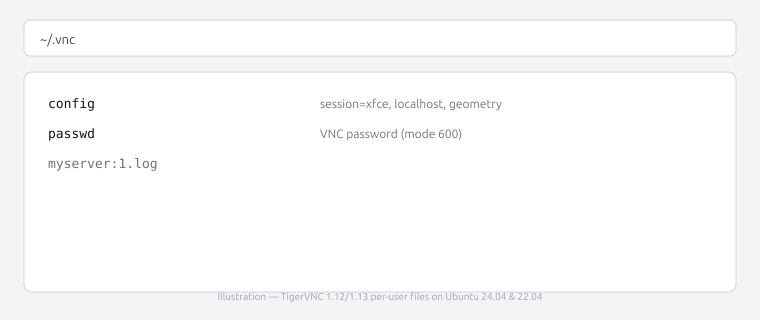
Password:
Verify:
Would you like to enter a view-only password (y/n)? n
Plan to connect through SSH tunneling. The VNC password still matters on localhost, but you should not expose port 5901 on untrusted networks and rely on VNC auth alone.
Configure the XFCE VNC session
TigerVNC 1.12 and 1.13 on Ubuntu read per-user options from ~/.vnc/config (or ~/.vnc/tigervnc.conf for Perl-style options). Create the directory and file as the VNC user:
mkdir -p ~/.vnc
nano ~/.vnc/config
Use these lines to start the XFCE session, bind to localhost, and set the virtual screen size:
session=xfce
localhost
geometry=1280x800
depth=24
session=xfce must match a .desktop name under /usr/share/xsessions/:
ls /usr/share/xsessions/lightdm-xsession.desktop
xfce.desktopThe value xfce corresponds to xfce.desktop. localhost keeps Xtigervnc on loopback so clients reach it through SSH forwarding or from the same host.
If session=xfce fails with a blank desktop, fall back to an executable ~/.vnc/xstartup that runs startxfce4, then restart tigervncserver@:1.service. Prefer ~/.vnc/config when the packaged tigervncsession helper can start the session for you.
If you switched to vncuser with su - vncuser, return to your original sudo-capable account before the next section. A user created with adduser is not in the sudo group, so sudo nano and sudo systemctl will fail until you exit:
exitMap the Ubuntu user to VNC display :1
The packaged service reads /etc/tigervnc/vncserver.users. As a sudo-capable user on the server (not necessarily vncuser), add one line that ties display :1 to the Linux account that owns the VNC session (example uses vncuser):
sudo nano /etc/tigervnc/vncserver.users:1=vncuserDisplay :1 maps to TCP port 5901 (display number plus 5900). Pick another display only if :1 is already assigned.
Start the TigerVNC systemd service
Ubuntu ships the packaged tigervncserver@.service unit. You do not need to create your own template under /etc/systemd/system/. Enable and start display :1:
sudo systemctl enable --now tigervncserver@:1.serviceTo inspect the unit file systemd actually uses:
systemctl cat tigervncserver@.serviceCheck that systemd considers the display :1 instance active:
systemctl status tigervncserver@:1.service --no-pager● tigervncserver@:1.service - Remote desktop service (VNC)
Loaded: loaded (...; enabled; preset: enabled)
Active: active (running)The active (running) line is what you want. Timestamps and process IDs differ on every host.
Verify VNC is listening on port 5901
With localhost in the user config, the listener should be on loopback, not 0.0.0.0:
ss -ltnp | grep 5901LISTEN 0 5 127.0.0.1:5901 0.0.0.0:*
LISTEN 0 5 [::1]:5901 [::]:*Session logs land under ~/.vnc/ on TigerVNC 1.12 and 1.13:
ls ~/.vnc/*.log/home/vncuser/.vnc/myserver:1.logTo inspect other listening ports, see ss command and check open ports in Linux.
Connect securely through an SSH tunnel
From your laptop, forward local port 5901 to the server’s loopback VNC port. Replace ssh_user and server_ip with values you already use for SSH:
ssh -N -L 5901:127.0.0.1:5901 ssh_user@server_ipssh_user is any account that can log in over SSH. It does not have to be vncuser, the account that owns display :1. A dedicated vncuser created only for the desktop may not have SSH keys or password login enabled.
-N skips a remote shell so the session exists only for port forwarding. Leave that terminal open while you use the desktop. Because TigerVNC listens on 127.0.0.1 when localhost is set in the user config, you do not need to open TCP 5901 in UFW for this SSH-tunnel setup. Only SSH must be reachable from your client.
The ssh command covers -L syntax; SSH port forwarding walks through more tunnel layouts. For repeated connections, store host and key settings in an SSH config file.
Connect from a VNC viewer
Install a VNC viewer on the computer where you run the SSH tunnel. On Ubuntu:
sudo apt install tigervnc-viewerOn Windows or macOS, install TigerVNC Viewer or another client that speaks RFB.
With the tunnel running, point your viewer at the local end of the forward:
127.0.0.1::5901The double colon is the documented TigerVNC syntax for an explicit TCP port. Because your SSH forward maps local port 5901 to the server’s loopback VNC listener, 127.0.0.1::5901 is the clearest address to enter.
You can also use 127.0.0.1:1, because display :1 maps to TCP port 5901. Current TigerVNC Viewer builds often accept 127.0.0.1:5901 in the connection field as well, but the single-colon form is ambiguous between display and port in the manual; prefer ::5901 when you mean the forwarded TCP port.
In TigerVNC Viewer, the address field should target the local end of the tunnel, not the server’s public IP:
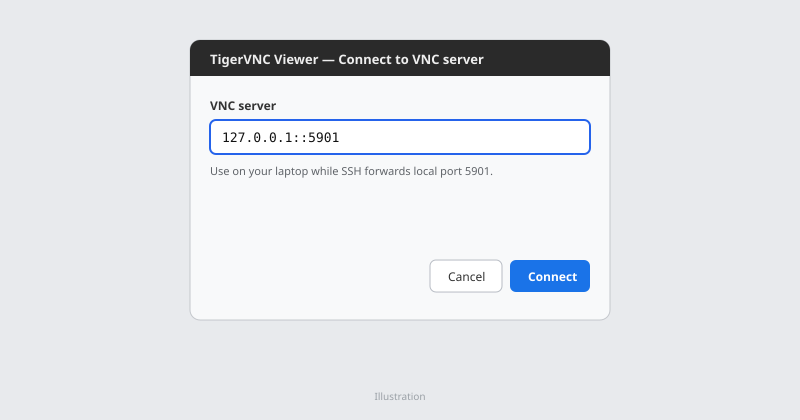
The highlighted server field is what you enter on the laptop after ssh -L is active.
Enter the VNC password you set with vncpasswd, not your Linux login password. A successful login opens a separate XFCE session with its own panel and desktop shortcuts:
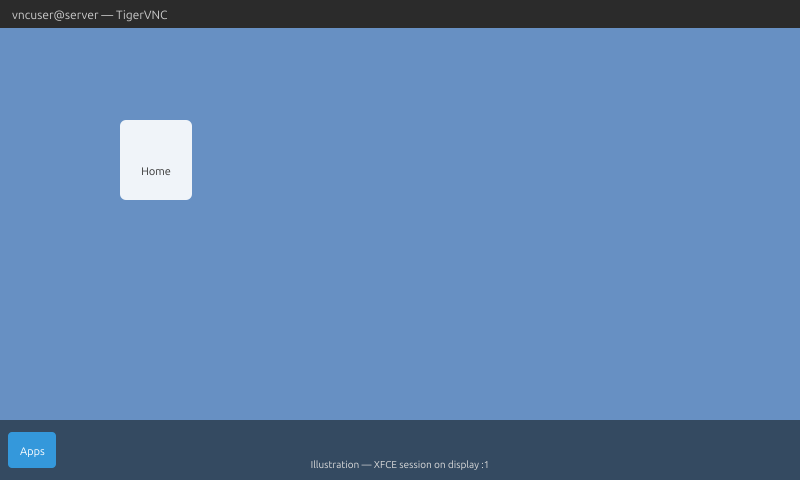
That screen is the virtual desktop on the server, not the GNOME session on the physical monitor.
Start TigerVNC automatically at boot
Because you started the unit with enable --now, it is already scheduled for multi-user boot. Confirm with:
systemctl is-enabled tigervncserver@:1.serviceenabledIf the unit is failed after a reboot, read the session log in ~/.vnc/ and journalctl -u tigervncserver@:1.service before retrying. For a related systemd resource-limit failure on older custom units, see VNC server service failed resource limit exceeded.
Optional: direct VNC access on a trusted LAN
SSH tunneling remains the recommended setup. If you deliberately need direct access on a private network, set localhost=no explicitly in ~/.vnc/config and use TLS for the session instead of plain VncAuth on the wire:
Edit ~/.vnc/config as the VNC user:
session=xfce
localhost=no
securitytypes=TLSVnc
geometry=1280x800
depth=24
Restart the service and confirm the listener is no longer bound only to loopback:
sudo systemctl restart tigervncserver@:1.serviceAfter the restart, the socket should listen on all interfaces instead of only 127.0.0.1:
ss -ltnp | grep 5901LISTEN 0 5 0.0.0.0:5901 0.0.0.0:*On UFW, allow SSH first, then limit VNC to one source:
sudo ufw allow OpenSSH
sudo ufw allow from CLIENT_IP to any port 5901 proto tcp
Your VNC client must negotiate TLS (TigerVNC Viewer enables this when the server offers TLSVnc). Do not expose port 5901 on the public internet; keep SSH tunneling as the default pattern.
Uninstall TigerVNC
Stop and disable the VNC display when you no longer need it:
sudo systemctl disable --now tigervncserver@:1.serviceRemove the TigerVNC packages if nothing else on the host depends on them:
sudo apt purge tigervnc-standalone-server tigervnc-toolsDelete the :1=youruser line from /etc/tigervnc/vncserver.users when that display will not return. You can leave files under ~/.vnc/ if you might reinstall TigerVNC later. Do not purge XFCE session packages automatically; other users or jobs may still need the desktop stack.
Troubleshooting
| Symptom | Likely cause | Fix |
|---|---|---|
No user configured for display :1 |
Missing or wrong line in vncserver.users |
Add :1=youruser in /etc/tigervnc/vncserver.users, then restart the service |
| Black or gray screen | Wrong session= name or missing XFCE packages |
Match ls /usr/share/xsessions/; reinstall XFCE session packages |
tigervncserver@:1.service fails |
Typo in vncserver.users, wrong user, or bad config |
Fix :1=username, run journalctl -u tigervncserver@:1.service -n 50 |
| Port 5901 not listening | Service not started or different display | systemctl start tigervncserver@:1.service; confirm mapping in vncserver.users |
| Authentication fails | Wrong VNC password or wrong passwd file path | Re-run vncpasswd as the mapped user; check ~/.vnc/passwd |
| Session exits immediately | Session command errors | Read ~/.vnc/*:1.log |
List active TigerVNC sessions and their display numbers:
tigervncserver -listTigerVNC server sessions:
X DISPLAY # RFB PORT # PROCESS ID #
:1 5901 2418Inspect service logs when the unit fails but the display mapping looks correct:
journalctl -u tigervncserver@:1.service -n 50 --no-pagerFor journald filters, see journalctl.
Summary
Ubuntu 24.04 and 22.04 ship TigerVNC 1.13 or 1.12 with per-user files under ~/.vnc/ and the same packaged tigervncserver@:1.service unit as newer releases. Install tigervnc-standalone-server and tigervnc-tools, add a compact XFCE stack, run vncpasswd, point session=xfce in ~/.vnc/config with localhost enabled, and map :1=youruser in /etc/tigervnc/vncserver.users.
That layout matches most older tutorials. Keep ~/.vnc/ on 24.04 and 22.04—do not copy ~/.config/tigervnc/ steps from the Ubuntu 26.04 TigerVNC page. Connect with ssh -N -L 5901:127.0.0.1:5901 and open your viewer to 127.0.0.1::5901 so VNC stays on loopback until you deliberately change it.
When you upgrade the host to Ubuntu 26.04, plan to move config and password files into the XDG tree or re-run vncpasswd under the new paths. If your clients primarily use RDP, compare XRDP with XFCE before you choose VNC.
References
- TigerVNC
- tigervncsession(8) man page
- tigervncpasswd(1) man page
- Ubuntu packages: tigervnc-standalone-server (noble)
Frequently Asked Questions
Does TigerVNC show my existing Ubuntu desktop?
No. Standalone TigerVNC starts a separate virtual X session. This guide launches XFCE on display :1. It does not mirror the GNOME session on the physical monitor.
Do I need a custom vncserver@.service file on Ubuntu 24.04?
No. Use the packaged tigervncserver@:1.service and /etc/tigervnc/vncserver.users. A hand-written unit under /etc/systemd/system/ duplicates what the tigervnc-standalone-server package already provides.
Where is the VNC password stored on Ubuntu 24.04?
In ~/.vnc/passwd for typical TigerVNC 1.12 and 1.13 setups on Ubuntu 24.04 and 22.04. Permissions are restricted to the owning user. It is separate from /etc/shadow; use at least six characters and remember only the first eight count for VncAuth. Pair the password with SSH tunneling, not public port exposure.
Why do Ubuntu 26.04 guides use ~/.config/tigervnc?
TigerVNC 1.14 and later follow the XDG layout. Ubuntu 26.04 ships TigerVNC 1.15, so new per-user config and password files live under ~/.config/tigervnc/. This page targets Ubuntu 24.04 and 22.04, where ~/.vnc/ remains the usual location.
Which port does display :1 use?
TCP port 5901. Add 5900 to the display number (:2 → 5902).
Why use XFCE instead of GNOME for VNC?
XFCE is lighter in a virtual framebuffer and avoids tying the remote view to the console Wayland session. GNOME Remote Desktop is a better fit when you need to share the session that is already logged in locally.
