
| Tested on | RHEL 10.2 (Coughlan), Rocky Linux 10.2 (Red Quartz) |
|---|---|
| Applies to | RHEL, Rocky Linux, AlmaLinux, Oracle Linux, CentOS Stream, Fedora |
| Privilege | sudo or root |
| Scope | TigerVNC removed on EL10 — configure GNOME Remote Desktop Remote Login with RDP |
| Related guides | Install GNOME GUI on RHEL/CentOS ssh command SSH port forwarding |
TigerVNC server was removed from RHEL 10. That is intentional, not a broken repository mirror. Red Hat replaced it with GNOME Remote Desktop using RDP. If you used TigerVNC so remote users could open separate graphical sessions, use GNOME Remote Desktop Remote Login mode — the workflow this guide covers.
The same change applies on Rocky Linux 10, AlmaLinux 10, Oracle Linux 10, and CentOS Stream 10. Windows Remote Desktop, Remmina, GNOME Connections, and FreeRDP connect over TCP 3389.
This guide focuses on Remote Login, the closest match for the common multi-user TigerVNC or XRDP pattern where remote users need a graphical login screen. TigerVNC also supported other workflows; GNOME Remote Desktop splits those into three modes (see below). Desktop Sharing appears later as a shorter alternative.
Why TigerVNC is not available on RHEL 10
If dnf install tigervnc-server returns No match for argument: tigervnc-server, that is expected on EL10 — not a repo sync problem. RHEL 10 removed TigerVNC along with xorg-x11-server as part of the move to Wayland. GNOME Remote Desktop with RDP is the supported replacement.
dnf info tigervnc-servertigervnc-server returns:
Updating Subscription Management repositories.
Last metadata expiration check: 0:00:05 ago on Sat 05 Sep 2026 04:18:16 PM IST.
Error: No matching Packages to list
Check XRDP the same way:
dnf info xrdpUpdating Subscription Management repositories.
Last metadata expiration check: 0:00:08 ago on Sat 05 Sep 2026 04:18:16 PM IST.
Error: No matching Packages to listXRDP gives the same result with the standard repositories used here.
xrdp may exist in third-party repos, but it is not in the standard EL10 workflow covered here. Do not force-install RHEL 9 TigerVNC RPMs on EL10.
| RHEL 8/9 workflow | RHEL 10 replacement |
|---|---|
| TigerVNC server | GNOME Remote Desktop |
| VNC protocol | RDP |
| TCP 5900 plus display number | TCP 3389 |
vncserver@:2.service |
gnome-remote-desktop.service |
vncserver.users |
GNOME Remote Login configuration |
| VNC password | RDP gate user plus Linux login |
| Xorg virtual display | GNOME and Wayland-based remote desktop |
gnome-connections can still act as a VNC client for older servers, but it does not provide a VNC server on RHEL 10.
Choose the correct GNOME Remote Desktop mode
| Mode | Best use case | User already logged in? | Main port |
|---|---|---|---|
| Desktop sharing | Remote support for the current physical desktop | Yes | 3389 or 3390 |
| Remote login | Multi-user graphical login similar to XRDP | No | 3389 |
| Single-user headless session | Dedicated desktop for one user on a server without a monitor | No | 3389 |
What did you use VNC for?
| Your old goal | Use this GNOME Remote Desktop mode |
|---|---|
| Remotely control the desktop already open on the monitor | Desktop Sharing |
| Let users connect remotely and reach the GNOME login screen | Remote Login ← this guide |
| Give one headless user a dedicated remote desktop | Headless single-user session (separate procedure) |
That is why this article uses Remote Login: it matches the case where remote users sign in through GDM instead of sharing an existing console session.
Desktop sharing connects to whoever is already logged in at the console. Remote login presents the GNOME login screen so different users can sign in remotely. A single-user headless session is a separate workflow with its own TLS files and credentials; Red Hat also lists SELinux permissive mode as a prerequisite for that path.
Install GNOME Remote Desktop and GNOME
Install the remote desktop server, display manager, and FreeRDP. You need freerdp for winpr-makecert when you generate TLS files:
sudo dnf install gnome-remote-desktop gdm freerdpDNF lists packages, dependencies, and the transaction summary. Confirm when prompted.
Confirm the RPMs are present:
rpm -q gnome-remote-desktop gdm freerdpInstalled versions:
gnome-remote-desktop-49.3-3.el10_2.x86_64
gdm-47.0-21.el10_2.x86_64
freerdp-3.10.3-12.el10_2.10.x86_64
If GNOME is not already installed, add a graphical environment. On a typical server:
sudo dnf group install "Server with GUI"Workstation installs usually already include the GNOME session this workflow needs.
Red Hat requires a reboot after installing gnome-remote-desktop for multi-user Remote Login:
sudo rebootAfter the system returns, set the boot target to graphical mode and continue with TLS and grdctl configuration:
sudo systemctl set-default graphical.targetConfigure multi-user Remote Login with RDP
Remote Login ties GNOME Remote Desktop to GDM. Clients authenticate twice: first with an RDP gate user, then with a normal Linux account at the GNOME login screen.
| Step | When the client asks | What it unlocks | Where you configure it |
|---|---|---|---|
| 1. RDP gate user | First login prompt after the certificate check | Access to the GNOME login screen | grdctl --system rdp set-credentials |
| 2. Linux user login | GNOME user list / password screen | A full desktop session for that account | Existing Linux accounts already on the server |
Windows / Remmina / mstsc
        |
        |  TCP 3389
        v
 GNOME Remote Desktop
 RDP gate username/password
        |
        v
 GNOME / GDM login screen
        |
        |  Linux username/password
        v
 User's GNOME desktop
RDP gate user vs Linux login user
- RDP gate user — Stored by GNOME Remote Desktop, not in
/etc/passwd. Nouseradd. Set it withgrdctl --system rdp set-credentials. We usedrdpadminin testing. - Linux login user — A normal account already on the server (
student,golinuxcloud, and so on). The client picks that account only after the RDP gate acceptsrdpadmin.
TigerVNC used a VNC password per display. Remote Login replaces that first hop with the RDP gate user, then keeps the GDM login you would use at the console.
Create TLS files for the system service
Red Hat's multi-user procedure stores TLS material under certificates/ as rdp-tls.crt and rdp-tls.key. Create that directory as the gnome-remote-desktop user:
sudo -u gnome-remote-desktop mkdir -p \
  ~gnome-remote-desktop/.local/share/gnome-remote-desktop/certificates
Generate the self-signed certificate. Run this only after freerdp is installed:
sudo -u gnome-remote-desktop /usr/bin/winpr-makecert -silent -rdp \
  -path ~gnome-remote-desktop/.local/share/gnome-remote-desktop/certificates \
  rdp-tls
Confirm the two TLS files exist — nothing else should appear yet:
ls -la /var/lib/gnome-remote-desktop/.local/share/gnome-remote-desktop/certificates/total 8
drwxr-xr-x. 2 gnome-remote-desktop gnome-remote-desktop 44 Sep 5 17:27 .
drwxr-xr-x. 3 gnome-remote-desktop gnome-remote-desktop 79 Sep 5 17:27 ..
-rw-r--r--. 1 gnome-remote-desktop gnome-remote-desktop 1026 Sep 5 17:27 rdp-tls.crt
-rw-r--r--. 1 gnome-remote-desktop gnome-remote-desktop 1705 Sep 5 17:27 rdp-tls.keycredentials.ini appears only after you run grdctl --system rdp set-credentials later.
Register TLS material and the RDP gate user
Point the system daemon at the Red Hat certificate paths:
sudo grdctl --system rdp set-tls-key \
/var/lib/gnome-remote-desktop/.local/share/gnome-remote-desktop/certificates/rdp-tls.keysudo grdctl --system rdp set-tls-cert \
/var/lib/gnome-remote-desktop/.local/share/gnome-remote-desktop/certificates/rdp-tls.crtOn a VM without a virtual TPM, grdctl may print Init TPM credentials failed because No TPM device found, using GKeyFile as fallback. Credentials still save to GKeyFile; the warning is normal.
Create the RDP gate user — not a Linux account, not created with useradd:
sudo grdctl --system rdp set-credentials rdpadmin 'YourRdpGatePassword'Or run sudo grdctl --system rdp set-credentials without arguments and enter the values when prompted.
Turn on the system-wide RDP backend:
sudo grdctl --system rdp enableEnable GDM and the remote desktop service
sudo systemctl enable --now gdmsudo systemctl enable --now gnome-remote-desktop.serviceConfirm the daemon is running:
systemctl status gnome-remote-desktop.serviceLook for Active: active (running) and RDP server started:
● gnome-remote-desktop.service - GNOME Remote Desktop
     Loaded: loaded (/usr/lib/systemd/system/gnome-remote-desktop.service; enabled; preset: disabled)
     Active: active (running) since Sat 2026-09-05 16:19:16 IST; 1h 1min ago
   Main PID: 6539 (gnome-remote-de)
             └─6539 /usr/libexec/gnome-remote-desktop-daemon --system

Sep 05 16:19:16 vm1.lab.example gnome-remote-de[6539]: RDP server started
Open firewalld for RDP
Open the port before you test from a client. Find the active zone:
sudo firewall-cmd --get-active-zonesNote the zone tied to your server interface:
public (default)
  interfaces: enp0s3 enp0s8
Allow TCP 3389 permanently in that zone. Replace public if your interface uses a different zone:
sudo firewall-cmd \
  --permanent \
  --zone=public \
  --add-port=3389/tcp
Apply the change:
sudo firewall-cmd --reloadsuccessConfirm the port is open:
sudo firewall-cmd --zone=public --query-port=3389/tcpyesPort notes:
- Remote Login uses TCP 3389
- Desktop Sharing also uses 3389 unless Remote Login is enabled at the same time, when sharing moves to 3390
Restrict RDP to a trusted management network or VPN instead of exposing port 3389 on the public internet. See the firewalld cheat sheet for zone management.
Verify Remote Login is ready
Review the RDP configuration:
sudo grdctl --system status --show-credentialsExpect Username: rdpadmin, RDP enabled, and port 3389:
Init TPM credentials failed because No TPM device found, using GKeyFile as fallback.
Overall:
	Unit status: active
RDP:
	Status: enabled
	Port: 3389
	TLS certificate: /var/lib/gnome-remote-desktop/.local/share/gnome-remote-desktop/certificates/rdp-tls.crt
	TLS fingerprint: ed:e8:69:ed:09:c2:24:42:6a:6f:e1:6a:24:09:2d:21:8c:53:66:ce:04:de:76:e0:0d:72:e0:7f:93:eb:17:31
	TLS key: /var/lib/gnome-remote-desktop/.local/share/gnome-remote-desktop/certificates/rdp-tls.key
	Username: rdpadmin
	Password: (hidden)
Confirm something is listening on port 3389:
sudo ss -lntp | grep ':3389'LISTEN 0 5 *:3389 *:* users:(("gnome-remote-de",pid=6539,fd=9))The TLS fingerprint changes when you regenerate rdp-tls.crt and rdp-tls.key. Match the client certificate prompt against the current sudo grdctl --system status output.
If gnome-remote-desktop.service is not active after the reboot, inspect sudo journalctl -u gnome-remote-desktop.service -b before connecting from a client.
Connect from Windows, Linux, or macOS
Every client goes through the same two logins shown in the diagram above: RDP gate first, then a Linux user at the GNOME screen.
Connect from Windows
Open Remote Desktop Connection (mstsc) or Windows App and enter the server IP on port 3389.
- Accept the self-signed certificate after checking the fingerprint from
sudo grdctl --system status. - Enter the RDP gate user from
grdctl --system rdp set-credentials(for examplerdpadmin). This prompt appears before any GNOME desktop loads — the same step shown in the Remmina screenshot below. - At the GNOME login screen, pick an existing Linux user and enter that account's password.
Windows does not label the first prompt clearly as a separate “gate” login, which catches many people migrating from TigerVNC. Treat the first username/password dialog as the RDP gate credential, not your Linux password.
Connect from Linux
GUI clients such as GNOME Connections and Remmina work when you choose RDP, not VNC. Point the connection at your server IP on port 3389 (for example 192.168.56.116:3389) and use the RDP gate user rdpadmin.
Remmina shows a self-signed certificate on the first connect. Check the SHA-256 fingerprint against sudo grdctl --system status before you click Yes:
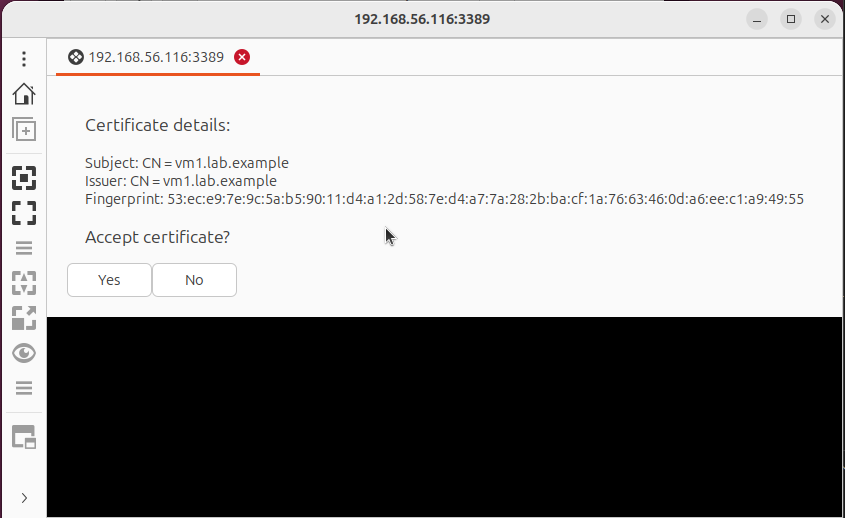
The fingerprint in the screenshot may differ from yours if TLS was regenerated. Use whatever grdctl --system status reports on your host.
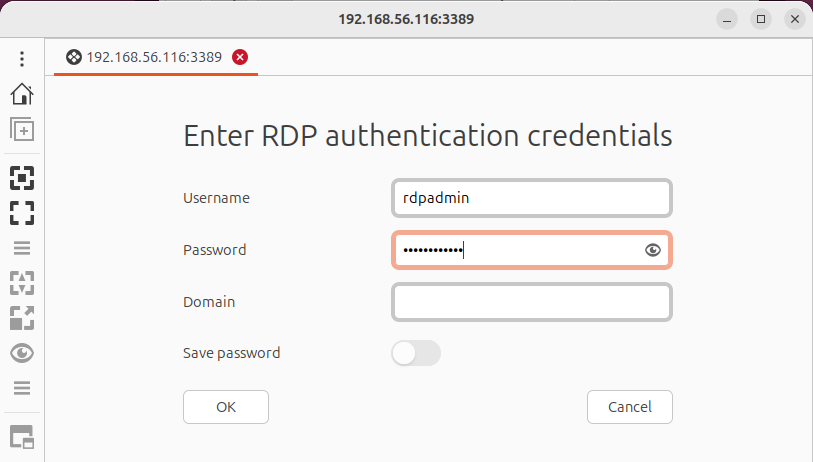
Next, Remmina asks for the RDP gate user — not a Linux account, not the Linux password. Enter the values from grdctl --system rdp set-credentials (rdpadmin in our tests):
After the gate login, you get the GDM screen. Pick an existing Linux user and enter that account's password:
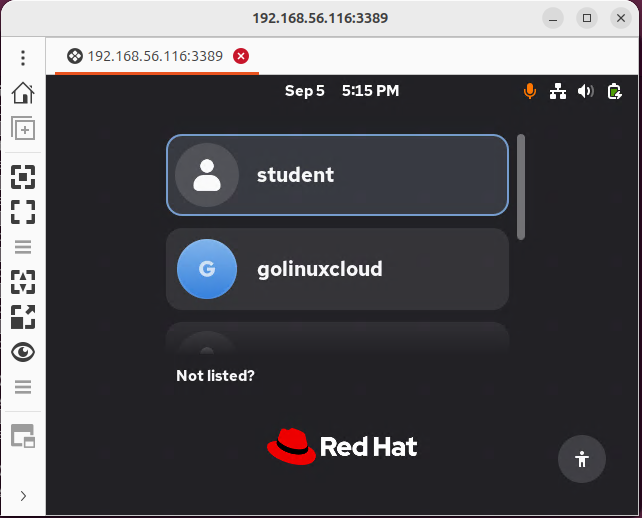
Windows and macOS clients follow the same three steps: certificate, RDP gate, then Linux user at the GNOME screen.
From the command line with FreeRDP, locate the client binary:
command -v xfreerdp || command -v xfreerdp3The client path on our test host:
/usr/bin/xfreerdpConnect with the RDP gate user:
xfreerdp /v:192.168.56.116 /u:rdpadmin /cert:tofuFreeRDP prompts for the RDP gate password. /cert:tofu trusts the certificate on first connect. Omit it if you want to verify the fingerprint manually against sudo grdctl --system status first.
Replace the IP and gate username with your values. After the gate, sign in with a Linux account at the GNOME screen.
Connect from macOS
Use Windows App or another RDP-compatible client. Select RDP in multi-protocol clients; VNC mode does not apply to GNOME Remote Desktop on EL10.
Enable Desktop Sharing instead of Remote Login
Desktop Sharing is shorter to configure but solves a different problem:
- Shares the GNOME desktop of the currently logged-in user
- Does not present a new multi-user login screen
- Requires an active local GNOME graphical session
- Uses credentials configured in GNOME Settings
- Can allow remote control instead of view-only access when enabled
Open Desktop Sharing from the GNOME settings path:
Settings → System → Remote Desktop → Desktop SharingEnable Desktop Sharing, configure Login Details, open TCP 3389, and enable Remote Control when required. If Remote Login is also enabled, Desktop Sharing listens on TCP 3390 instead.
Verify and troubleshoot GNOME Remote Desktop
| Symptom | Likely cause | Check or recovery |
|---|---|---|
No match for argument: tigervnc-server |
TigerVNC was removed from EL10 | Use gnome-remote-desktop |
No match for argument: xrdp |
Package not in enabled repositories | Use GNOME Remote Desktop |
| Connection refused | Service not listening or firewall blocked | Check systemd, ss, and firewalld |
| TCP 3389 is not listening | RDP not enabled with grdctl |
grdctl --system status |
| Login screen does not appear | GDM or graphical target inactive | Check gdm and systemctl get-default |
| RDP credential rejected | Wrong RDP gate user or password | grdctl --system rdp set-credentials and grdctl --system status --show-credentials |
| Linux login rejected | Wrong individual system account password | Verify the Linux account separately |
| Certificate warning | Self-signed TLS certificate | Verify fingerprint or deploy trusted TLS |
| Black screen after login | GNOME session or display manager issue | journalctl -u gdm |
| Desktop sharing connects to wrong session | Desktop Sharing selected instead of Remote Login | Confirm the chosen mode |
| Port 3390 required | Both sharing and remote login enabled | Check listeners and update firewalld |
TPM warning from grdctl |
VM has no virtual TPM | Expected on lab VMs; credentials fall back to GKeyFile |
winpr-makecert: command not found |
freerdp not installed yet |
Install freerdp, then rerun the TLS command |
| Service fails after install | Required reboot was skipped, GUI session is missing, or service startup failed | Reboot once after installation, then inspect the current-boot journal |
Run these checks when something fails. They cover packages, RDP status, services, listeners, firewall, and recent logs:
rpm -q gnome-remote-desktop gdm freerdp
sudo grdctl --system status
systemctl status gnome-remote-desktop.service
systemctl status gdm
systemctl get-default
sudo ss -lntp | grep -E ':3389|:3390'
sudo firewall-cmd --get-active-zones
sudo firewall-cmd --zone=public --list-all
sudo journalctl -u gnome-remote-desktop.service -b
sudo journalctl -u gdm -b
Replace public in the firewall command with the zone tied to your server interface. systemctl get-default should report graphical.target when remote login is meant to survive a reboot.
Migrating an old TigerVNC configuration to RHEL 10
TigerVNC settings do not carry over automatically. Map your old setup to one of the three GNOME Remote Desktop modes before you reconfigure access.
These items do not migrate directly:
vncserver.usersvncserver-config-defaults~/.vnc/passwd~/.config/tigervnc/configvncserver@:<display>.service- VNC display numbers such as
:2 - Firewall ports such as
5902
Migration checklist:
- Record existing VNC users and what each one needed (shared console, independent session, or headless desktop)
- Choose Desktop Sharing, Remote Login, or the headless single-user workflow for each case
- Disable any leftover TigerVNC unit files from an upgraded system — there is nothing to uninstall from standard EL10 repos
- Install GNOME Remote Desktop and GDM
- Configure TLS and the RDP gate user with
grdctl - Replace VNC firewall rules with TCP 3389
- Test one existing Linux user through the RDP gate
- Archive old VNC password files only after RDP access is confirmed
Summary
TigerVNC server is gone from EL10. GNOME Remote Desktop with RDP is the supported replacement, and Remote Login covers the common case where remote users need a graphical login screen.
- Remote Login — multi-user access through GDM (this guide)
- Desktop Sharing — control the console session already logged in locally
- Headless single-user — separate Red Hat procedure; not covered here
For TigerVNC on RHEL 8 or 9, see the TigerVNC server guide. For firewall rules, see the firewalld cheat sheet.
References
- Red Hat Enterprise Linux 10 — Remotely accessing the desktop — Desktop Sharing, Remote Login, and multi-user RDP
- Red Hat Enterprise Linux 10 — Removed functionalities — TigerVNC and X.Org removals
Check the installed grdctl options on your host:
man grdctlgrdctl --helpThe manual lists RDP subcommands such as set-credentials and set-tls-cert.
Frequently Asked Questions
Can I install TigerVNC server on Rocky Linux 10?
No. tigervnc-server is not in the standard repositories (No matching Packages to list). Installing RHEL 9 RPMs on EL10 is unsupported. Use GNOME Remote Desktop with RDP instead.
What replaces TigerVNC in RHEL 10?
GNOME Remote Desktop. Use Remote Login when you need a multi-user graphical login screen over RDP on port 3389.
Is XRDP available on RHEL 10 or Rocky Linux 10?
Not in the standard repositories we tested. GNOME Remote Desktop with Remote Login is the multi-user graphical access path Red Hat documents for EL10.
Do RDP clients connect with VNC?
No. GNOME Remote Desktop on RHEL 10 uses RDP. Connect with Windows Remote Desktop, GNOME Connections, Remmina, or FreeRDP using the RDP protocol, not VNC.
