
| Tested on | Red Hat Enterprise Linux 10.2 |
|---|---|
| Package | virt-manager 5.1.0 |
| Applies to | RHEL, Rocky Linux, AlmaLinux, Oracle Linux, CentOS Stream, Fedora, Ubuntu, Debian, Linux Mint, Arch Linux |
| Privilege | Normal user (leaving full screen needs no elevation) |
| Scope | Leave the virt-manager graphical console using the hidden top-center toolbar, understand why there is no fullscreen hotkey, and recover when the toolbar refuses to appear. Does not cover guest display resolution, SPICE or VNC tuning, or configuring a multi-monitor desktop. |
| Related guides | Create KVM virtual machine with virt-manager Configure bridged network in virt-manager virt-install command examples Install KVM virtualization Create KVM virtual machines using Cockpit |
To exit full screen in virt-manager, push the mouse pointer against the top-center edge of the console until it stops moving. A small toolbar slides down, and its left button restores the window. If the guest has captured your pointer, press the left Ctrl and left Alt together to release the grab first, then return to the top edge.
Two things trip people up here, and both are worth knowing before you start. The toolbar's buttons carry icons only, so nothing on screen actually reads "Leave Fullscreen". And Ctrl+Alt+F is a genuine fullscreen toggle, but it belongs to QEMU's own graphical frontends rather than to virt-manager.
Quick answer: exit full screen in virt-manager
Four steps, in this order:
- Press the left
Ctrland leftAlttogether to release the keyboard and pointer grab, in case the guest is holding it. - Move the pointer to the top-center of the screen so it touches the topmost row of pixels.
- Watch for the small toolbar that slides down. It appears as soon as the pointer touches that row, so there is no delay to wait out.
- Click the left Leave fullscreen / restore icon. On the tested desktop theme it appears as two arrows pointing inward; hovering over it shows the tooltip Leave fullscreen.
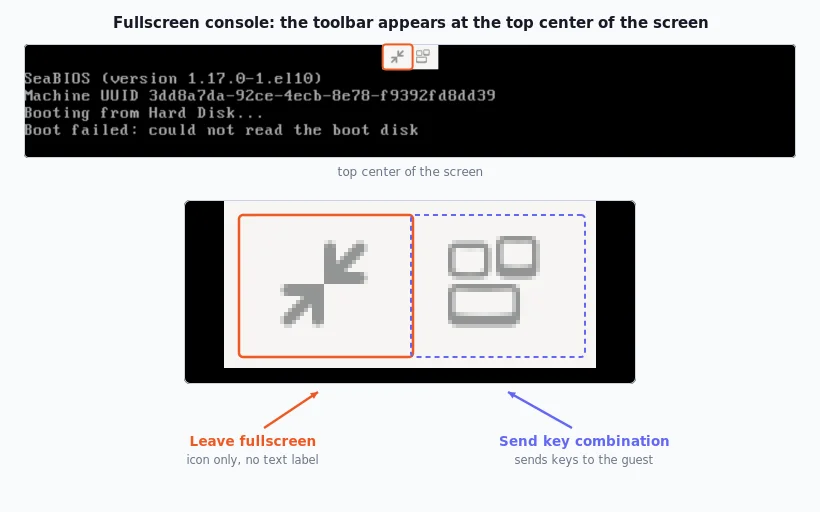
The overlay holds exactly two controls, and neither one shows a text label. The left button returns the console to a normal window. The right button opens a menu that sends a combination such as Ctrl+Alt+Del into the guest.
Exit full screen using the hidden virt-manager toolbar
virt-manager collapses that toolbar while the console is full screen so the guest gets the whole display. It returns only when the pointer enters a narrow trigger area, which is why people conclude the control does not exist.
Aim for the very top edge, dead center
Current virt-manager implements the reveal area as a very narrow top-center trigger rather than the full top edge. Push the pointer against the very top of the screen near the horizontal center until the toolbar appears.
Click the restore icon
Clicking the left button drops the console back to a normal window with its menu bar. The guest keeps running untouched, since leaving full screen is only a host-side view change.
If you move away without clicking, the toolbar hides again after about a second.
Is there a keyboard shortcut to exit full screen?
For virt-manager itself, no, and that is deliberate rather than an oversight. Any key bound to a host action can no longer be delivered to the guest, so the maintainers kept those keys available to the virtual machine. Upstream discussions on the virt-manager issue tracker confirm there is no fullscreen hotkey, and the maintainer's workaround is to release the grab with Ctrl+Alt, then use Alt+Tab on the host.
The keys people try first do not leave fullscreen in virt-manager:
| Key | What happens in virt-manager |
|---|---|
Esc |
Does not exit virt-manager fullscreen; it may be delivered to the guest |
F11 |
Does not toggle virt-manager fullscreen; the guest may receive it |
Left Ctrl+left Alt |
Releases the default keyboard/pointer grab but does not exit fullscreen |
Ctrl+Alt+F |
QEMU frontend shortcut, not a virt-manager fullscreen shortcut; the guest may receive it |
Ctrl+Alt+F1 |
Does not exit virt-manager fullscreen and may trigger an action inside the guest |
The overlay's restore icon is the supported way out.
The one combination still worth knowing is the grab key, which defaults to the left Ctrl and left Alt specifically. It does not change the fullscreen state. It hands the keyboard and pointer back to your host so you can reach the top edge or use Alt+Tab.
The left-hand detail matters more than it sounds. The default is bound to those two particular keysyms, so pressing the right Ctrl or right Alt releases nothing. People who habitually use the right-hand modifiers end up concluding the grab cannot be released at all. Open Edit → Preferences → Console to see the current binding written out, and use Change... if you prefer different keys.
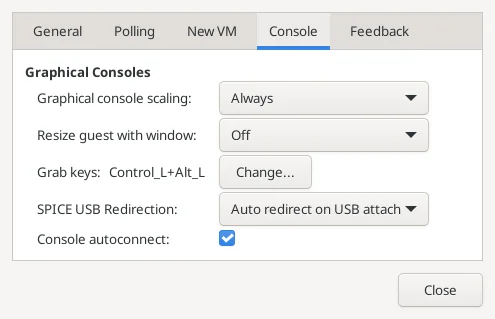
The _L suffix on each keysym is the part to notice. Control_L+Alt_L means the left-hand keys and nothing else.
The three interfaces people mix up behave differently:
| Interface | How to leave or toggle full screen |
|---|---|
| virt-manager graphical console | Hidden top-center toolbar, then the restore icon. No hotkey. |
| QEMU's own GTK or SDL frontend | Ctrl+Alt+F toggles full screen |
| virt-viewer | Has its own key bindings, which differ from virt-manager |
Because all three sit on top of QEMU/KVM, advice written for one keeps getting applied to the others. That is where the bad Ctrl+Alt+F guidance comes from.
What to do when the fullscreen toolbar does not appear
Work through these in order. The first two solve the large majority of cases.
Release the guest's pointer grab
When the guest owns the pointer, your movement goes inside the virtual machine instead of to the host, so the trigger row never sees it. Press the left Ctrl and left Alt together, then try the top edge again. Use the left-hand keys deliberately here, because the right-hand modifiers are not bound to the grab by default. This is also the fix when the pointer seems to stop at the edge of the guest desktop rather than the physical screen.
There is an unhelpful catch to this one. virt-manager does tell you which keys release the grab, but it prints the reminder in the window title, and full screen is exactly when the title bar is not on screen. So the hint is there in a normal window and gone at the moment you need it.
Check your monitor layout
If a second display sits directly above the fullscreen one, the top edge of your console is no longer a hard stop for the pointer. Pushing upward can carry it onto the monitor above instead of parking it on the narrow trigger area. Users with vertically stacked displays have reported this on the virt-manager issue tracker, where the trigger is described as difficult to hit when another physical display sits above the fullscreen console.
Side-by-side monitors do not have this problem, since the trigger sits on the top edge rather than the sides. Move the console to the topmost display, or approach the edge slowly from below so the pointer stops on the console's top row.
Close the console window instead
If the toolbar still will not come back, stop fighting it and close the console outright. Release the grab with the left Ctrl and left Alt first so the keys reach your host, then press Alt+F4.
This sounds drastic and is not. The virt-manager console is only a viewer attached to the guest's display. Closing it leaves the virtual machine running, and you reopen the console by double-clicking the machine in Virtual Machine Manager.
The maintainer's documented workaround for leaving a fullscreen console without the toolbar is to press the grab key (Ctrl+Alt by default), then switch away with Alt+Tab on the host. That does not exit fullscreen, but it gets control back when the overlay will not appear.
Why Ctrl+Alt+F may not work in virt-manager
QEMU documents Ctrl+Alt+F as the fullscreen toggle for its own GTK and SDL graphical frontends. virt-manager uses its own embedded console, so that QEMU frontend shortcut does not control the virt-manager window.
When the guest has keyboard focus, the combination may instead be sent to the guest. Use virt-manager's hidden top-center Leave fullscreen control instead.
Enter full screen mode again
From a normal virt-manager console window, open View and tick Fullscreen. It sits just below Snapshots, above Resize to VM.
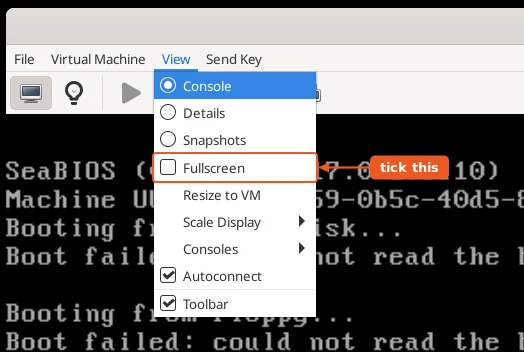
Watch the top-center of the screen as the console switches over. virt-manager reveals the overlay toolbar automatically for about two seconds, then hides it. That short preview is the easiest way to learn exactly where the trigger sits on your own display, so do it once deliberately and note the spot before it disappears.
Summary
Leaving full screen in virt-manager comes down to one control that is deliberately kept out of sight. Push the pointer against the top-center edge until it stops moving, then click the left Leave fullscreen icon on the toolbar that slides down. The overlay shows icons only, so that wording appears as a tooltip rather than a text label. When nothing appears at all, the guest is almost always holding your pointer, so press the left Ctrl and left Alt to release the grab and try again.
The shortcut question has a clear answer: virt-manager has no fullscreen hotkey, by choice, so those keys stay available to the guest. Esc, F11, and Ctrl+Alt+F do not exit virt-manager fullscreen and may be delivered to the guest instead.
If the trigger still feels fiddly, enter full screen once on purpose and watch the toolbar appear for its two-second preview. Note where it lands on your display, and aim for that spot from then on.
References
- Keys in the graphical frontends — QEMU documentation for
Ctrl+Alt+Fand the other frontend key sequences - virt-manager console source — the fullscreen overlay toolbar and its reveal behavior
- Need a hotkey to switch between fullscreen and window mode — upstream discussion of why virt-manager has no fullscreen hotkey
- Question: hotkeys for full screen / minimize — maintainer answer on the grab key and returning control to the host
