
| Tested on | Rocky Linux 10.2 (Red Quartz) |
|---|---|
| Package | man-db 2.12.0groff 1.23.0pandoc 3.1.11. |
| Applies to | Ubuntu, Debian, Kali Linux, Linux Mint, Pop!_OS, Raspberry Pi OS, elementary OS, Zorin OS, Parrot OS, MX Linux, RHEL, Rocky Linux, AlmaLinux, Oracle Linux, CentOS Stream, Fedora, Arch Linux |
| Privilege | sudo or root |
| Scope | Create a Linux man page with a reusable groff template. |
A Linux man page gives offline documentation for a command, script, configuration file, library function, or system interface. For a custom command you work through six stages: choose the manual section, write the groff source, preview it locally, install it under a man hierarchy, refresh the whatis database with mandb, and verify the page with man, whatis, and apropos.
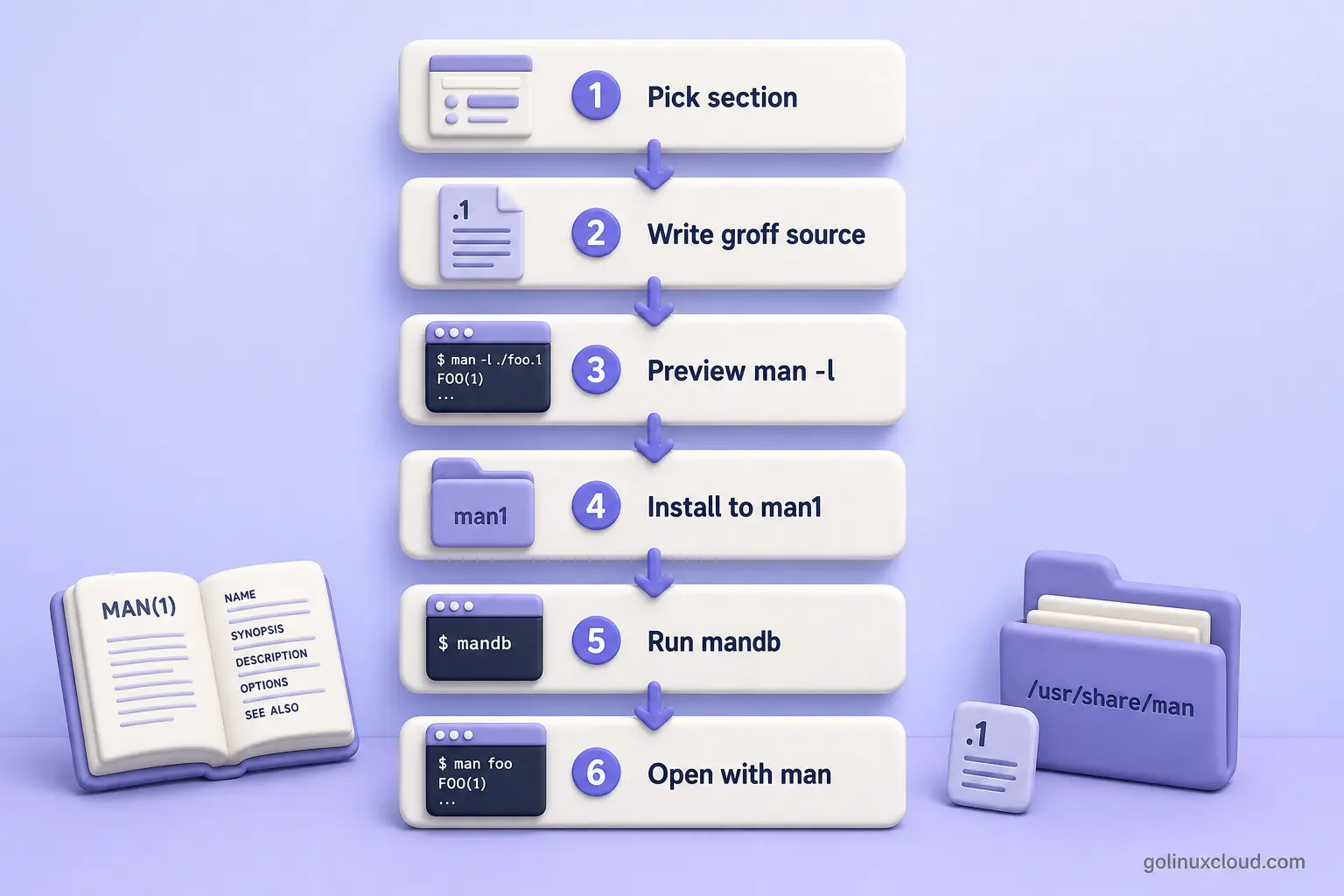
The diagram shows the order of work only. You still need the correct filename (command.1 for a user command), a parseable NAME section, and a path such as /usr/local/share/man/man1/ that manpath already searches. After installation, man can often open a new page immediately; mandb rebuilds the indexes that whatis and apropos rely on. The sections below walk through each step with a sample command named test-script.
In this guide you will build a reusable Section 1 template for that command, preview it locally, install it system-wide and per-user, and validate discovery with whatis and apropos.
Quick answer
| Task | Command or path |
|---|---|
| Section 1 filename | test-script.1 |
| Preview without installing | man -l ./test-script.1 |
| System install directory | /usr/local/share/man/man1/ |
| Refresh the whatis index | sudo mandb |
| Verify discovery | man test-script, whatis test-script, apropos greeting |
Save the groff source as test-script.1, preview it with man -l, install it under /usr/local/share/man/man1/, then run mandb so indexed searches recognize the page.
Choose the Correct Man Page Section
Manual pages are named after the command and the section number they belong to. The pattern is:
COMMAND.SECTIONThe trailing number matches the directory name (man1, man5, man8) under each man hierarchy root.
Use this table to pick the section that matches what you are documenting:
| Section | Documents | Example |
|---|---|---|
| 1 | Normal user commands | grep(1) |
| 2 | System calls | open(2) |
| 3 | Library functions | printf(3) |
| 4 | Devices and special files | null(4) |
| 5 | File formats and configuration files | passwd(5) |
| 6 | Games | Game commands |
| 7 | Conventions and overviews | man-pages(7) |
| 8 | System-administration commands | mount(8) |
A normal executable or shell script that users run directly belongs in section 1. This guide documents a user command, so the source filename is:
test-script.1Reserve section 8 only when the tool is primarily an administration command such as useradd or mount.
Before you pick a final name, check whether another page already owns it. When nothing is installed yet, man -w exits with an error:
man -w test-scriptWhen no page exists yet, man-db reports that no manual entry was found:
No manual entry for test-scriptDisplay every matching manual page one after another when more than one section contains the same name:
man -a test-scriptPrint the paths of all matching pages without opening them:
man -aw test-scriptOn a host with no test-script page yet, both commands report that no manual entry was found.
Install the Required Man Page Tools
You need man-db for man, mandb, whatis, and apropos, and groff to format man-page source. On Rocky Linux 10.2 both packages were already present; on a minimal host install them explicitly.
RHEL, Rocky Linux, AlmaLinux, Oracle Linux, and Fedora
sudo dnf install -y man-db groffWhen the packages are already installed, dnf reports that no change is required and exits successfully.
Debian and Ubuntu
Refresh the package index, then install the same two packages:
sudo apt updatesudo apt install -y man-db groffBoth distributions ship man and groff from these package names.
Confirm the formatter and pager are available:
man --versiongroff --versionBoth commands print a version line when the tools are installed.
Before choosing an installation directory, check where your system already searches for man pages:
manpathYour output lists one or more hierarchy roots separated by colons. A typical result includes /usr/local/share/man and /usr/share/man, but the exact order depends on your distribution and configuration.
man expects each root to contain section directories such as man1, man5, and man8. On the lab host, a locally installed Section 1 page belongs under:
/usr/local/share/man/man1/Run manpath on your own system before you copy files—the first directory in the list is not always /usr/local/share/man on every distribution.
Create a Sample Command
Document a real command so the synopsis and options in the man page match executable behavior. Create test-script in your working directory:
cat > test-script <<'EOF'
#!/usr/bin/env bash

set -euo pipefail

name="world"

while (($#)); do
    case "$1" in
        -n|--name)
            [[ $# -ge 2 ]] || {
                echo "Missing value for $1" >&2
                exit 2
            }
            name="$2"
            shift 2
            ;;
        -h|--help)
            cat <<'HELP'
Usage: test-script [OPTIONS]

Options:
  -n, --name NAME  Print a greeting for NAME
  -h, --help       Display this help and exit
HELP
            exit 0
            ;;
        *)
            echo "Unknown option: $1" >&2
            exit 2
            ;;
    esac
done

printf 'Hello, %s!\n' "$name"
EOF
The script accepts -n / --name and prints a greeting. Mark it executable so you can run it like any other command in the current directory:
chmod +x test-scriptA quick run confirms the options you will document in the man page:
./test-script --name DeepakHello, Deepak!Create a Man Page from the Groff Template
Create the manual source beside the script. Any text editor works; the filename must end with .1 for a Section 1 page:
vi test-script.1Paste this complete template. It uses only the man macro package—no tbl tables and no mixed mdoc macros:
.\" Man page for test-script
.\" Preview with: man -l ./test-script.1
.TH TEST-SCRIPT 1 "2026-07-14" "test-script 1.0" "User Commands"

.SH NAME
test-script \- print a configurable greeting

.SH SYNOPSIS
.SY test-script
[\fB\-n\fR \fINAME\fR | \fB\-\-name\fR \fINAME\fR]
.YS

.SY test-script
{\fB\-h\fR | \fB\-\-help\fR}
.YS

.SH DESCRIPTION
.B test-script
prints a greeting to standard output.

Without an option, the command prints a greeting for
.BR world .

.SH OPTIONS
.TP
.BR \-n " " \fINAME\fR ", " \-\-name " " \fINAME\fR
Print a greeting for
.IR NAME .

.TP
.BR \-h ", " \-\-help
Display command usage and exit.

.SH EXAMPLES
.TP
Print the default greeting:
.EX
test-script
.EE

.TP
Print a greeting for a supplied name:
.EX
test-script --name Deepak
.EE

.SH EXIT STATUS
.TP
.B 0
The command completed successfully.

.TP
.B 2
An invalid option or missing option value was supplied.

.SH FILES
.TP
.I /usr/local/bin/test-script
System-wide installation path used in this guide.

.SH AUTHORS
Written by Deepak Prasad.

.SH REPORTING BUGS
Report documentation or command issues through the project issue tracker.

.SH SEE ALSO
.BR bash (1),
.BR man (1),
.BR groff_man (7)
For a single man page, place one .TH call near the beginning of the source. Roff comments may appear before it. The five arguments are title, section number, date, source string, and manual section title. A malformed line such as .TH test_script(1) produces a duplicated heading like test_script(1)() in the rendered page.
The NAME section must use one line in the form topic \- description. The escaped hyphen keeps whatis and apropos parsing portable.
This template targets GNU groff on Linux. Macros such as .SY, .YS, .EX, .EE, .UR, and .UE are GNU extensions and may not work unchanged with older proprietary Unix man implementations. See groff_man(7) for portability notes.
Understand the Main Man Page Macros
After you have a working page, these macros are the ones you will edit most often:
| Macro | Purpose | Example |
|---|---|---|
.\" |
Source comment | .\" Internal note |
.TH |
Page title and metadata | .TH TOOL 1 "2026-07-14" "tool 1.0" "User Commands" |
.SH |
Main section heading | .SH OPTIONS |
.SS |
Subsection heading | .SS Configuration file |
.P |
Normal paragraph | .P |
.TP |
Tagged paragraph for an option | Option line, then explanation |
.B |
Bold text | Command or flag name |
.I |
Italic text | Replaceable argument |
.BR |
Alternating bold and roman | .BR grep (1) |
.BI |
Alternating bold and italic | Option plus argument |
.SY / .YS |
Start and end synopsis | Command syntax block |
.EX / .EE |
Start and end example | Preserves spacing for commands |
.UR / .UE |
Start and end URL | Project home page |
Older groff templates may use .OP for optional synopsis arguments. GNU groff 1.24 deprecates that macro, so this guide writes synopsis notation explicitly with | for mutually exclusive choices.
A typical command page follows this section order when the content exists. Treat the list as a checklist—skip headings that would be empty:
NAME
SYNOPSIS
DESCRIPTION
OPTIONS
EXIT STATUS
ENVIRONMENT
FILES
EXAMPLES
BUGS or REPORTING BUGS
AUTHORS
SEE ALSO
Roff comments start with .\", not .". Font escapes need backslashes: \fBbold\fR and \fIitalic\fR. Prefer high-level macros such as .B, .I, .BR, and .TP instead of raw font escapes when you are starting out.
Groff can also format tables through the tbl preprocessor using .TS and .TE. Tables require additional preprocessing, so keep them out of your first page and add them only when tabular presentation is genuinely useful.
Preview and Validate the Man Page
Preview the source before you copy it into a system directory:
man -l ./test-script.1The header should read TEST-SCRIPT(1) with a single section number, not a duplicated () suffix:
TEST-SCRIPT(1)                   User Commands                  TEST-SCRIPT(1)

NAME
       test-script - print a configurable greeting

SYNOPSIS
       test-script [-n NAME | --name NAME]

       test-script {-h | --help}
Request warnings about questionable or invalid groff macro usage while you preview:
man --warnings=mac -l ./test-script.1The --warnings option passes groff warning categories through man during formatting. Fix any macro warnings before you install the page.
You can also format the page directly with groff:
groff -man -Tutf8 test-script.1 | less -RUse this command when you want to see groff output directly without the man wrapper.
Confirm that the NAME section parses the way whatis and apropos expect:
lexgrog test-script.1test-script.1: "test-script - print a configurable greeting"lexgrog extracts and validates the name and description used by indexed search tools.
Check these points before you install:
- The title line shows
TEST-SCRIPT(1)once. NAMEcontains one command and one short description separated by\-.- Options and replaceable arguments render in the expected fonts.
- Examples keep their spacing inside
.EX/.EE. - No unknown-macro warnings appear during preview.
Install the Man Page System-Wide
Install the command where users can run it:
sudo install \
  -o root \
  -g root \
  -m 0755 \
  test-script \
  /usr/local/bin/test-script
Create the Section 1 directory if it does not exist:
sudo install \
  -d \
  -o root \
  -g root \
  -m 0755 \
  /usr/local/share/man/man1
Install the manual page as a readable documentation file:
sudo install \
  -o root \
  -g root \
  -m 0644 \
  test-script.1 \
  /usr/local/share/man/man1/test-script.1
A man page is documentation, not an executable. Install it with mode 0644.
Optionally compress the page to save space:
sudo gzip -9 /usr/local/share/man/man1/test-script.1Compressed pages keep the same readable permissions and end with .gz.
Refresh the manual-page index so whatis and apropos recognize the new page:
sudo mandbman may open the newly installed page before the database is rebuilt. Running mandb ensures that indexed searches through whatis and apropos recognize it.
Open the page through the normal pager once the file is in place. You should see the same TEST-SCRIPT(1) header and NAME line you verified with man -l:
man test-scriptWhen several manual sections share one command name, pass the section number explicitly:
man 1 test-scriptConfirm short-description lookup:
whatis test-scripttest-script (1) - print a configurable greetingSearch by keywords from the description:
apropos greetingtest-script (1) - print a configurable greetingInstall a Man Page for One User
A user-local hierarchy installs the page for your account without modifying system directories. Create the Section 1 folder under your home directory:
mkdir -p "$HOME/.local/share/man/man1"Copy the groff source into that tree with documentation permissions:
install \
  -m 0644 \
  test-script.1 \
  "$HOME/.local/share/man/man1/test-script.1"
Confirm that man can render the page from your hierarchy:
man -M "$HOME/.local/share/man" test-scriptwhatis and apropos search man-db index databases, not the raw source files. Build the user-local index with mandb -u:
mandb -u "$HOME/.local/share/man"Verify indexed lookup against that hierarchy explicitly:
whatis -M "$HOME/.local/share/man" test-scripttest-script (1) - print a configurable greetingapropos -M "$HOME/.local/share/man" greetingtest-script (1) - print a configurable greetingMost users do not need to set MANPATH. man-db normally derives the search path from your PATH, and directories such as $HOME/.local/share/man may already be discovered when the matching local binary path is present. Check whether your hierarchy is already included:
manpath -q | tr ':' '\n'When the output already contains /home/user/.local/share/man, you can open the page with plain man test-script after indexing. When that directory is missing, set MANPATH for the current shell:
export MANPATH="$HOME/.local/share/man:"The trailing colon tells man-db to append its automatically determined system search path after your custom directory. A value without a colon can hide normal system manual pages.
To preserve the setting, add the export line to the startup file your shell reads. Bash users can normally use ~/.bashrc; Zsh users can use ~/.zshrc:
echo 'export MANPATH="$HOME/.local/share/man:"' >> "$HOME/.bashrc"source "$HOME/.bashrc"Your exact manpath output depends on your account and distribution. A typical result after setting MANPATH looks like:
/home/user/.local/share/man:/usr/local/share/man:/usr/share/manOptional: Write the Man Page in Markdown with Pandoc
If you prefer Markdown authoring, Pandoc can generate a man-page source file from headings and metadata. Pandoc packages are available for Fedora and EPEL, but repository availability differs by distribution. On Fedora you can install from the base repositories:
sudo dnf install pandocOn RHEL, Rocky Linux, AlmaLinux, and Oracle Linux, enable EPEL first or follow the official Pandoc installation methods when no suitable package is available.
Create test-script.1.md with a title line and conventional sections:
% TEST-SCRIPT(1) test-script 1.0 | User Commands

# NAME

test-script - print a configurable greeting

# SYNOPSIS

`test-script` [`-n` *NAME* | `--name` *NAME*]

`test-script` (`-h` | `--help`)

# DESCRIPTION

**test-script** prints a greeting to standard output.

# OPTIONS

`-n` *NAME*, `--name` *NAME*
: Print a greeting for *NAME*.

`-h`, `--help`
: Display command usage and exit.

# EXAMPLES

Print the default greeting:

    test-script

Print a greeting for a supplied name:

    test-script --name Deepak
Pandoc derives man-page metadata from the % title line and also supports writer variables such as section, header, and footer when you need finer control.
Convert the Markdown source to groff:
pandoc \
  test-script.1.md \
  --standalone \
  --to man \
  --output test-script-from-md.1
Preview the generated source the same way as a hand-written page:
man -l ./test-script-from-md.1| Method | Best for |
|---|---|
| Native groff | Full control, packaging, and matching existing manual pages |
| Markdown with Pandoc | Writers who prefer Markdown and generated output |
help2man or language-specific generators |
Programs with accurate built-in --help output |
Use the native groff version when you need full control over the generated page.
Troubleshoot Man Page Creation
| Symptom | Likely cause | Fix |
|---|---|---|
No manual entry for test-script |
Page is outside the active hierarchy | Run manpath and install under the matching man1 directory |
| Local page cannot be previewed | Wrong working directory | Run man -l ./test-script.1 from the directory that contains the source |
Heading shows TEST-SCRIPT(1)() |
Malformed .TH line |
Use .TH TEST-SCRIPT 1 "date" "source" "section title" |
NAME heading is missing or wrong |
.Sh used with the man package |
Replace mdoc .Sh with .SH |
whatis returns nothing |
Unparseable NAME section or stale index |
Use name \- description, then run sudo mandb |
apropos does not find the page |
Index database is stale | Run sudo mandb after install or compression |
| Text after an example does not wrap | .nf left open |
Use .EX / .EE, or pair .nf with .fi |
fB or fI appears literally |
Missing roff backslashes | Use \fB, \fI, \fR, or .B / .I macros |
| Table source appears unformatted | tbl preprocessing not enabled |
Remove the table or run groff -t -man |
System pages disappear after MANPATH |
Custom value replaced defaults | Use export MANPATH="$HOME/.local/share/man:" |
| Man page marked executable | Documentation treated as a program | Install with mode 0644 |
| Wrong page opens | Same name in another section | Run man -aw NAME to list paths, then man SECTION NAME |
References
- man(1) — the manual pager
- groff_man(7) —
manmacro package reference - man-pages(7) — section numbers and page conventions
- mandb(8) — manual-page index maintenance
- Pandoc installing guide — optional Markdown conversion
Summary
You learned how to:
- Select the correct manual section and filename
- Create a working sample command that matches the documentation
- Write a reusable groff man-page template with native
manmacros - Preview the page with
man -l,man --warnings=mac -l, and validate theNAMEline withlexgrog - Install the command and man page system-wide with correct permissions
- Run
mandbsowhatisandaproposrecognize the page, then verify discovery with all three tools - Install a user-local man page, run
mandb -u, and verify it withman,whatis, andapropos - Generate an optional page from Markdown with Pandoc
- Troubleshoot common roff, path, and indexing problems
Frequently Asked Questions
How do I create a man page for a custom Linux command?
Write a Section 1 groff source file named command.1, preview it with man -l ./command.1, install it under a man hierarchy such as /usr/local/share/man/man1/, run mandb, and open it with man command.
What file extension should a Linux man page use?
Use COMMAND.SECTION — for example test-script.1 for a user command in manual section 1. The number matches the directory name man1, man5, or man8 under the manual hierarchy root.
Which man section should I use for a shell script?
Use section 1 for commands ordinary users run. Reserve section 8 for tools that are primarily system-administration commands such as mount or useradd.
What is the difference between man sections 1 and 8?
Section 1 documents user commands such as grep. Section 8 documents system-administration commands such as mount. The section number appears in the filename and in man output as command(8).
How do I preview a man page without installing it?
Run man -l ./command.1 from the directory that contains the source file. You can also pipe groff -man -Tutf8 command.1 through less -R to inspect formatting directly.
Where should custom man pages be installed?
Install under a hierarchy root that man already searches. On most Linux systems that includes /usr/local/share/man/man1/ for locally installed Section 1 pages. Run manpath to see the active roots on your host.
Does a man page need executable permission?
No. A man page is documentation. Install it with mode 0644. Only the command itself needs execute permission.
Why does whatis not recognize my man page?
The NAME section may be malformed, the page may be outside the active man hierarchy, or mandb has not indexed it yet. Use name \- one-line description in NAME, install under man1, then run sudo mandb.
How do I update the man-page database?
Run sudo mandb after changing pages in system-wide man directories. For a user-local hierarchy, run mandb -u "$HOME/.local/share/man" without sudo.
How do I install a man page for only one user?
Place the source under $HOME/.local/share/man/man1/. Check whether manpath already includes $HOME/.local/share/man; many systems discover it automatically. If it is missing, export MANPATH="$HOME/.local/share/man:". Run mandb -u "$HOME/.local/share/man" when you also want whatis and apropos to index the page.
Why did setting MANPATH hide normal system pages?
A MANPATH value without a leading or trailing colon replaces the default search path. Append a colon so man-db keeps the automatically generated system directories.
Can I create a man page from Markdown?
Yes. Pandoc can convert Markdown with manual metadata into a groff man page. Native groff remains the best choice when you need full control or must match existing manual pages.
What is the difference between groff man and mdoc macros?
The man macro package uses .SH for section headings. The mdoc package uses .Sh and different synopsis macros. Do not mix the two styles in one beginner page.
