
| Tested on | RHEL 10.2 (Coughlan) — vm1.lab.example (autofs client), vm2.lab.example (NFS server) |
|---|---|
| Package | autofs 5.1.9-13.el10nfs-utils 2.8.3-5.el10_2 |
| Applies to | RHEL, Rocky Linux, AlmaLinux, Oracle Linux, CentOS Stream, Fedora |
| Privilege | sudo or root on client; NFS server already configured |
| Scope | autofs install and service; master map and indirect, direct, and wildcard automount maps; NFSv4 trigger and verify; idle timeout; reload and logs; comparison with fstab. Does not cover OpenLDAP or SSSD map delivery or NFS server installation. |
| Related guides | RHCSA tutorial |
autofs mounts network filesystems when a user or process accesses a path, then unmounts them after an idle timeout. Nothing is mounted until somebody touches the path, which is the single behaviour that separates autofs from an /etc/fstab entry.
The lab uses two hosts, and only one of them runs autofs. vm2.lab.example is a plain NFS server that exports a directory and is otherwise untouched by this guide. vm1.lab.example is the client, where you install autofs, write the map files, and watch the mounts appear and disappear on their own.
| Lab host | Role | What you configure here |
|---|---|---|
vm1.lab.example (192.168.56.116) |
autofs client | Everything else — the autofs service, the master map, and the indirect, direct, and wildcard map files |
The work splits in two and crosses hosts only once:
- On the server, once — create the exports and confirm they are offered to the client.
- On the client, everything after that — install autofs, write the master map and the indirect, direct, and wildcard map files, then trigger the mounts, verify them, tune the idle timeout, and troubleshoot.
Indirect, direct, and wildcard are all autofs map types, so all three are configured on the client even though the data they mount lives on the server. Nothing sends you back to the server after step one.
On Debian and Ubuntu, install autofs and nfs-common on the client and use the distribution service unit name; the map file syntax matches RHEL. This article uses dnf, autofs, and nfs-server on a two-VM RHEL 10 lab.
Set the host names once so the commands below read the same on any lab:
export NFS_SERVER=vm2.lab.example
export NFS_CLIENT=vm1.lab.example
export NFS_EXPORT=/nfs/projects
The concepts come first, then the hands-on work starts on $NFS_SERVER with the exports, and every section after that runs on $NFS_CLIENT. The server needs /nfs/projects exported to the client with the nfs firewalld service open before any map will work.
What Is autofs?
autofs is the Linux automount service. The automount daemon reads map files, creates automount points, and mounts the backing filesystem when something accesses the path. Follow one mount from the access that triggers it to the export that satisfies it:
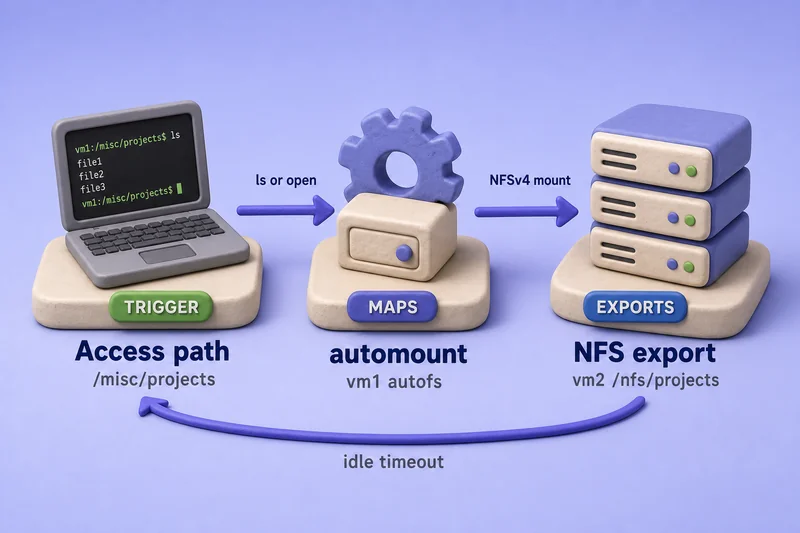
The client holds no permanent NFS mount, so findmnt shows nothing for that path until the first access, and nothing again once the idle timer expires. That is the whole difference from /etc/fstab, which mounts at boot or on mount -a and keeps the filesystem mounted until you umount it. For a concrete client-side comparison, the Ubuntu network-drive guide shows persistent SMB and NFS entries with _netdev and systemd automount options.
NFS is a common autofs backend, but the maps you edit are autofs configuration—not NFS server setup.
autofs Quick Reference
| Task | Command or file |
|---|---|
| Install | sudo dnf install autofs |
| Start service | sudo systemctl enable --now autofs |
| Main master map | /etc/auto.master |
| Master map drop-ins | /etc/auto.master.d/ |
| Reload maps | sudo systemctl reload autofs |
| Check service | systemctl status autofs |
| Show mount | findmnt |
| Trigger mount | ls /mount/path (or any access to the path) |
Understand autofs Configuration
autofs uses a two-level layout:
master map
   ↓
automount map
   ↓
key + options + source| Term | Meaning |
|---|---|
| Master map | /etc/auto.master plus drop-ins in /etc/auto.master.d/*.autofs |
| Map file | Lists keys, mount options, and NFS source for each automount |
| Key | Indirect: name under the parent (projects → /misc/projects). Direct: full path (/mnt/direct-projects) |
| Mount point | Client path where the filesystem appears after access |
| Source | Remote export such as vm2.lab.example:/nfs/projects |
Prepare the NFS Server Exports
Build the server side first, because autofs has nothing to mount until an export exists. Everything in this section runs on $NFS_SERVER, and every section after it runs on the client.
The indirect and direct maps mount /nfs/projects, which comes from NFS server and client in Linux. The wildcard map later needs a second export holding one directory per user, so create that now:
sudo mkdir -p /exports/users/alice /exports/users/bob
echo '/exports/users vm1.lab.example(rw,sync)' | sudo tee -a /etc/exports
sudo exportfs -ra
Confirm the live export table lists both paths against the client host:
sudo exportfs -v/nfs/projects vm1.lab.example(sync,wdelay,hide,no_subtree_check,sec=sys,rw,secure,root_squash,no_all_squash)
/exports/users vm1.lab.example(sync,wdelay,hide,no_subtree_check,sec=sys,rw,secure,root_squash,no_all_squash)Both exports name vm1.lab.example, so the client is permitted to mount them. If either line is missing, autofs will fail later with a mount error rather than a map error. The rest of the guide runs on the client.
Install autofs on the Client
RHEL 10 expects autofs installed and running before map files are useful. On $NFS_CLIENT, install the client packages and start the service:
sudo dnf install -y autofs nfs-utilsComplete!Enable and start autofs before you add map files:
sudo systemctl enable --now autofsCreated symlink '/etc/systemd/system/multi-user.target.wants/autofs.service' → '/usr/lib/systemd/system/autofs.service'.Confirm the daemon is running:
systemctl is-active autofsactiveCreate matching nfsdemo / projects (UID/GID 1010) on the client when the server export uses group write with root_squash:
sudo groupadd -g 1010 projects 2>/dev/null || true
sudo useradd -u 1010 -g projects -m nfsdemo 2>/dev/null || true
After you edit map files, reload the running daemon:
sudo systemctl reload autofsConfigure an Indirect Map
An indirect map mounts keys under one parent directory. On the client, create the parent (not the key subdirectory):
sudo mkdir -p /miscRegister master-map entries in a drop-in file instead of overwriting /etc/auto.master. The packaged master file already includes /etc/auto.master.d/*.autofs:
sudo touch /etc/auto.direct /etc/auto.usersAdd the master-map drop-in that references all three map files:
sudo tee /etc/auto.master.d/nfs-lab.autofs <<'EOF'
/misc	/etc/auto.misc
/-	/etc/auto.direct
/users	/etc/auto.users
EOF
The indirect map file lists the key, NFS options, and export:
projects -fstype=nfs,vers=4.2,rw vm2.lab.example:/nfs/projectsCreate the indirect map file on the client:
sudo tee /etc/auto.misc <<'EOF'
projects	-fstype=nfs,vers=4.2,rw	vm2.lab.example:/nfs/projects
EOF
Reload autofs so the new maps are active:
sudo systemctl reload autofsA process that accesses /misc/projects triggers a mount of vm2.lab.example:/nfs/projects at that path.
Verify an Indirect Automount
Starting autofs does not mount NFS yet. On the client, confirm only the automount parent exists before access:
findmnt /misc/projects 2>&1 || echo 'no NFS mount yet'findmnt: no entry for /misc/projects
no NFS mount yetThe parent indirect mount may already be registered:
findmnt /miscTARGET SOURCE FSTYPE OPTIONS
/misc /etc/auto.misc autofs rw,relatime,fd=6,pgrp=34651,timeout=300,minproto=5,maxproto=5,indirect,pipe_ino=148340Access the indirect path as nfsdemo to trigger the mount:
sudo -u nfsdemo ls /misc/projectsAfter access, the NFS filesystem appears:
findmnt /misc/projectsTARGET SOURCE FSTYPE OPTIONS
/misc/projects vm2.lab.example:/nfs/projects nfs4 rw,relatime,vers=4.2,rsize=262144,wsize=262144,namlen=255,hard,fatal_neterrors=none,proto=tcp,timeo=600,retrans=2,sec=sys,clientaddr=192.168.56.116,local_lock=none,addr=192.168.56.117vm2.lab.example:/nfs/projects in SOURCE confirms the indirect map mounted the NFS export on first access. hard in the options line is normal NFS client behavior; avoid soft in production maps because soft timeouts can risk silent data loss on busy shares.
Configure a Direct Map
A direct map uses the full path as the key. It is still autofs configuration, so it belongs on the client alongside the indirect map, and the /- entry in /etc/auto.master.d/nfs-lab.autofs already points at /etc/auto.direct.
/mnt/direct-projects -fstype=nfs,vers=4.2,rw vm2.lab.example:/nfs/projectsWrite the direct map file on the client:
sudo tee /etc/auto.direct <<'EOF'
/mnt/direct-projects	-fstype=nfs,vers=4.2,rw	vm2.lab.example:/nfs/projects
EOF
Pick up the new direct-map line:
sudo systemctl reload autofsYou do not need to create /mnt/direct-projects beforehand; autofs can create the trigger path when it is missing. If the directory already exists, autofs can still mount there—the underlying directory contents are hidden while the NFS filesystem is mounted on that path.
Direct vs Indirect Maps
| Feature | Direct | Indirect |
|---|---|---|
| Key | Full path (/mnt/direct-projects) |
Name below base (projects under /misc) |
| Base directory | No shared parent required | Common parent (/misc) |
| Master entry | /- → /etc/auto.direct (in drop-in) |
/misc → /etc/auto.misc (in drop-in) |
| Typical use | Fixed single paths | Groups of related mounts under one parent |
Verify the direct map on the client:
sudo -u nfsdemo ls /mnt/direct-projectsConfirm the direct-map NFS source:
findmnt /mnt/direct-projectsTARGET SOURCE FSTYPE OPTIONS
/mnt/direct-projects vm2.lab.example:/nfs/projects nfs4 rw,relatime,vers=4.2,rsize=262144,wsize=262144,namlen=255,hard,fatal_neterrors=none,proto=tcp,timeo=600,retrans=2,sec=sys,clientaddr=192.168.56.116,local_lock=none,addr=192.168.56.117Configure Wildcard Maps
A wildcard map substitutes the key into the source path, so one entry serves every directory under a shared parent export. This map consumes the /exports/users export created on the server earlier, and the /users master entry is already in /etc/auto.master.d/nfs-lab.autofs, so only the map file is missing:
sudo tee /etc/auto.users <<'EOF'
*	-fstype=nfs,vers=4.2,rw	vm2.lab.example:/exports/users/&
EOF
Reload so the wildcard map is active:
sudo systemctl reload autofs* matches any single key. & in the source expands to that key, so access to /users/alice mounts vm2.lab.example:/exports/users/alice.
Trigger and verify:
sudo -u nfsdemo ls /users/aliceThe wildcard source should appear in findmnt:
findmnt /users/aliceTARGET SOURCE FSTYPE OPTIONS
/users/alice vm2.lab.example:/exports/users/alice nfs4 rw,relatime,vers=4.2,rsize=262144,wsize=262144,namlen=255,hard,fatal_neterrors=none,proto=tcp,timeo=600,retrans=2,sec=sys,clientaddr=192.168.56.116,local_lock=none,addr=192.168.56.117Centralized LDAP or SSSD map delivery is a separate workflow — see LDAP NFS home directories with autofs when maps come from the directory rather than local files.
Configure Automatic Unmount Timeout
autofs removes idle mounts after a timeout, and the timeout is a client setting in /etc/autofs.conf rather than anything on the NFS server. On RHEL 10 the packaged default is five minutes:
grep '^timeout' /etc/autofs.conftimeout = 300Lower the value for lab testing:
sudo sed -i 's/^timeout = 300/timeout = 30/' /etc/autofs.confConfirm the file shows the new timeout:
grep '^timeout' /etc/autofs.conftimeout = 30Restart autofs so the daemon reads /etc/autofs.conf:
sudo systemctl restart autofsTrigger a mount, wait longer than the timeout without accessing the path, then inspect the mount table:
sudo -u nfsdemo ls /misc/projects >/dev/null
sleep 35
findmnt /misc/projects 2>&1 || echo 'unmounted after idle timeout'unmounted after idle timeoutOnly the indirect automount parent remains:
findmnt /miscTARGET SOURCE FSTYPE OPTIONS
/misc /etc/auto.misc autofs rw,relatime,fd=6,pgrp=34651,timeout=30,minproto=5,maxproto=5,indirect,pipe_ino=148340Use a longer production timeout unless you deliberately want aggressive cleanup of idle NFS mounts.
Reload autofs After Configuration Changes
After editing map files on the client, reload the service there:
sudo systemctl reload autofsThe service should still be active after reload:
systemctl is-active autofsactiveactive after reload means the daemon re-read maps without a full restart. Use systemctl reload autofs after map files, direct maps, or master-map drop-in changes. Changes to daemon-wide settings in /etc/autofs.conf, such as timeout, require restarting autofs so the daemon starts with the new configuration (see the timeout section above).
Check recent autofs messages when a map does not behave as expected:
journalctl -u autofs --no-pager -n 8Aug 08 17:25:04 vm1.lab.example systemd[1]: Started autofs.service - Automounts filesystems on demand.Use autofs with NFS Home Directories
A common pattern maps /home/username to an NFS export per user with a wildcard indirect map under /home or a direct map per path. The mechanics match the /users wildcard example above: the server must export each home directory, UIDs must align, and the client map must use & or explicit keys.
Local file maps in this article stop at that pattern. Directory-served maps through OpenLDAP and SSSD belong in LDAP NFS home directories with autofs.
autofs vs /etc/fstab
Use /etc/fstab when |
Use autofs when |
|---|---|
| The filesystem should stay mounted during normal uptime | The mount is needed only when a path is accessed |
| Boot should attach local or always-on network storage | Many network paths exist and need not all be mounted at once |
You accept boot ordering against network-online.target |
A server may be temporarily unavailable and you want idle cleanup |
autofs is not inherently faster than fstab; it changes mount timing and resource use. For persistent always-on NFS, see fstab UUID and LABEL and mount NFS share in Linux.
Troubleshoot autofs
Start on the client, because that is where autofs runs and where the logs are. Only the export check in the third row sends you back to the server:
| Symptom | Likely cause | Fix |
|---|---|---|
| Path access hangs | NFS server down, firewall, or DNS failure | ping server; manual mount -t nfs; check journalctl -u autofs |
| Map file syntax error | Wrong columns or tabs in map | Compare with working examples; reload autofs |
| NFS server unreachable | Export missing or wrong source in map | exportfs -v on server; fix map source path |
| Mount never appears | Service not running or parent path missing | systemctl status autofs; create indirect parent (/misc) |
| Map changed but old behavior remains | Reload not run or stale mount | systemctl reload autofs or restart; umount stuck paths |
| Timeout does not unmount | timeout still 300 in /etc/autofs.conf |
Set timeout = 30 (or desired value) and restart autofs |
| DNS resolution failure | Client cannot resolve server hostname | Fix /etc/hosts or DNS; use IP only as a temporary test |
Manual NFS mount is the control test when autofs fails:
sudo mkdir -p /tmp/nfs-manualIf this mount succeeds, NFS connectivity is fine and the map or autofs service is the problem:
sudo mount -t nfs -o vers=4.2 "$NFS_SERVER:$NFS_EXPORT" /tmp/nfs-manualA successful manual mount confirms NFS reachability:
findmnt /tmp/nfs-manualTARGET SOURCE FSTYPE OPTIONS
/tmp/nfs-manual vm2.lab.example:/nfs/projects nfs4 rw,relatime,vers=4.2,rsize=262144,wsize=262144,namlen=255,hard,fatal_neterrors=none,proto=tcp,timeo=600,retrans=2,sec=sys,clientaddr=192.168.56.116,local_lock=none,addr=192.168.56.117If manual mount works but autofs does not, the problem is in map syntax or the autofs service—not basic NFS connectivity.
sudo umount /tmp/nfs-manualComplete autofs Example
On the NFS server (vm2.lab.example)
- Complete NFS server setup —
/nfs/projectsexported tovm1.lab.example(rw,sync) - Add
/exports/usersexport andalice/bobsubdirectories for the wildcard map sudo exportfs -raandsudo exportfs -v— confirm both exports listvm1.lab.example
On the autofs client (vm1.lab.example)
sudo dnf install -y autofs nfs-utilsandsudo systemctl enable --now autofs- Create
nfsdemo/projects(UID/GID 1010) matching the server sudo tee /etc/auto.master.d/nfs-lab.autofswith/misc,/-, and/usersentries- Create
/etc/auto.misc,/etc/auto.direct, and/etc/auto.userswithvers=4.2,rw(nosoftorintr) sudo systemctl reload autofsafter each map batchfindmnt /misc/projects— no NFS line before accesssudo -u nfsdemo ls /misc/projects— trigger indirect mountsudo -u nfsdemo ls /mnt/direct-projectsandsudo -u nfsdemo ls /users/alice— trigger direct and wildcard maps- Lower
timeoutin/etc/autofs.conf, restart autofs, wait past idle time, confirm NFS mounts disappear sudo systemctl reload autofsafter further map edits
References
Summary
You configured autofs on vm1.lab.example to mount NFS exports from vm2.lab.example only when a user accesses the configured path. Indirect maps place keys under a parent such as /misc/projects, direct maps bind a full path like /mnt/direct-projects, and wildcard maps substitute the key into the source with * and &.
The verification pattern that surprises most readers is that systemctl start autofs alone does not NFS-mount anything useful until path access occurs—use findmnt before and after ls to see the difference. Set timeout in /etc/autofs.conf when you need idle unmount behavior; reload autofs after map or master-map edits, and restart after /etc/autofs.conf changes.
For always-on NFS mounts, use /etc/fstab (fstab guide). For building the server exports this article assumed, use NFS server and client in Linux. For LDAP-delivered home maps, continue with LDAP NFS home directories with autofs.
Frequently Asked Questions
Does starting autofs mount all map entries immediately?
No. autofs registers automount points and mounts the NFS export only when a process accesses the configured path. findmnt shows the parent autofs mount before access; the NFS filesystem appears after you ls or open a file under the trigger path.
What is the difference between indirect and direct autofs maps?
Indirect maps mount keys under a common parent such as /misc/projects. Direct maps use the full path as the key, such as /mnt/direct-projects, with a master entry of /- pointing to the direct map file.
When should I use autofs instead of /etc/fstab?
Use autofs when mounts should appear only on access and unmount after idle time. Use fstab when the filesystem should stay mounted across normal operation and you accept boot dependency on the server being up.
Why does ls hang on an autofs path?
The automount point is waiting on NFS or DNS. Test the same server and export with a manual mount, confirm the server is reachable, and check journalctl -u autofs for map syntax errors.
Do I need to restart autofs after editing a map file?
Reload with systemctl reload autofs after map or master-map changes. Restart the service after changing daemon-wide settings such as /etc/autofs.conf, or if reload itself fails.
