
| Tested on | Rocky Linux 10.2 (Red Quartz) |
|---|---|
| Tools used | efibootmgrbootctlfindmntlsinitrdjournalctlsystemd-analyze |
| Applies to | Most installed Linux desktop and server distributions; commands primarily target x86-64 PC firmware and systemd-based systems |
| Privilege | read-only for most inspection commands; sudo for efibootmgr, some bootctl output, dmesg, and journal access depending on distribution policy |
| Scope | Conceptual walkthrough of the modern Linux boot chain from firmware to login, with commands to identify components on your system and a stage-based troubleshooting guide. Does not cover GRUB installation, initramfs rebuilding, Secure Boot setup, or UKI creation in depth. |
When you press the power button on a Linux machine, dozens of components cooperate before you see a login prompt. Firmware initializes hardware, a boot loader—or on some UEFI systems a kernel EFI stub or UKI—loads the kernel, early userspace prepares storage, and PID 1 brings up services. The exact filenames differ between Rocky Linux, Ubuntu, and Arch, but the hand-off pattern is the same on most x86-64 desktops and servers.
This guide walks that chain in order, shows commands to see which path your system uses, and maps common failure symptoms back to the stage where they start.
Linux boot process at a glance
Linux boot is not one straight line on every machine. Firmware type, storage layout, and your default target change which branch runs. For the desktop and server systems covered here, the process normally reaches a mounted root filesystem, a persistent init process, and either system services or a login interface.
The flowchart below maps the full boot chain. Yellow diamonds are decision points — follow the Yes or No arrow that matches your firmware, disk layout, and default target.
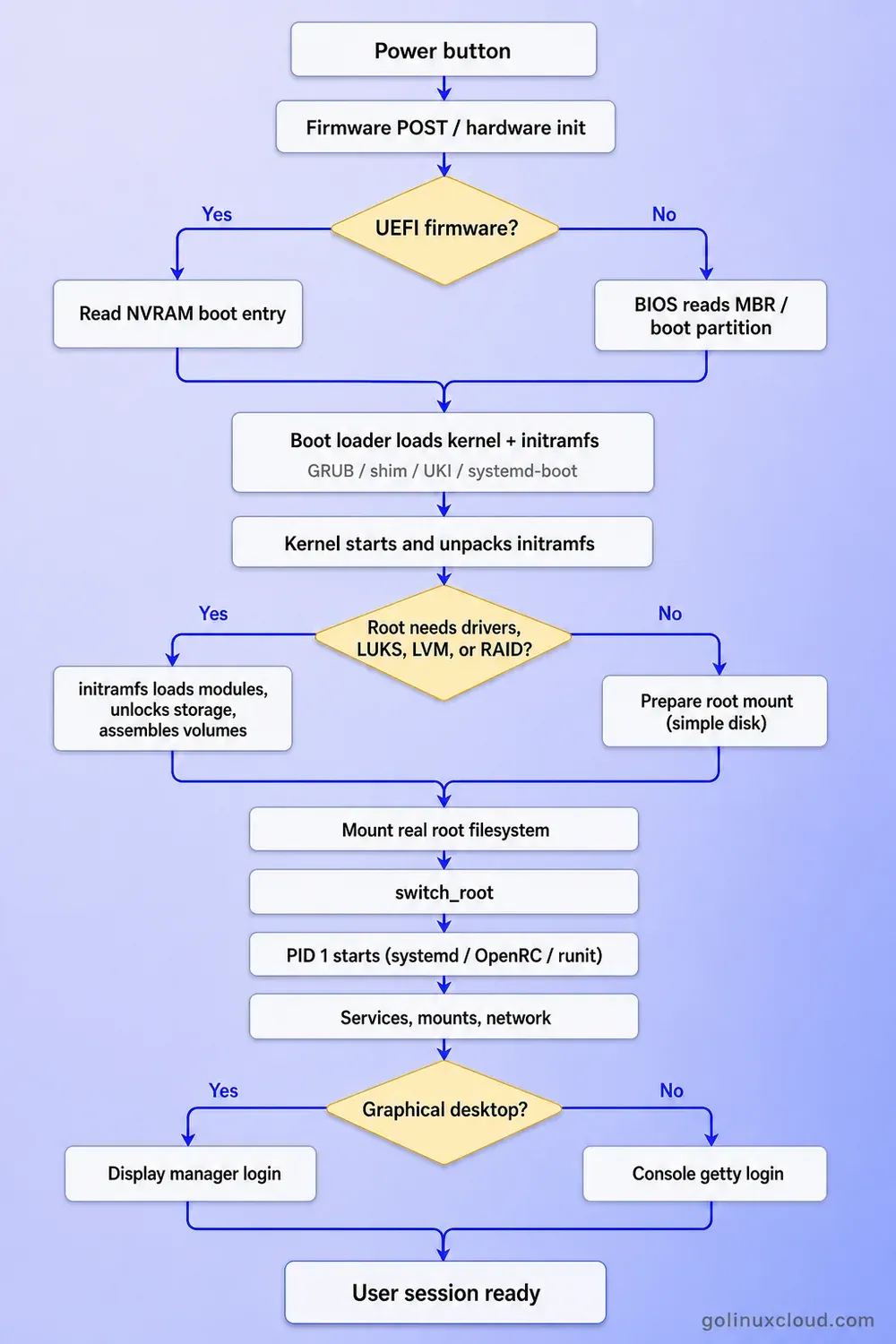
Figure: Linux boot flowchart. Rectangles are stages; yellow diamonds are Yes/No decisions. Paths merge again before the next stage.
Read the chart top to bottom:
- UEFI firmware? — UEFI normally loads an EFI application from the EFI System Partition. Legacy BIOS executes boot code from the MBR, which then loads the next GRUB stage. Most paths continue through a boot loader, although direct EFI-stub and UKI boot can bypass a separate loader.
- Was an initramfs supplied? — Nearly all mainstream desktop and server distributions supply one, even for simple local disks. When present,
/initruns as PID 1, loads drivers, unlocks storage if needed, mounts the real root, andswitch_rootexecs the init program from that root while retaining PID 1. - Is the default boot target graphical? —
graphical.targetnormally pulls in a display manager, whilemulti-user.targetnormally provides text consoles and network services without a graphical login.
A conventional boot loader does not start the system's service manager itself. It transfers execution to the kernel, which then starts early userspace or the init program.
| Stage | Main job | Typical component |
|---|---|---|
| Firmware | Initialize hardware and select a boot target | UEFI or BIOS |
| Boot loader | Select and load an operating system kernel | GRUB 2 or systemd-boot |
| Kernel | Initialize CPU, memory, drivers, and core subsystems | Linux kernel |
| Early userspace | Locate and mount the real root filesystem | initramfs |
| System initialization | Start userspace services and mounts | systemd, OpenRC, or runit |
| Login | Provide console or graphical session | getty or display manager |
A boot loader is common but not mandatory on every UEFI design. Firmware can load an EFI-capable kernel stub or a Unified Kernel Image (UKI) directly when the distribution ships one.
Identify the boot components on your Linux system
Before studying each stage, run these inspection commands on the current system. Most are read-only; efibootmgr needs sudo.
| What you want to know | Command |
|---|---|
| UEFI or legacy BIOS | test -d /sys/firmware/efi (directory exists = UEFI session) |
| Boot loader / firmware status | bootctl status |
| UEFI NVRAM entries | sudo efibootmgr -v |
/boot and ESP mounts |
findmnt --target /boot and findmnt --target /boot/efi |
| Installed kernels and initramfs | ls -lh /boot/vmlinuz* /boot/initramfs* /boot/initrd* 2>/dev/null |
| Kernel command line | cat /proc/cmdline |
| PID 1 (init system) | ps -p 1 -o pid,comm,args |
| Default systemd target | systemctl get-default |
UEFI versus legacy BIOS. The presence of /sys/firmware/efi shows that the current Linux session was started in UEFI mode. Its absence normally means the system was booted through legacy BIOS or compatibility mode; it does not prove that the hardware lacks UEFI support.
if [ -d /sys/firmware/efi ]; then
    echo "Booted using UEFI"
else
    echo "Booted using legacy BIOS"
fi
Boot loader and firmware status. bootctl reports systemd-boot status when that loader is active. On GRUB-based Rocky Linux or Ubuntu systems it may still print partial firmware and ESP information.
bootctl statusTrimmed sample output:
         Firmware: UEFI 2.70 (American Megatrends)
  Firmware Arch: x64
   Secure Boot: disabled
  Product UUID: ...
         Loader: GRUB 2.12
           ESP: /dev/sda1 (/boot/efi)
When systemd-boot is not the active loader, focus on the firmware, ESP, and loader lines rather than expecting a full boot-entry list.
UEFI boot entries. efibootmgr works only when the current system was booted in UEFI mode with EFI variables available. NVRAM stores boot order and paths to EFI executables on the ESP.
sudo efibootmgr -vTrimmed sample output:
BootCurrent: 0003
Timeout: 1 seconds
BootOrder: 0003,0001
Boot0003* Rocky Linux  HD(...)/\EFI\rocky\shimx64.efi
Boot0001* UEFI OS      HD(...)/\EFI\BOOT\BOOTX64.EFI
BootCurrent identifies the entry used for this boot. BootOrder shows the normal firmware search order. The final path identifies the EFI executable loaded from the ESP.
Boot partitions. Kernel and loader files usually live under /boot. The ESP is often mounted at /boot/efi or /efi. Use --target so the command still works when /boot is not a separate mount point.
findmnt --target /bootSample output when /boot is its own partition:
TARGET SOURCE    FSTYPE OPTIONS
/boot  /dev/sda2 xfs    rw,relatime
If /boot is part of /, the result shows the root filesystem instead:
TARGET SOURCE                 FSTYPE OPTIONS
/      /dev/mapper/rl-root    xfs    rw,relatime
That second result means /boot is part of the root filesystem, not a separate partition.
On UEFI systems, check the ESP:
findmnt --target /boot/efiIf /boot/efi is not mounted, try findmnt --target /efi. Check the SOURCE and FSTYPE columns. A mounted ESP normally uses a FAT filesystem such as vfat. If the command instead reports the root filesystem, /boot/efi is only a directory on / and the ESP is not mounted there.
To list mounted FAT filesystems without assuming /boot/efi or /efi:
findmnt -t vfatKernels and initramfs images.
ls -lh /boot/vmlinuz* /boot/initramfs* /boot/initrd* 2>/dev/nullSample output:
-rw-r--r--. 1 root root  11M ... /boot/initramfs-6.12.0-211.34.1.el10_2.x86_64.img
-rwxr-xr-x. 1 root root  15M ... /boot/vmlinuz-6.12.0-211.34.1.el10_2.x86_64
Rocky Linux and Fedora typically ship vmlinuz-<version> and initramfs-<version>.img. Debian and Ubuntu often use initrd.img-<version> even when the underlying format is initramfs.
Kernel command line. The boot loader passes parameters that early userspace and systemd honor.
cat /proc/cmdlineSample output:
BOOT_IMAGE=(hd0,gpt2)/vmlinuz-6.12.0-211.34.1.el10_2.x86_64 root=/dev/mapper/rl-root ro rd.lvm.lv=rl/root quietThe root= parameter tells the kernel or early userspace where to find the real root filesystem, depending on whether an initramfs is used. The kernel can mount the real root filesystem directly when no usable /init exists in initramfs and the required support is built in. rd.luks.*, rd.lvm.*, and quiet are common on enterprise and desktop installs.
PID 1.
ps -p 1 -o pid,comm,argsSample output on a systemd system:
  PID COMMAND COMMAND
    1 systemd /usr/lib/systemd/systemd --switched-root --system --deserialize=31
On this system, --switched-root indicates that systemd was invoked after the transition from initramfs to the real root filesystem. Other initramfs implementations may perform the same transition without displaying this argument. On Rocky Linux, Fedora, Ubuntu, Debian, and openSUSE the comm column is normally systemd. Alpine Linux normally uses BusyBox init as PID 1, with OpenRC managing boot services and runlevels. Void Linux uses runit.
Default systemd target. When PID 1 is systemd, the default target describes the boot goal (text console versus graphical desktop).
systemctl get-defaultSample output:
graphical.targetmulti-user.target means multi-user text mode; graphical.target pulls in a display manager. For a deeper tour of targets and units, see the systemd tutorial for beginners.
Stage 1: Firmware initializes the machine
Started by: pressing the power button or a remote management controller reset.
What it does: CPU execution begins in platform firmware. The firmware initializes essential hardware, runs power-on self-test (POST) or equivalent checks, enumerates boot devices, and selects a boot target from NVRAM entries or a fixed device order.
What it loads: on UEFI systems, an EFI executable from the ESP; on legacy BIOS, boot code from the disk's MBR that loads GRUB's core image.
Next stage: the boot loader, a shim binary, an EFI kernel stub, or a UKI.
Inspect: efibootmgr -v, firmware setup screens, and bootctl status for ESP paths.
Typical failure: blank screen, no boot device, or firmware loops without reaching a loader menu.
Legacy BIOS boot
Legacy BIOS executes boot code from the disk's MBR. That small boot image then loads GRUB's larger core image, which may be embedded in the post-MBR area on an MBR-partitioned disk or in a BIOS Boot Partition on a GPT disk.
BIOS
  → MBR boot code
  → GRUB core image
  → GRUB menu
BIOS cannot parse /boot on ext4 or xfs directly, which is why a separate boot loader stage still matters on legacy installs. When GRUB boots a GPT-partitioned disk in legacy BIOS mode, the disk normally requires a small BIOS Boot Partition for embedding core.img. A size of about 1 MiB is commonly used, with the bios_grub flag in GNU Parted.
Modern UEFI boot
UEFI firmware reads boot entries stored in NVRAM and loads EFI applications from the FAT-formatted ESP.
UEFI
  → reads boot entries from NVRAM
  → loads an EFI executable from the EFI System Partition
The ESP is a small FAT partition, usually labeled EFI System Partition, mounted at /boot/efi or /efi. Each boot entry points at a .efi file — GRUB, systemd-boot, shim.efi for Secure Boot, or a UKI. If no NVRAM entry matches, firmware may fall back to \EFI\BOOT\BOOTX64.EFI on the ESP.
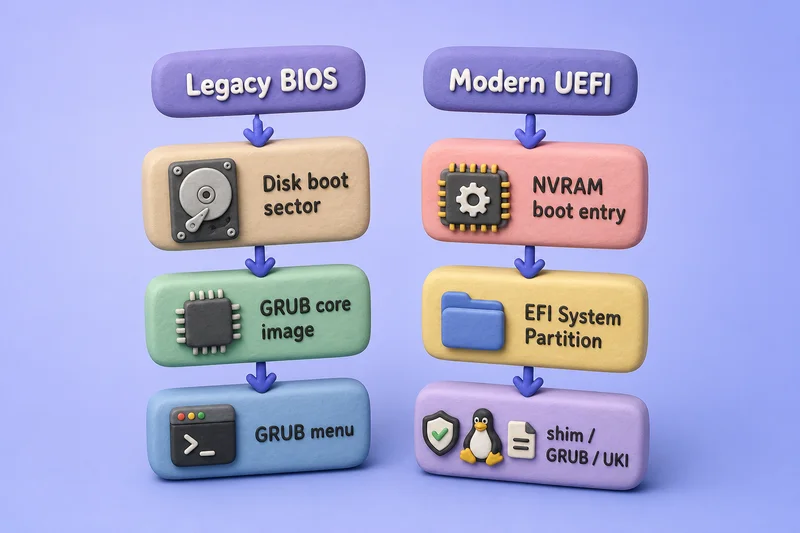
Secure Boot (high level): firmware authenticates the first trusted EFI application. In a typical distribution chain, firmware loads a signed shim; shim then authenticates GRUB or the kernel, and the kernel authenticates subsequently loaded kernel modules. Detailed enrollment and key management belong in a dedicated Secure Boot guide.
| Item | Legacy BIOS | UEFI |
|---|---|---|
| Typical partition scheme | MBR or GPT | Normally GPT |
| Boot location | Disk boot sectors | EFI System Partition |
| Boot entries | Firmware device order | NVRAM entries |
| Secure Boot | No | Supported |
| Direct EFI kernel or UKI boot | No | Supported |
| Recommended for new systems | No | Yes |
Stage 2: The boot loader selects and loads Linux
Started by: firmware executing the selected EFI application or BIOS boot code.
What it does: presents a menu (when configured), reads a boot entry, loads the kernel image into memory, loads the initramfs when present, and passes the kernel command line.
What it loads: vmlinuz (compressed kernel) and initramfs or initrd image from /boot or from inside a UKI.
Next stage: the Linux kernel entry point.
Inspect: /boot contents, /etc/default/grub, Boot Loader Specification snippets under /boot/loader/entries/ on BLS systems, and the running command line from the identification section above.
Typical failure: grub> or grub rescue> prompt, file not found for vmlinuz, or immediate reboot after selecting an entry.
GRUB 2
GRUB 2 is the normal installer default or common choice on Rocky Linux, RHEL, Debian, Ubuntu, and openSUSE. A conceptual menu entry contains three important pieces. The paths below are Linux-side paths; GRUB syntax can differ when /boot is a separate filesystem.
Kernel:       /boot/vmlinuz-<version>
Initramfs:    /boot/initramfs-<version>.img
Command line: root=UUID=... ro quiet
As shown earlier, verify the running command line with cat /proc/cmdline.
On RHEL-family systems, per-kernel Boot Loader Specification (BLS) snippets under /boot/loader/entries/ let each installed kernel keep its own entry instead of rebuilding one monolithic grub.cfg for every package update. See what GRUB files do and update GRUB 2 with grubby when you need to change defaults or regenerate configuration.
A conventional boot loader does not start the system's service manager. It transfers execution to the kernel, which then starts early userspace or the init program.
Other boot paths
| Boot method | Where it is commonly encountered |
|---|---|
| GRUB 2 | RHEL family, Debian, Ubuntu, SUSE, many other distributions |
| systemd-boot | Arch and other UEFI-focused installations |
| Syslinux or extlinux | Lightweight or legacy installations |
| U-Boot | ARM boards and embedded systems |
| zIPL | IBM Z |
| Direct EFI stub or UKI | Newer UEFI and image-based deployments |
Not every Linux machine passes through GRUB. Pick the row that matches your hardware and distribution rather than assuming a single loader.
Stage 3: The Linux kernel initializes the system
Started by: the boot loader jumping to the kernel entry point.
What it does: decompresses itself, sets up memory management and scheduling, parses the command line, initializes built-in drivers, and—if an initramfs was supplied—unpacks it into the initial root environment and executes /init. Without an external initramfs, the kernel may mount the real root filesystem directly and execute its init program when all required drivers and filesystem support are built in.
What it loads: an initramfs cpio image when the boot loader supplied one.
Next stage: initramfs early userspace when an initramfs is present, otherwise the init program from the real root filesystem.
Inspect: uname -r, the running command line from the identification section, and dmesg for early boot messages.
Typical failure: kernel panic before any userspace prompt, often with VFS: Unable to mount root fs if the command line or initramfs is wrong.
The boot loader only copies the kernel image into RAM. Decompression and subsystem setup happen inside kernel code.
Check the running kernel release:
uname -rReview firmware and driver messages from the current boot:
dmesg | lessSearch the ring buffer for storage, filesystem, and early-userspace clues such as VFS, initramfs, nvme, xfs, ext4, dm-crypt, firmware, error, and failed. Persistent logs after boot live in the journal; see view logs with journalctl.
Stage 4: initramfs finds the real root filesystem
Started by: the kernel executing /init inside the unpacked initramfs as PID 1.
What it does: loads storage, filesystem, encryption, LVM, RAID, multipath, or network modules; assembles block devices; unlocks encrypted volumes; and mounts the real root filesystem.
What it loads: kernel modules and userspace helpers packaged inside the initramfs image.
Next stage: the init program from the real root filesystem through switch_root, which changes to the already-mounted real root and executes that init program—normally systemd—while retaining PID 1.
Inspect: lsinitrd on RHEL family, lsinitramfs on Debian and Ubuntu with initramfs-tools, or lsinitcpio on Arch.
Typical failure: dracut or initramfs emergency shell, Gave up waiting for root device, or drop to initramfs> busybox prompt on Debian.
The kernel cannot always mount / immediately. Root may depend on:
- Loadable storage drivers not built into the kernel image
- LVM or software RAID assembly
- LUKS decryption (LUKS data-partition guides cover the userspace side; root encryption also needs initramfs hooks)
- Multipath, iSCSI, NVMe-oF, or network block devices
- Filesystem modules such as xfs or btrfs
Kernel unpacks initramfs
    ↓
initramfs loads required drivers
    ↓
storage devices and volumes become available
    ↓
encrypted or network-backed storage is unlocked
    ↓
real root filesystem is mounted
    ↓
switch_root changes from temporary root to real /| Term | Meaning |
|---|---|
initrd |
Older initial RAM disk backed by a block device |
initramfs |
Modern compressed cpio archive unpacked into memory |
/init |
Early-userspace program inside initramfs; runs as PID 1 until switch_root |
switch_root |
Changes to the real root filesystem that early userspace has already mounted and executes its init program |
On Rocky Linux and other Dracut-based systems, list the current initramfs contents:
lsinitrdTrimmed sample output:
Image: /boot/initramfs-6.12.0-211.34.1.el10_2.x86_64.img: 11M
dracut modules:
bash dracut-systemd systemd systemd-initrd ...
Arguments: '--kver' '6.12.0-211.34.1.el10_2.x86_64' ...
The image path, Dracut modules, and a few packaged files confirm what early userspace can do before root mount.
| Distribution family | Inspect initramfs with |
|---|---|
| RHEL, Rocky, Alma, Fedora, SUSE | lsinitrd |
| Debian, Ubuntu (initramfs-tools) | lsinitramfs /boot/initrd.img-$(uname -r) |
| Ubuntu 26.04 LTS (Dracut default) | lsinitrd |
| Arch Linux | lsinitcpio /boot/initramfs-linux.img or lsinitcpio --analyze /boot/initramfs-linux.img |
| Alpine Linux | `gzip -dc /boot/initramfs-lts |
On Arch, custom kernels may use names such as /boot/initramfs-linux-lts.img or /boot/initramfs-linux-zen.img. Pass the image path directly to lsinitcpio.
Alpine image names depend on the installed kernel flavor, such as initramfs-lts or initramfs-virt. Locate the correct file under /boot before running the decompression command.
Filenames may still say initrd when the technology underneath is initramfs. Rebuilding images and recovering from emergency shells are covered in extract and inspect initramfs.
Stage 5: PID 1 starts Linux userspace
Started by: switch_root executing the init program from the real root filesystem, or the kernel executing that init program directly when no external initramfs is used.
What it does: when an initramfs is used, its PID 1 process executes the init program from the real root filesystem. The executable changes, but the process keeps PID 1. On a systemd system, systemd then loads units, activates mounts, starts services, and works toward the default target. A later systemd soft reboot on RHEL re-runs much of this userspace stage without repeating firmware, boot loader, or kernel init.
What it loads: unit files from /usr/lib/systemd/system and /etc/systemd/system, udev rules, mount units, and service dependencies.
Next stage: login services such as getty or a display manager once the selected target is reached.
Inspect: ps -p 1, systemctl get-default, and systemctl list-dependencies.
Typical failure: emergency mode, A start job is running for ..., or boot stops before login while systemd waits on a failed unit.
Verify PID 1:
ps -p 1 -o pid,comm,argsOn mainstream systemd distributions, PID 1 is normally systemd; on Dracut/systemd-based boots its arguments may include --switched-root. Alpine Linux normally uses BusyBox init as PID 1, with OpenRC managing boot services and runlevels. Void Linux uses runit.
initramfs /init runs as PID 1
    ↓
real root filesystem is mounted
    ↓
switch_root execs systemd from the real root (still PID 1)
    ↓
systemd loads default.target
    ↓
Dependencies pull in mounts, sockets, devices, and services
    ↓
getty or graphical display manager starts
As shown earlier, check the default target with systemctl get-default.
Walk the dependency graph for the active boot target on a graphical system:
systemctl list-dependencies graphical.targetTrimmed sample output:
graphical.target
● ├─display-manager.service
● └─multi-user.target
  ● ├─NetworkManager.service
  ● ├─sshd.service
  ● └─systemd-logind.service
The exact enabled services differ by installation. Only the first few dependencies are shown here; the full graph is much larger.
| systemd target | General purpose |
|---|---|
rescue.target |
Maintenance environment |
multi-user.target |
Multi-user command-line system |
graphical.target |
Graphical login |
emergency.target |
Minimal emergency shell |
reboot.target |
Reboot |
poweroff.target |
Power off |
Targets are not sequential scripts. systemd builds a dependency graph and starts independent units in parallel where possible.
During this stage systemd-udevd processes device discovery and later hot-plug events, mount and swap units activate filesystems, networking comes up, long-running services start, and getty@tty1.service or a display manager provides login. This article stops at a usable console or desktop; unit authoring belongs in the systemd tutorial.
Historically, SysV runlevels in /etc/inittab chose which script directories to execute. systemd targets replaced that model on most major distributions. You may still hear "runlevel 3" spoken aloud; on current systems that maps to multi-user.target, not /etc/inittab.
Is the Linux boot process different across distributions?
The major stages stay the same. Distributions differ in boot loader packaging, initramfs generators, service managers, and configuration file locations.
| Distribution family | Common boot loader | Initramfs tooling | Init and service manager |
|---|---|---|---|
| RHEL, Rocky, Alma, Oracle Linux | GRUB 2 with BLS entries | Dracut | systemd |
| Fedora | GRUB 2; UKI and image-based options also exist | Dracut | systemd |
| Debian | Usually GRUB 2 | initramfs-tools | systemd by default |
| SUSE / openSUSE | GRUB 2 | Dracut-based early userspace | systemd |
| Arch Linux | User choice: GRUB, systemd-boot, UKI | mkinitcpio, Dracut, or booster | systemd |
| Alpine Linux | GRUB, Syslinux, or architecture-specific loaders | mkinitfs | BusyBox init with OpenRC |
| Void Linux | User-selected boot loader | Dracut | runit |
| Embedded ARM systems | Commonly U-Boot | Device-specific | Varies |
Practical differences you will notice:
- Boot-loader configuration paths (
/etc/default/grubversus/boot/loader/loader.conf) - ESP mount location (
/boot/efiversus/efi) - Initramfs regeneration command (
dracut -f,update-initramfs -u, ormkinitcpio -P) - Service management commands (
systemctlversusrc-service) - Default target or runlevel configuration
- Rescue kernel entries in the boot menu
Commands in this article use Rocky Linux paths unless noted. On Debian or Ubuntu, swap lsinitrd for lsinitramfs when the system still uses initramfs-tools. Embedded ARM, Alpine, and Void systems may not expose the same UEFI inspection commands shown earlier.
This walkthrough targets PC-style x86-64 servers and laptops. ARM boards often boot through U-Boot with a different partition layout but the same conceptual stages. IBM Z systems commonly use zIPL instead of GRUB. The inspection mindset — identify firmware, loader, kernel parameters, initramfs, and PID 1 — still applies on those platforms.
How the Linux boot process changed and improved
Modern Linux boot is not the three-stage BIOS → GRUB → SysV story many interview guides still repeat. The table below contrasts older defaults with what ships today.
| Earlier approach | Modern approach | Practical improvement |
|---|---|---|
| Legacy BIOS and MBR | UEFI, GPT, and ESP | Firmware-managed boot entries and larger disks |
| LILO or GRUB Legacy | GRUB 2, systemd-boot, EFI stub | Modern filesystem and UEFI support |
| Traditional initrd | initramfs | Flexible early userspace without a RAM block device |
| SysV init scripts | systemd units | Parallel, dependency-aware startup |
/etc/inittab runlevels |
systemd targets | Explicit service relationships |
Sequential S and K scripts |
Dependency-driven units | Less reliance on fixed script order |
| One generated GRUB menu | Per-kernel BLS entries on some distributions | Independent kernel entry management |
| Separate boot artifacts | Signed UKIs in selected deployments | Kernel and optional boot resources in one EFI image |
| Manual assembly on each host | Image-based and bootable-container OS | Easier rollback and reproducible delivery |
What changed in practice:
- Parallel startup — systemd starts independent units together while honoring
After=andRequires=dependencies. Socket and device activation avoid launching daemons before their resources exist. - Better failure visibility — boot and service logs consolidate in the journal. After a slow or failed boot, start with
systemctl --failed,systemd-analyze time, andsystemd-analyze critical-chain. Pair those withjournalctl -bfrom the troubleshooting section. - Safer verification and complex storage — UEFI Secure Boot authenticates the first trusted EFI application; later components such as shim, GRUB, the kernel, and kernel modules continue the chain. Modern initramfs images unlock LUKS, assemble LVM and RAID, and discover network-backed root.
- Easier kernel rollback — boot menus and per-kernel entries let you keep an older working kernel. On RHEL family systems,
grubbyand BLS snippets help; see boot with an old kernel.
Improvements are not uniform: Alpine still uses BusyBox init with OpenRC, and not every distribution ships UKIs or image-based updates.
Where the Linux boot process is heading
Unified Kernel Images
Traditional Secure Boot chains may load shim, then GRUB, then a separate vmlinuz and initramfs. A Unified Kernel Image is an EFI executable containing a UEFI boot stub and Linux kernel. It can also embed the initramfs, kernel command line, operating-system metadata, microcode, and other boot resources in the same signed file.
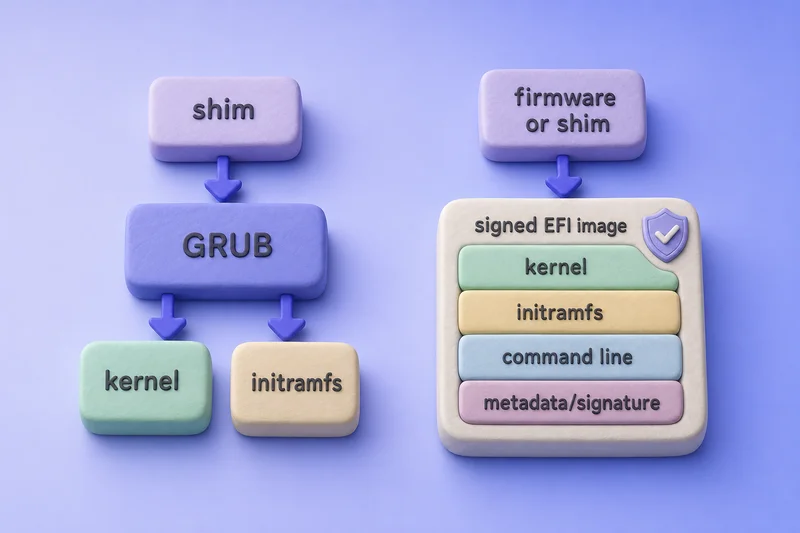
Benefits include broader signature coverage, more predictable Trusted Platform Module measurements, and simpler confidential-computing images. UKI support is growing in Fedora and systemd-centric workflows but has not replaced GRUB everywhere.
One-shot boot testing and automatic fallback
Some modern boot workflows mark a newly installed kernel, UKI, or operating-system deployment for a one-time test boot. Boot counting or success markers can then retain the new entry after a successful startup or return to an older entry after repeated failures. Support depends on the boot loader and distribution; it is not yet a universal Linux update method.
Dracut and systemd in early userspace
Ubuntu 26.04 LTS adopted Dracut as the default initramfs generator while retaining support for initramfs-tools as an alternative (Ubuntu 26.04 release notes). Dracut can run systemd inside the initramfs, reducing bespoke shell script glue and aligning early boot with the main system manager.
Image-based Linux systems
Projects such as bootc, Fedora Atomic, and similar designs ship the operating system as a transactionally updated image-based deployment with multiple bootable deployments and rollback. Boot artifacts are tested as a unit rather than assembled independently on each machine. Traditional package-based installs remain common; image-based delivery is an additional path, not a universal replacement.
Troubleshoot Linux boot failures by stage
Start by identifying which stage still had control when the failure appeared. Then use that stage's tools instead of guessing from random log lines.
| Visible symptom | Likely stage | First checks |
|---|---|---|
| No disk or OS in firmware menu | Firmware | UEFI boot order, cabling, storage detection |
grub> or grub rescue> prompt |
Boot loader | GRUB files, partitions, boot entry paths |
| Kernel file not found | Boot loader / kernel entry | /boot contents, BLS snippets, grub.cfg |
Kernel panic before mounting / |
Kernel or initramfs | root= on /proc/cmdline, storage drivers |
| Dracut or initramfs emergency shell | Initramfs | cat /proc/cmdline, lsblk -f, blkid, LVM scans, /run/initramfs/rdsosreport.txt |
| Emergency mode after root mount | systemd / userspace | Failed mounts and units, journalctl -b |
A start job is running for ... |
systemd dependency | systemctl --failed, critical chain |
| Console login but no desktop | Display manager / graphical target | systemctl status display-manager, failed units |
| System boots but feels slow | Any stage | systemd-analyze time, firmware settings, services |
On Debian or Ubuntu hosts that will not boot after a power outage, use the repair Debian after power outage decision tree for emergency mode, fstab, fsck, GRUB, and interrupted apt before you chase unrelated boot stages.
Core diagnostic commands on a system that still boots.
List units that failed to start in the current boot:
systemctl --failedA failed unit is a useful starting point, but it may be unrelated to the visible boot problem or may have failed after the system reached its target.
Show warning-level messages from the current boot journal:
journalctl -b -p warningList boots retained in the journal before reading an earlier one:
journalctl --list-bootsTrimmed sample output:
IDX BOOT ID                          FIRST ENTRY
 -1 abc123... Mon 2026-07-22 09:14:02 IST
  0 def456... Mon 2026-07-23 08:02:11 IST
When the current boot succeeded but the previous one failed, read the last boot's log:
journalctl -b -1This works only when logs from the previous boot were retained. If journalctl --list-boots shows only boot 0, earlier journal data is unavailable.
Kernel and driver messages with human-readable timestamps:
dmesg -TShow the boot phases for which systemd received timing data:
systemd-analyze timeTrimmed sample output:
Startup finished in 4.812s (kernel) + 3.206s (initrd) +
8.917s (userspace) = 16.936s
graphical.target reached after 8.902s in userspace.
Values vary by system. Firmware and loader phases appear only when the platform and boot loader expose those timestamps. The displayed boot total combines the available boot phases. However, do not add together the startup times of individual services from systemd-analyze blame, because many units run concurrently.
Show which units sat on the critical path to the active target:
systemd-analyze critical-chain graphical.targetTrimmed sample output:
graphical.target @8.902s
└─multi-user.target @8.901s
  └─NetworkManager-wait-online.service @3.112s +5.741s
    └─NetworkManager.service @2.487s +612ms
@ shows when a unit became active after userspace startup began. + shows how long that unit spent activating. The displayed path is only one critical chain; parallel activity may not appear.
Export a timeline plot when a graphical view helps:
systemd-analyze plot > boot.svgOpen boot.svg in a browser to see parallel unit startup.
systemd-analyze blame lists how long units spent in the activating state. The first line is not automatically the root cause of a slow boot — pair blame output with systemd-analyze critical-chain and journalctl -b to see what blocked the chain.
In a Dracut emergency shell, compare the kernel command line with the storage actually visible in early userspace:
cat /proc/cmdline
lsblk -f
blkid
lvm pvscan
lvm vgscan
lvm lvscan
When Dracut cannot locate or mount the real root filesystem, it writes diagnostics to /run/initramfs/rdsosreport.txt:
cat /run/initramfs/rdsosreport.txtUse less instead of cat when it is available and you want paginated output.
These checks compare root=, rd.lvm.lv=, and UUID values on the command line with the block devices and volume groups visible before root mount. Full recovery procedures belong in dedicated initramfs and GRUB recovery articles.
Firmware problems are fixed in firmware setup or hardware paths. Loader problems point at /boot and ESP contents. Initramfs problems point at storage layout, encryption, and lsinitrd. systemd problems point at units, mounts, and the journal — not at GRUB configuration.
References
- UEFI Specification — firmware boot model and ESP
- GNU GRUB manual — boot loader behavior and configuration
- Linux kernel documentation: initrd and initramfs — early userspace and
switch_root - Linux kernel documentation: rootfs and initramfs — initramfs design
- systemd bootup(7) — userspace boot sequence
- systemd-analyze(1) — boot timing and critical chain
- bootctl(1) — firmware and boot-loader inspection
- Dracut documentation — initramfs generation on Dracut-based systems
- Red Hat documentation: boot entries — BLS-style per-kernel entries on RHEL-family systems
- Ubuntu 26.04 LTS release notes — Dracut adoption and boot stack changes
- UAPI Group UKI specification — Unified Kernel Image design
Frequently Asked Questions
What are the main stages of the Linux boot process?
Firmware initializes hardware and selects a boot target, the boot loader loads the kernel and usually an initramfs, early userspace mounts the real root filesystem, PID 1 continues as the init program from the real root, and services or login follow.
Does GRUB start systemd?
No. A conventional boot loader transfers execution to the kernel. When an initramfs is used, /init runs as PID 1 first; switch_root then execs the real init program—normally systemd—while retaining PID 1.
What is the difference between initrd and initramfs?
initrd is an older initial RAM disk backed by a block device. initramfs is a compressed cpio archive unpacked into memory; most current distributions use initramfs even when the filename still says initrd.
Why does systemd have PID 1 on most Linux systems?
PID 1 is the first userspace process. With an initramfs, /init holds PID 1 until switch_root execs systemd from the real root. On mainstream distributions that final init program is systemd.
Does every Linux distribution use systemd?
No. Rocky Linux, Fedora, Ubuntu, Debian, and openSUSE default to systemd, but Alpine Linux normally uses BusyBox init with OpenRC, and Void Linux uses runit.
How do I find which boot stage failed?
Match the symptom to the stage: firmware menus for hardware boot order, grub rescue for the loader, kernel panic or initramfs emergency shell before root mount, then journalctl -b and systemctl --failed after the real init starts.
Summary
Linux boot is a chain of hand-offs: firmware selects a loader, the loader starts the kernel, early userspace usually prepares and mounts the real root filesystem, and PID 1 continues as the init program from that root. UEFI, GRUB, Dracut, and systemd are common on Rocky Linux and related enterprise distributions, but Alpine, Void, and embedded platforms swap individual components while keeping the same overall shape.
Use the inspection commands early in this guide to see which path your machine follows, then map symptoms to stages when something breaks. Deep GRUB recovery, initramfs rebuilding, and boot-time tuning are covered in the related guides linked throughout this article.
