
JavaScript keyboard events let you run code when a user presses, holds, types, or releases a key. The main keyboard events in JavaScript are keydown, keyup, and the older keypress event. For modern JavaScript key event handling, use keydown for shortcuts and key presses, keyup for release actions, and avoid keypress in new code because it is deprecated.
Environment: Node.js v20.18.2 with happy-dom for simulated
KeyboardEventdispatch. DOM and inline<script>excerpts use{run=false}because site runners do not provide a full browser document.
JavaScript Keyboard Events Overview
The three common keyboard events in JavaScript are:
| Event | Fires when | Use it for |
|---|---|---|
keydown |
A key is pressed down | Shortcuts, game controls, form handling, detecting non-character keys |
keyup |
A key is released | Stopping movement, validation after release, cleanup logic |
keypress |
A character key is typed | Legacy code only; deprecated for new code |
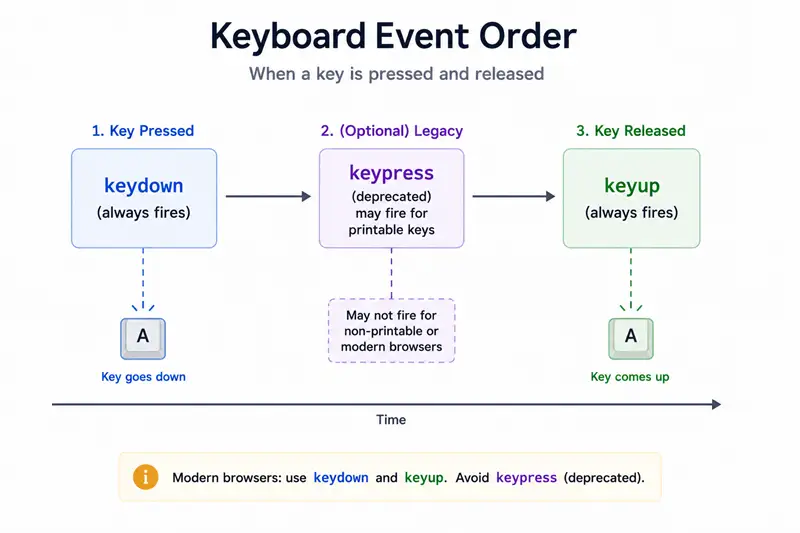
A keyboard listener is usually registered with addEventListener():
document.addEventListener("keydown", (event) => {
  console.log(event.key);
});
For element-specific keyboard events, attach the listener to a focusable element such as an <input>, <textarea>, <button>, or an element with tabindex.
Method 1: Use keydown for Keyboard Shortcuts
The keydown event fires when a key goes down. It also repeats while the key is held down, so it is the most common choice for JavaScript keyboard shortcuts, games, and controls that should react immediately.
This example grows a box when the user presses the physical G key and shrinks it when the user presses the physical S key.
<div id="box"></div>

<script>
const box = document.getElementById("box");

box.style.width = "200px";
box.style.height = "200px";
box.style.backgroundColor = "deeppink";

document.addEventListener("keydown", (event) => {
  if (event.code === "KeyG") {
    box.style.width = "300px";
    box.style.height = "300px";
  }

  if (event.code === "KeyS") {
    box.style.width = "100px";
    box.style.height = "100px";
  }
});
</script>
After dispatching KeyG and then KeyS (for example with happy-dom), you should see 2 lines, in order: 300px, 100px.
Why event.code is used here
event.code identifies the physical key on the keyboard, such as KeyG, KeyS, ArrowRight, or Space. This is useful for controls where the physical key matters even if the user's keyboard layout changes.
Method 2: Use keyup When the Key Is Released
The keyup event fires when the user releases a key. This makes it useful for actions that should happen after a key press finishes, such as stopping movement, triggering validation, or resetting UI state.
const box = document.getElementById("box");

box.style.width = "200px";
box.style.height = "200px";

document.addEventListener("keyup", (event) => {
  if (event.code === "ArrowRight") {
    box.style.width = "300px";
  }

  if (event.code === "ArrowLeft") {
    box.style.width = "100px";
  }
});
After dispatching ArrowRight and then ArrowLeft, you should see 2 lines, in order: 300px, 100px.
Use keyup when the release itself matters. Use keydown when the first press should trigger the behavior immediately.
Method 3: Avoid keypress in New JavaScript Code
The keypress event appears in many older JavaScript keyboard event tutorials, but it is deprecated. It does not fire for every key, especially non-character keys such as arrows, function keys, and modifier keys. Use keydown with event.key or event.code instead.
This legacy example still works for printable character keys in many environments:
const box = document.getElementById("box");

box.style.width = "200px";
box.style.height = "200px";

document.addEventListener("keypress", (event) => {
  if (event.key === "g") {
    box.style.width = "300px";
  }

  if (event.key === "s") {
    box.style.width = "100px";
  }
});
After dispatching g and then s with event.key, you should see 2 lines, in order: 300px, 100px.
For new code, write the same logic with keydown:
document.addEventListener("keydown", (event) => {
  if (event.key === "g") {
    console.log("Grow");
  }
});
event.key vs event.code in JavaScript Keyboard Events
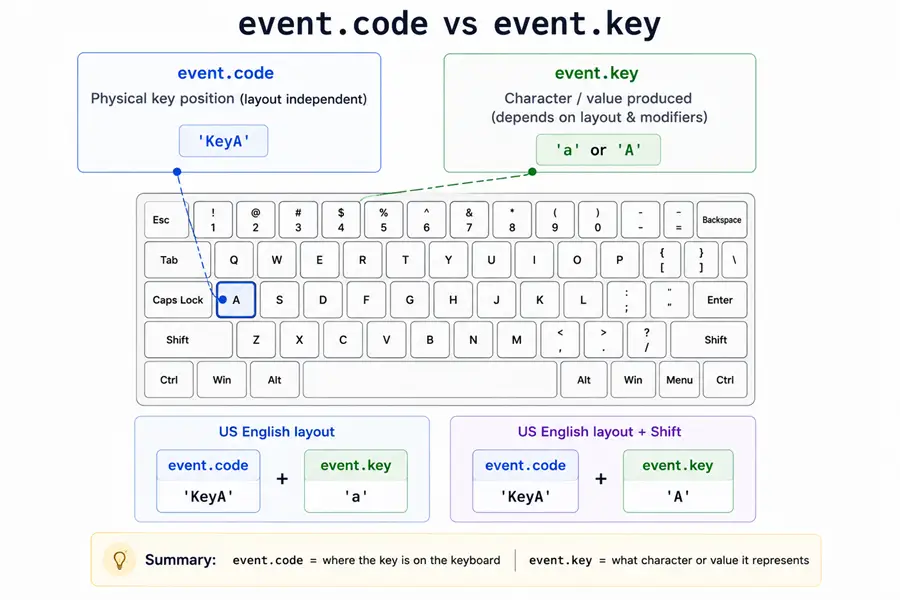
event.key and event.code answer different questions.
| Property | Meaning | Example |
|---|---|---|
event.key |
The value produced by the key after layout and modifiers | "g", "G", "Enter", "ArrowRight" |
event.code |
The physical key position on the keyboard | "KeyG", "Enter", "ArrowRight" |
Use event.key when you care about the actual character or key meaning. Use event.code when you care about the physical key location.
document.addEventListener("keydown", (event) => {
  console.log(`key=${event.key}, code=${event.code}`);
});
For text shortcuts like "press Enter to submit", event.key === "Enter" is usually clear. For game controls like WASD, event.code === "KeyW" is often more predictable across keyboard layouts.
Handle Repeated Keydown Events
When a user holds a key, the browser can fire repeated keydown events. The event.repeat property is false for the first press and true for repeated events.
document.addEventListener("keydown", (event) => {
  if (event.repeat) {
    return;
  }

  console.log(`First press: ${event.key}`);
});
This is important for shortcuts where one physical press should trigger only one action. For games or continuous movement, you may intentionally allow repeat behavior.
Prevent Default Keyboard Behavior
Some keys already have browser behavior. For example, arrow keys may scroll the page, Space may activate a button or scroll, and Ctrl/Cmd shortcuts may be reserved by the browser or operating system.
Use event.preventDefault() only when your page needs to replace the default behavior.
document.addEventListener("keydown", (event) => {
  if (event.code === "Space") {
    event.preventDefault();
    console.log("Space handled by the app");
  }
});
Avoid blocking common browser shortcuts unless it is required for an app-like interface, editor, game, or accessibility-aware control.
Listen on document or a Specific Element
Keyboard events fire on the element that has focus and then bubble up. A document-level listener is useful for global shortcuts, while an element-level listener is better for forms, widgets, and scoped interactions.
const input = document.querySelector("input");

input.addEventListener("keydown", (event) => {
  if (event.key === "Enter") {
    console.log("Enter pressed inside input");
  }
});
If a div or custom UI control should receive keyboard events directly, make it focusable and provide proper accessibility behavior.
<div id="panel" tabindex="0">Press Enter while this panel is focused</div>Common Questions About JavaScript Keyboard Events
What are keyboard events in JavaScript?
Keyboard events in JavaScript are DOM events fired when a user interacts with the keyboard. The main events are keydown, keyup, and the deprecated keypress event.
Which keyboard event should I use in JavaScript?
Use keydown for most keyboard event handling because it supports printable and non-printable keys. Use keyup when you need to react after release. Avoid keypress in new code.
Is keypress deprecated in JavaScript?
Yes. keypress is deprecated. Use keydown with event.key or event.code instead.
Why does keydown fire multiple times?
keydown can repeat when the user holds a key. Check event.repeat if your shortcut should run only once per physical key press.
Should I use event.key or event.code?
Use event.key for the typed character or key meaning, such as "A", "Enter", or "Escape". Use event.code for the physical keyboard key, such as "KeyA", "Enter", or "Escape".
Summary
JavaScript keyboard events are handled mainly with keydown and keyup. Use keydown for keyboard shortcuts, key controls, and immediate reactions; use keyup when the release of a key matters; and avoid the deprecated keypress event in new JavaScript code. The most important KeyboardEvent properties are event.key, which describes the character or key meaning, event.code, which describes the physical key, and event.repeat, which tells you whether a held key is generating repeated keydown events. For reliable keyboard event JavaScript code, attach listeners with addEventListener(), choose the correct event target, and use preventDefault() only when replacing browser behavior is necessary.
