
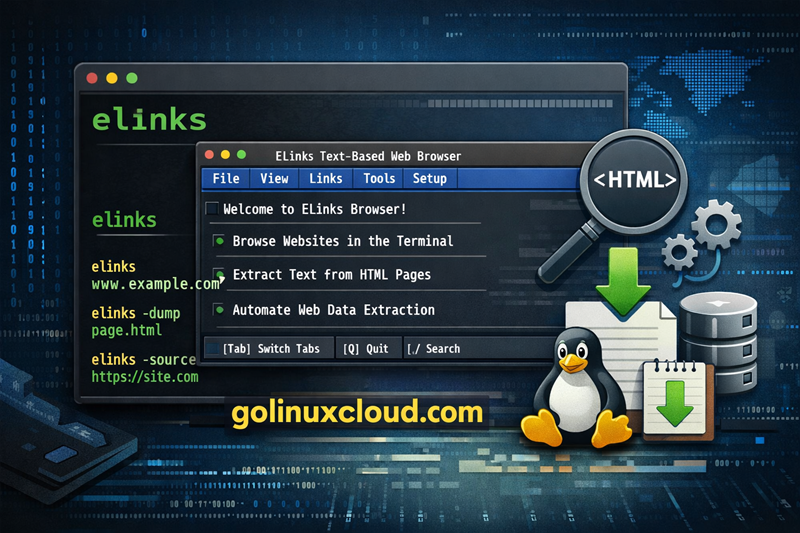
elinks is an advanced text-based web browser for Linux that allows users to browse websites directly from the terminal without requiring a graphical interface. Unlike traditional web browsers such as Firefox or Chrome, elinks renders web pages in plain text format, making it lightweight and suitable for servers, remote SSH sessions, and low-bandwidth environments.
The browser supports several useful features including tabbed browsing, color rendering, background downloads, table rendering, and menu-driven configuration. In addition to browsing websites, elinks can also be used to extract readable text from HTML pages, view raw HTML source code, and process webpage content in scripts using options such as -dump and -source.
Because of these capabilities, elinks is often used by system administrators and developers for tasks such as:
- Browsing websites from remote servers
- Extracting webpage content from the command line
- Viewing HTML source without a graphical browser
- Automating webpage data extraction in scripts
In this guide, you will learn how to install elinks, understand its command syntax, and explore practical examples for browsing websites and extracting webpage content from the terminal.
Installing elinks on Linux
The elinks browser is available in the official repositories of most Linux distributions. You can install it easily using the system package manager.
Install elinks on RHEL, Rocky, AlmaLinux, Fedora
On Red Hat–based distributions, install elinks using the dnf package manager.
sudo dnf install elinks
After installation, verify the package version.
elinks -version
Install elinks on Ubuntu and Debian
On Debian-based distributions such as Ubuntu, install elinks using the apt package manager.
sudo apt update
sudo apt install elinks
Once installed, you can launch the browser directly from the terminal.
elinks
Verify elinks installation
To confirm that elinks is installed correctly, check its version.
elinks -version
You should see output similar to the following:
ELinks 0.16.1
You can also verify the installation path using:
which elinks
This will display the binary location, usually:
/usr/bin/elinks
Syntax
The general syntax of the elinks command is:
elinks [OPTIONS] URL
Where:
OPTIONSrepresent various command-line options used to control the behavior of the browser.URLspecifies the website or local HTML file you want to open.
Example:
elinks https://www.golinuxcloud.com
If the command is executed without specifying a URL, elinks starts in interactive mode and prompts you to enter the website address manually.
elinks
You can also use elinks to open local HTML files stored on your system.
elinks index.html
Quick Reference: elinks Command Options
The following table lists some commonly used elinks command options along with their descriptions and examples.
| Option | Description | Example |
|---|---|---|
-dump |
Print formatted plain text version of a webpage | elinks -dump https://example.com |
-source |
Display raw HTML source of a webpage | elinks -source https://example.com |
-lookup |
Perform DNS lookup for a host | elinks -lookup golinuxcloud.com |
-config-dump |
Print the default configuration file | elinks -config-dump |
-config-help |
Display help for configuration options | elinks -config-help |
-anonymous |
Run elinks in anonymous browsing mode | elinks -anonymous https://example.com |
-auto-submit |
Automatically submit the first form on a webpage | elinks -auto-submit URL |
-no-connect |
Disable network connections | elinks -no-connect |
-version |
Display the elinks version | elinks -version |
-help |
Display help information | elinks -help |
Example usage of the -dump option to extract webpage text:
elinks -dump https://www.golinuxcloud.com
Example to view HTML source code of a webpage:
elinks -source https://www.example.com
Browse Websites in Terminal
Open a website in text mode
To open a website using elinks, specify the URL after the command.
elinks https://www.golinuxcloud.com
The page will open in text mode, displaying only textual content without images or graphical elements.
Navigate links using keyboard shortcuts
Once a webpage loads, you can navigate through it using keyboard controls.
Common navigation keys include:
Up / Down arrow– Scroll through the pageEnterorRight arrow– Open a linkLeft arrow– Go back to the previous pageg– Open a prompt to enter a new URLq– Quit the browser
These shortcuts make elinks efficient when working in SSH sessions or terminal-only environments.
Open multiple pages using tabs
Elinks supports tabbed browsing, allowing you to open multiple pages simultaneously.
Press:
tto open a new tab[or]to switch between tabs=to list open tabs
This allows you to browse several websites while staying inside the terminal.
Use elinks menu interface
Elinks also includes a menu interface for accessing browser options.
Press the Esc key to open the menu bar.
From the menu you can:
- Open new URLs
- Manage downloads
- Configure browser settings
- View bookmarks
- Exit the browser
This interface is useful for users who prefer menu-based navigation instead of command options.
Extract Text from Web Pages
Use elinks -dump to extract webpage text
The -dump option prints the formatted text version of a webpage to standard output.
elinks -dump https://www.golinuxcloud.com
This removes most HTML formatting and displays only readable content.
Extract text from HTML using elinks in Linux
You can use elinks -dump to convert HTML pages into readable plain text. This removes most HTML tags and prints the content in a terminal-friendly format.
For example, extract text from a webpage:
elinks -dump https://example.com
You can also extract text from a local HTML file:
elinks -dump page.html
This makes elinks useful for:
- reading HTML files in terminal
- extracting documentation from websites
- processing webpage content in scripts
Save webpage content to a file
You can redirect the output of elinks -dump to a file.
elinks -dump https://example.com > webpage.txt
The webpage text will be saved in the file webpage.txt.
Convert webpage content to readable text format
You can also format the output with a fixed width using the -dump-width option.
elinks -dump-width 120 -dump https://example.com
This controls the line wrapping width of the extracted text.
Extract Data from Websites for Automation
Use elinks dump output in scripts
The output of elinks -dump can be stored in a variable or processed by scripts.
Example:
elinks -dump https://example.com
This prints the webpage text that can be processed further.
Combine elinks with grep to filter content
You can pipe the output of elinks to grep to filter specific information.
Example:
elinks -dump https://example.com | grep "Linux"
This will display only lines containing the word “Linux”.
Extract specific information from web pages
You can combine elinks with tools such as awk, sed, or cut to extract particular values.
Example:
elinks -dump https://example.com | grep "Version"
This approach is often used to extract release numbers, status pages, or documentation information.
Automate webpage text extraction using cron
If you need to monitor a webpage periodically, you can run elinks through a cron job.
Example cron entry:
0 * * * * elinks -dump https://example.com/status > /tmp/status.txt
This command fetches the webpage every hour and saves the output to a file.
Work with Local HTML Files
Open local HTML files using elinks
To open an HTML file stored on your system, simply provide the file name.
elinks index.html
You can also specify the full path to the file.
elinks /home/user/docs/manual.html
The page will be rendered in text mode, displaying the content without images or graphical elements.
Browse directories with elinks
Elinks can also be used to browse directories containing HTML files.
elinks /home/user/docs/
This will display a list of files and folders in the directory. You can navigate the directory using the arrow keys and open files by pressing Enter.
This feature is particularly useful when working with offline documentation repositories or generated HTML reports.
View documentation stored locally
Many tools generate documentation in HTML format. You can quickly read these files using elinks.
Example:
elinks /usr/share/doc/index.html
This allows administrators to view documentation packages installed on Linux systems without launching a graphical browser.
Inspect Website Source Code
Print webpage source using elinks -source
Use the -source option to print the HTML source of a webpage.
elinks -source https://www.example.com
This command outputs the raw HTML content of the page to the terminal.
Save website source code locally
You can redirect the output to save the HTML source to a file.
elinks -source https://www.example.com > page.html
This will store the webpage source in page.html.
You can later open the saved file using elinks or a text editor.
Analyze HTML structure in terminal
The HTML output from elinks can be combined with other Linux tools to inspect specific parts of a webpage.
Example:
elinks -source https://example.com | grep "<title>"
Or extract meta tags:
elinks -source https://example.com | grep "meta"
This approach allows quick analysis of webpage structure without a graphical browser.
Debug Website Connectivity
Check DNS resolution using elinks -lookup
The -lookup option resolves the IP address of a host.
elinks -lookup golinuxcloud.com
The command returns all IP addresses associated with the domain name.
Test website availability from terminal
You can check whether a website is accessible by opening it in elinks.
elinks https://example.com
If the page loads successfully, it indicates that the server is reachable.
If there are connectivity issues, elinks will display error messages indicating the problem.
Troubleshoot network issues using elinks
Elinks can help identify problems such as:
- DNS resolution failures
- SSL connection issues
- Network connectivity problems
For example, if DNS resolution fails:
elinks https://invalid-domain.example
The browser will return an error indicating that the host could not be resolved.
Run elinks in Anonymous Mode
Use elinks -anonymous option
To start elinks in anonymous mode, use the following command:
elinks -anonymous https://example.com
In this mode, the browser disables several features that interact with the local system.
Understand restrictions in anonymous mode
When running in anonymous mode, the following features are restricted:
- Access to local files
- Saving downloads
- Changing browser configuration
- Writing data to disk
These restrictions help prevent unintended system modifications.
When to use anonymous browsing
Anonymous mode can be useful in situations such as:
- Browsing websites from shared systems
- Running elinks in restricted environments
- Preventing accidental downloads or file access
- Testing website accessibility without local interaction
Automatically Submit Web Forms
Use elinks -auto-submit option
The -auto-submit option automatically submits the first form available on the specified webpage.
elinks -auto-submit https://example.com
When this option is used, elinks loads the webpage and immediately submits the form without requiring manual interaction.
This can be useful when testing login pages, search forms, or automated workflows.
Automate form submission
You can combine -auto-submit with other shell commands to automate tasks.
Example:
elinks -auto-submit https://example.com/search?q=linux
This command loads the webpage and automatically submits the search request.
Although elinks is not designed as a full automation framework, it can still help perform simple web form submissions from the terminal.
Export Webpage Content for Processing
Convert webpages to plain text using elinks
Use the -dump option to convert a webpage into formatted plain text.
elinks -dump https://example.com
The output removes most HTML tags and displays the readable content of the page.
Export web pages to files for analysis
You can redirect the output to a file for later analysis or documentation.
elinks -dump https://example.com > webpage.txt
This saves the webpage content into a text file that can be opened using tools such as less, nano, or vim.
less webpage.txt
This approach is often used to archive webpage content or analyze documentation pages.
Use elinks in shell pipelines
The output of elinks can be combined with other command-line tools using pipelines.
Example:
Extract lines containing the word “Linux”:
elinks -dump https://example.com | grep Linux
Extract the first 20 lines of a webpage:
elinks -dump https://example.com | head -20
Count the number of lines in a webpage:
elinks -dump https://example.com | wc -l
This makes elinks a useful tool when building shell scripts for web data extraction.
Configure elinks Settings
Print default configuration using elinks -config-dump
The -config-dump option prints the default configuration of elinks to standard output.
elinks -config-dump
This command displays all configuration parameters and their default values.
You can redirect the output to a file if you want to review or edit the settings.
elinks -config-dump > elinks.conf
View configuration help options
To get detailed help about configuration parameters, use the -config-help option.
elinks -config-help
This command displays descriptions of available configuration options and how they affect browser behavior.
Customize elinks configuration
Elinks allows users to modify settings such as:
- display options
- color themes
- connection settings
- keyboard shortcuts
You can edit the configuration file manually once it is generated.
Example:
nano elinks.conf
After editing the configuration file, restart elinks to apply the changes.
Best Use Cases of elinks
Server environments without GUI
Many production Linux servers run without a graphical interface to minimize resource usage. In such environments, elinks provides a simple way to browse websites or read online documentation directly from the terminal.
For example, you can open a website from a remote server:
elinks https://www.golinuxcloud.com
This allows administrators to access web resources without installing a full graphical browser.
Remote SSH browsing
When connected to a remote machine through SSH, launching a graphical browser is usually not possible. Elinks solves this problem by allowing you to browse web pages entirely within the terminal.
Example SSH workflow:
ssh user@server
elinks https://example.com
This makes it convenient to quickly read documentation, view web pages, or test URLs from remote systems.
Web scraping and automation
Elinks can also be used to extract webpage content and process it with other command-line tools. The -dump option converts web pages into readable text, which can then be filtered or analyzed.
Example:
elinks -dump https://example.com | grep Linux
This command extracts webpage content and filters lines containing the word “Linux”.
Such usage is helpful when building simple scripts to collect information from websites.
Reading documentation from terminal
Many tools provide documentation in HTML format. Instead of opening these files in a graphical browser, you can read them directly in the terminal using elinks.
Example:
elinks /usr/share/doc/index.html
This allows quick access to installed package documentation and locally stored HTML files.
Frequently Asked Questions
1. What is the elinks command used for in Linux?
The elinks command is a text-based web browser used to browse websites directly from the Linux terminal. It allows users to open web pages, navigate hyperlinks, view HTML source code, and extract webpage content in plain text format.2. How do I extract text from a webpage using elinks?
You can use the -dump option to extract readable text from a webpage. For example, run elinks -dump https://example.com to print the formatted plain-text version of the webpage in the terminal.3. How do I display the HTML source of a webpage using elinks?
Use the -source option with elinks to print the raw HTML source code of a webpage. For example, run elinks -source https://example.com to display the HTML content.4. How do I install elinks on Linux?
You can install elinks using your system package manager. On Ubuntu or Debian run sudo apt install elinks, and on RHEL, Rocky Linux, or Fedora run sudo dnf install elinks.5. How do I fix the elinks command not found error?
The elinks command not found error occurs when the package is not installed. Install it using your distribution’s package manager such as apt install elinks or dnf install elinks and then run the command again.Conclusion
The elinks command is a powerful text-based web browser for Linux that allows users to browse websites directly from the terminal. It provides useful features such as tabbed browsing, menu-based configuration, and the ability to extract webpage content in plain text format.
In addition to browsing websites, elinks can be used to view HTML source code, extract text from web pages, automate data extraction, and read local documentation files. Because of its lightweight design, it is particularly useful on remote servers, SSH sessions, and systems without graphical interfaces.
By understanding the various command options and practical scenarios covered in this guide, you can effectively use elinks for browsing, automation, and terminal-based web access.
Further Reading
For more detailed information, refer to the official elinks documentation.
