
Tested on Ubuntu 22.04 / 24.04 and Debian 12 using the default dumpe2fs package
What is dumpe2fs Command?
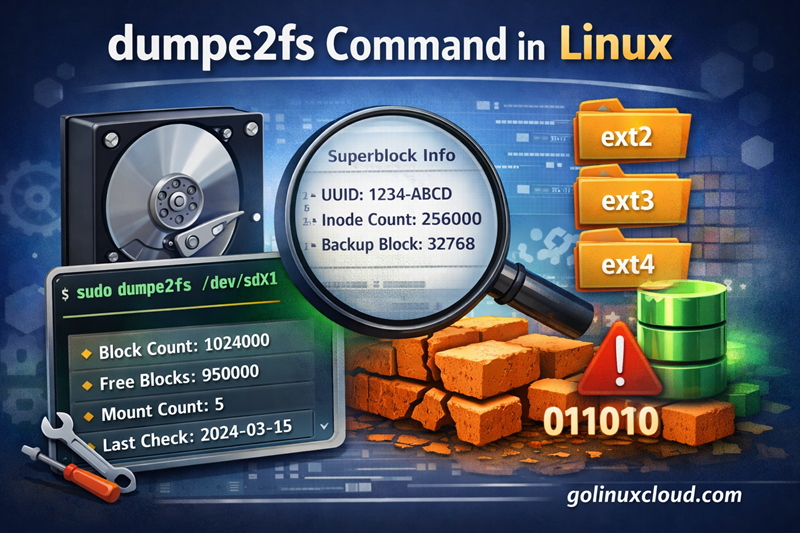
The dumpe2fs command is a Linux utility used to display detailed
filesystem metadata, including superblock and block group information.
It is part of the e2fsprogs package and works with:
- ext2
- ext3
- ext4
System administrators commonly use dumpe2fs to inspect filesystem properties such as UUID, block size, inode count, mount count, and backup superblock locations.
Although dumpe2fs can run on a mounted filesystem, the output may be inconsistent if the filesystem is actively in use. For accurate results, it is recommended to unmount the device before running the command.
Unlike tune2fs, which modifies filesystem parameters, dumpe2fs only
displays metadata. Compared to debugfs, which provides low-level
filesystem debugging, dumpe2fs focuses on structured metadata reporting.
dumpe2fs Syntax
The basic syntax of the dumpe2fs command is:
sudo dumpe2fs [options] device
Example:
sudo dumpe2fs /dev/sdc1
Where:
devicerefers to the partition containing the ext filesystem.
dumpe2fs Quick Reference Table
| Task | Command |
|---|---|
| Display full superblock & block group info | sudo dumpe2fs /dev/sdX1 |
| Show only superblock information | sudo dumpe2fs -h /dev/sdX1 |
| Show backup superblocks | sudo dumpe2fs /dev/sdX1 | grep Backup |
| Show bad blocks | sudo dumpe2fs -b /dev/sdX1 |
| Force display filesystem | sudo dumpe2fs -f /dev/sdX1 |
| Show hexadecimal block numbers | sudo dumpe2fs -x /dev/sdX1 |
| Show filesystem UUID | sudo dumpe2fs -h /dev/sdX1 | grep UUID |
| Show filesystem features | sudo dumpe2fs -h /dev/sdX1 | grep features |
| Show inode and block count | sudo dumpe2fs -h /dev/sdX1 | grep -E "Inode count|Block count" |
| Show mount count information | sudo dumpe2fs -h /dev/sdX1 | grep Mount |
| Display dumpe2fs version | dumpe2fs -V |
Common dumpe2fs Examples
Print Complete Superblock and Block Group Information
To display full filesystem metadata:
sudo dumpe2fs /dev/sdc1
This shows superblock details and block group descriptors.
Show Only Superblock Information
To display header-level superblock information only:
sudo dumpe2fs -h /dev/sdc1
This includes filesystem UUID, block size, inode count, and features.
Show Backup Superblocks
To list backup superblock locations:
sudo dumpe2fs /dev/sdc1 | grep Backup
These backup superblocks are useful during filesystem recovery.
Show Bad Blocks
To display blocks marked as bad:
sudo dumpe2fs -b /dev/sdc1
If no output appears, no bad blocks are recorded.
Show UUID and Filesystem Features
To extract only the filesystem UUID:
sudo dumpe2fs -h /dev/sdc1 | grep UUID
To display enabled filesystem features:
sudo dumpe2fs -h /dev/sdc1 | grep features
Show Inode Counts and Block Size Information
To display inode and block statistics:
sudo dumpe2fs -h /dev/sdc1 | grep -E "Inode count|Block count|Block size"
This helps analyze filesystem capacity and structure.
Show Mount Count and Last Mount/Write Times
To check mount count and limits:
sudo dumpe2fs -h /dev/sdc1 | grep -E "Mount count|Maximum mount count"
To check last mount and write times:
sudo dumpe2fs -h /dev/sdc1 | grep -E "Last mount time|Last write time"
Filter Specific Fields Using grep
To filter and extract specific details efficiently:
sudo dumpe2fs -h /dev/sdc1 | grep -i block
This is useful when analyzing large filesystem outputs quickly.
Practical Use Cases
Recover Corrupted Superblock Using Backup Locations
If the primary superblock becomes corrupted, you can use dumpe2fs to identify backup superblock locations:
sudo dumpe2fs /dev/sdX1 | grep Backup
Once you identify a backup superblock (for example, 32768), you can attempt recovery using fsck:
sudo fsck.ext4 -b 32768 /dev/sdX1
This is one of the most common recovery scenarios for ext4 filesystems.
Diagnose Filesystem Errors with dumpe2fs + fsck
If a filesystem fails to mount or shows errors, inspect metadata first:
sudo dumpe2fs -h /dev/sdX1
Check:
- Filesystem state
- Error behavior
- Mount count
- Last checked time
Then run filesystem check:
sudo fsck.ext4 /dev/sdX1
Using dumpe2fs before fsck helps understand the filesystem condition.
Check Filesystem Health and Statistics
To analyze filesystem capacity and usage:
sudo dumpe2fs -h /dev/sdX1 | grep -E "Block count|Free blocks|Inode count"
This helps you:
- Estimate space usage
- Monitor inode exhaustion
- Validate block size configuration
Use dumpe2fs Output for Tuning and Maintenance
dumpe2fs shows parameters such as:
- Maximum mount count
- Check interval
- Reserved block count
- Filesystem features
These values can later be adjusted using tune2fs if needed:
sudo tune2fs -l /dev/sdX1
dumpe2fs is primarily for inspection, while tune2fs modifies settings.
Troubleshooting dumpe2fs Errors
Bad Magic Number in Super-Block
Error example:
dumpe2fs: Bad magic number in super-block
Possible causes:
- Device is not ext2/ext3/ext4
- Wrong partition specified
- Corrupted superblock
Verify filesystem type:
sudo blkid /dev/sdX1
If corrupted, use backup superblock recovery as shown earlier.
Device Busy or Permission Denied
If you see:
dumpe2fs: Permission denied
Run with sudo:
sudo dumpe2fs /dev/sdX1
If the device is busy, check if mounted:
mount | grep sdX1
Unmount before running:
sudo umount /dev/sdX1
Not an ext Filesystem
dumpe2fs only supports ext2, ext3, and ext4.
To confirm filesystem type:
lsblk -f
If the partition uses XFS, Btrfs, or another filesystem, use the appropriate tool instead.
Inconsistent Output Due to Mounted Filesystem
Running dumpe2fs on a mounted filesystem may produce outdated or inconsistent metadata.
For accurate inspection:
sudo umount /dev/sdX1
sudo dumpe2fs /dev/sdX1
Unmounting is strongly recommended before deep analysis.
No Superblock Found – Using Alternate Backup
If fsck reports no valid superblock:
fsck.ext4: Superblock invalid
Find backup superblocks:
sudo dumpe2fs /dev/sdX1 | grep Backup
Then retry fsck with one of the listed backup blocks:
sudo fsck.ext4 -b <backup_block_number> /dev/sdX1
This is a common recovery technique for damaged ext filesystems.
dumpe2fs vs Other Filesystem Tools
dumpe2fs vs tune2fs
| Feature | dumpe2fs | tune2fs |
|---|---|---|
| Purpose | Display filesystem metadata | Modify filesystem parameters |
| Changes filesystem? | No | Yes |
| Common Use | View superblock, UUID, inode info | Change UUID, mount count, reserved blocks |
| Safe to run anytime? | Yes (read-only) | Use with caution |
- Use dumpe2fs to inspect.
- Use tune2fs to modify.
Example (view parameters):
sudo dumpe2fs -h /dev/sdX1
Example (modify parameters):
sudo tune2fs -c 20 /dev/sdX1
dumpe2fs vs e2fsck
| Feature | dumpe2fs | e2fsck |
|---|---|---|
| Purpose | Display filesystem information | Check and repair filesystem |
| Repairs errors? | No | Yes |
| Recovery usage | Shows backup superblocks | Uses backup superblocks to repair |
| Risk level | Safe | Should run on unmounted filesystem |
- dumpe2fs helps identify superblock backups.
- e2fsck performs the actual repair.
Example recovery flow:
sudo dumpe2fs /dev/sdX1 | grep Backup
sudo fsck.ext4 -b 32768 /dev/sdX1
dumpe2fs vs debugfs
| Feature | dumpe2fs | debugfs |
|---|---|---|
| Purpose | Display structured metadata | Low-level filesystem debugging |
| User level | Standard sysadmin tool | Advanced troubleshooting tool |
| Risk | Read-only | Can modify filesystem |
| Output format | Structured, readable | Interactive shell-like interface |
- Use dumpe2fs for general inspection.
- Use debugfs for deep forensic analysis.
Summary
The dumpe2fs command is a read-only Linux utility used to inspect ext2, ext3, and ext4 filesystem metadata such as superblock details, block group information, UUID, mount count, inode statistics, and backup superblocks.
It plays a critical role in filesystem troubleshooting and recovery, especially when diagnosing superblock corruption or preparing for fsck repairs. Unlike tune2fs or e2fsck, dumpe2fs does not modify the filesystem, making it a safe and reliable inspection tool for system administrators.
Understanding how dumpe2fs integrates with other ext filesystem tools helps ensure proper maintenance, error recovery, and performance tuning in Linux environments.
Further Reading
-
man page for dumpe2fs:
dumpe2fs manual -
e2fsprogs documentation:
e2fsprogs Project
