
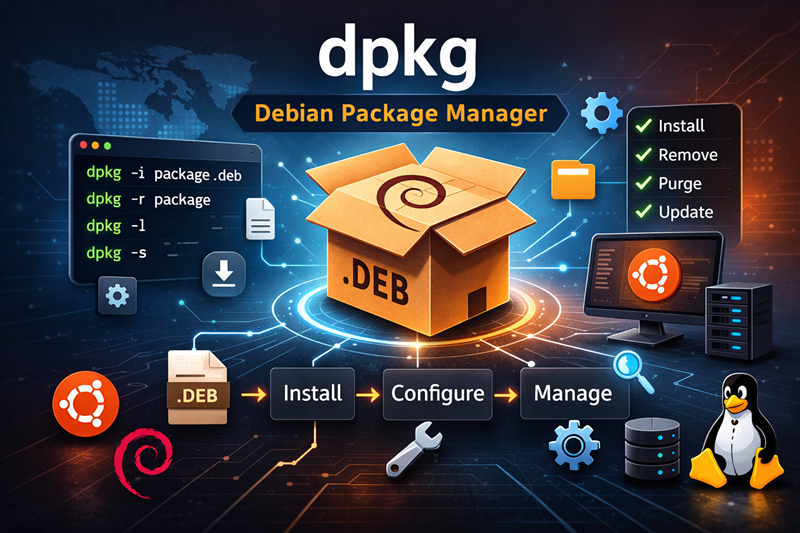
Tested on Ubuntu 22.04 / 24.04 and Debian 12 using the default dpkg package
dpkg stands for Debian Package.
The dpkg command is a low-level package management tool used in Debian-based Linux distributions. It works directly with .deb (Debian package) files and allows users to install, remove, configure, and inspect software packages.
Unlike higher-level tools such as apt, dpkg does not automatically resolve dependencies. It focuses strictly on managing packages already downloaded to the system.
Difference between dpkg and apt
Both dpkg and apt are used for package management, but they serve different purposes.
| Feature | dpkg | apt |
|---|---|---|
Works directly with .deb files |
Yes | Yes |
| Resolves dependencies automatically | No | Yes |
| Installs from repositories | No | Yes |
| Suitable for manual installs | Yes | Rarely |
Example of installing with dpkg:
sudo dpkg -i package_name.deb
Example of installing with apt (handles dependencies automatically):
sudo apt install package_name
In short:
- Use
dpkgwhen you already have a.debfile. - Use
aptwhen installing from official repositories with dependency managemen
dpkg Command Syntax
The dpkg command follows a simple structure where you specify an option
followed by the package name or .deb file.
General syntax:
dpkg [options] package_name
When working with a .deb file:
sudo dpkg -i package_name.deb
To remove a package:
sudo dpkg -r package_name
To purge a package completely:
sudo dpkg -P package_name
You can also combine options depending on the task you want to perform.
dpkg Command Options – Complete Reference Table
The table below consolidates commonly used dpkg options with their purpose and practical examples.
| Option | Description | Example |
|---|---|---|
-i |
Install a .deb package |
sudo dpkg -i nginx.deb |
--force-reinstall |
Reinstall an existing package | sudo dpkg -i --force-reinstall nginx.deb |
-r |
Remove package (keep config files) | sudo dpkg -r nginx |
-P |
Purge package (remove including config files) | sudo dpkg -P nginx |
--remove --force-remove-reinstreq |
Force remove broken package | sudo dpkg --remove --force-remove-reinstreq nginx |
-l |
List all installed packages | dpkg -l |
-s |
Show package status and details | dpkg -s nginx |
-L |
List files installed by package | dpkg -L nginx |
-S |
Find which package owns a file | dpkg -S /usr/bin/nginx |
--configure package |
Configure a specific package | sudo dpkg --configure nginx |
--configure -a |
Configure all unpacked packages | sudo dpkg --configure -a |
--audit |
Check for broken or partially installed packages | sudo dpkg --audit |
--print-architecture |
Show system architecture | dpkg --print-architecture |
--print-foreign-architectures |
Show enabled foreign architectures | dpkg --print-foreign-architectures |
--get-selections |
List package selection states | dpkg --get-selections |
--set-selections |
Set package selection states from file | dpkg --set-selections < selections.txt |
--update-avail |
Update dpkg package database | sudo dpkg --update-avail package_info_file |
-Dhelp |
Show debugging help | dpkg -Dhelp |
Installing Packages Using dpkg
Install a Single .deb File
To install a locally downloaded Debian package file:
sudo dpkg -i package_name.deb
If dependencies are missing, fix them using:
sudo apt-get install -f
dpkg does not resolve dependencies automatically.
Install Multiple .deb Files
You can install multiple packages at once by listing them together:
sudo dpkg -i package1.deb package2.deb package3.deb
Reinstall an Existing Package
To force reinstall a package that is already installed:
sudo dpkg -i --force-reinstall package_name.deb
This is useful when package files are corrupted.
Install a Specific Package Version
If you downloaded a particular version manually:
sudo dpkg -i nginx_1.18.0-0ubuntu1_amd64.deb
Make sure the version matches your system architecture.
Install Package for Specific Architecture
Check system architecture:
dpkg --print-architecture
If needed, check foreign architectures:
dpkg --print-foreign-architectures
Then install the appropriate .deb file.
Removing and Purging Packages
Remove a Package (Keep Configuration Files)
This removes the package binaries but preserves configuration files:
sudo dpkg -r package_name
Configuration files remain under /etc.
Purge a Package (Remove Completely)
To remove both the package and its configuration files:
sudo dpkg -P package_name
This performs a clean removal.
Difference Between Remove and Purge
| Command | Removes Binary | Removes Config Files |
|---|---|---|
| dpkg -r | Yes | No |
| dpkg -P | Yes | Yes |
Use purge when you want a completely clean system state.
Force Remove a Broken Package
If a package is stuck in a half-installed state:
sudo dpkg --remove --force-remove-reinstreq package_name
To completely purge a broken package:
sudo dpkg --purge --force-all package_name
Force options should be used carefully as they may break dependencies.
Querying and Inspecting Packages
List All Installed Packages
To display all installed packages along with their status:
dpkg -l
This shows package name, version, architecture, and installation state.
Search for an Installed Package
To search within the installed package list:
dpkg -l | grep package_name
Example:
dpkg -l | grep nginx
This filters installed packages matching the keyword.
Show Detailed Package Information
To display full details of a specific package:
dpkg -s package_name
Example:
dpkg -s nginx
This includes version, status, dependencies, maintainer, and description.
Check Package Version
To display only the installed version:
dpkg -s package_name | grep Version
Example:
dpkg -s nginx | grep Version
Useful when verifying upgrade or downgrade operations.
List Files Installed by a Package
To see all files installed by a package:
dpkg -L package_name
Example:
dpkg -L nginx
This helps locate binaries and configuration files.
Find Which Package Owns a File
To determine which package installed a specific file:
dpkg -S /path/to/file
Example:
dpkg -S /usr/bin/nginx
Very useful when troubleshooting missing or unexpected files.
Check Installed Package Size
To check the installed size of a package:
dpkg -s package_name | grep Installed-Size
Example:
dpkg -s nginx | grep Installed-Size
The size is displayed in kilobytes.
Fixing Broken Packages
Configure Unpacked Packages
If installation was interrupted, configure pending packages:
sudo dpkg --configure -a
This completes unfinished configuration steps.
Audit Broken Packages
To check for partially installed or broken packages:
sudo dpkg --audit
This command reports packages that require manual intervention.
Fix Dependency Issues
If dependencies are missing after a dpkg installation:
sudo apt-get install -f
This installs missing dependencies and corrects package states.
Recover from Interrupted Installation
If a system reboot or power failure interrupted package installation:
sudo dpkg --configure -a
sudo apt-get install -f
Then verify package status:
dpkg -l
This workflow restores package consistency safely.
Downgrading Packages
Downgrade Using Older .deb File
Download the required older version and install it manually:
sudo dpkg -i package_name_older_version.deb
Example:
sudo dpkg -i nginx_1.18.0-0ubuntu1_amd64.deb
After downgrading, fix dependencies if required:
sudo apt-get install -f
Risks of Downgrading
Downgrading may cause:
- Dependency conflicts
- Application instability
- Security vulnerabilities (older version)
Always verify compatibility before downgrading:
dpkg -s package_name
Prevent Package from Upgrading (Hold Package)
To prevent a package from being upgraded:
sudo apt-mark hold package_name
Verify held packages:
apt-mark showhold
To allow upgrades again:
sudo apt-mark unhold package_name
dpkg installs specific versions, but holding is managed via apt.
Working with .deb Files Without Installing
Extract Package Contents
To extract files from a .deb package:
dpkg-deb -x package_name.deb destination_directory/
Example:
dpkg-deb -x nginx.deb ./extract/
This unpacks files without installing them.
View Contents of a .deb File
To list files inside the package archive:
dpkg-deb -c package_name.deb
This shows directory structure and file paths.
Inspect Control Metadata
To view package metadata (version, dependencies, maintainer):
dpkg-deb -I package_name.deb
This displays control information stored inside the package.
Verify Package Integrity
To verify installed package files using checksums:
debsums package_name
If debsums is not installed:
sudo apt install debsums
This checks file integrity against package checksums.
Advanced dpkg Operations
Force Install
To force install a package ignoring warnings:
sudo dpkg --force-all -i package_name.deb
This bypasses dependency checks and may cause instability.
Force Purge
To forcibly remove a problematic package:
sudo dpkg --purge --force-all package_name
Use only when normal removal fails.
Ignore Dependency Checks
To install while ignoring dependency requirements:
sudo dpkg --ignore-depends=dependency_name -i package_name.deb
This skips a specific dependency.
Update dpkg Database Manually
To update available package information manually:
sudo dpkg --update-avail package_info_file
To view package selection states:
dpkg --get-selections
To restore selections:
dpkg --set-selections < selections.txt
These commands are typically used in system migration or automation workflows.
Package Selection & System State Management
Get Package Selections
To list all packages along with their installation status:
dpkg --get-selections
This shows whether packages are installed, deinstalled, or held.
To filter only installed packages:
dpkg --get-selections | grep install
Set Package Selections
To apply package selections from a file:
dpkg --set-selections < selections.txt
This restores package states from a previously saved list.
After setting selections, run:
sudo apt-get dselect-upgrade
This installs or removes packages according to the restored state.
Backup Installed Package List
To create a backup of installed packages:
dpkg --get-selections > installed-packages.txt
For a cleaner list (without deinstalled entries):
dpkg --get-selections | grep -v deinstall > installed-packages.txt
This file can be used during system recovery or migration.
Restore Package List on New System
Copy the backup file to the new system, then run:
dpkg --set-selections < installed-packages.txt
sudo apt-get dselect-upgrade
This reinstalls all previously installed packages.
This method restores package list, not configuration files.
dpkg Logs and Debugging
Check dpkg Logs
dpkg logs are stored in:
/var/log/dpkg.log
To view recent entries:
tail -n 50 /var/log/dpkg.log
To search for a specific package:
grep nginx /var/log/dpkg.log
These logs record installs, removals, upgrades, and configuration events.
Enable dpkg Debug Mode
To view debugging options:
dpkg -Dhelp
To enable debug output during installation:
sudo dpkg -D777 -i package_name.deb
Debug levels allow detailed tracing of package operations.
Common dpkg Error Messages Explained
1. Dependency problems prevent configuration
Occurs when required packages are missing.
Fix:
sudo apt-get install -f
2. Package is in a very bad inconsistent state
Occurs after interrupted install or force operations.
Fix:
sudo dpkg --remove --force-remove-reinstreq package_name
3. Sub-process /usr/bin/dpkg returned an error code (1)
Generic failure often due to dependency or configuration issue.
Fix:
sudo dpkg --configure -a
sudo apt-get install -f
4. Unable to lock dpkg frontend
Occurs when another package process is running.
Check running processes:
ps aux | grep apt
Remove stale lock only if no process is active:
sudo rm /var/lib/dpkg/lock
Removing locks improperly can corrupt the package database.
Frequently Asked Questions
1. What does dpkg --configure -a do?
The command dpkg –configure -a configures all unpacked but unconfigured packages on the system. It is commonly used after an interrupted installation or upgrade to complete pending configuration steps.2. Why does dpkg fail due to dependencies?
dpkg fails due to dependencies because it does not automatically resolve missing required packages. If a dependency is not installed, dpkg will stop the installation and report an error. You can fix this by running sudo apt-get install -f.3. How do I reinstall a package using dpkg?
To reinstall a package manually using dpkg, run sudo dpkg -i –force-reinstall package_name.deb. This forces the reinstallation of the specified package file.4. Where are dpkg logs stored?
dpkg logs are stored in /var/log/dpkg.log. This file records package installations, removals, upgrades, and configuration events.5. How do I check system architecture using dpkg?
You can check the system architecture using dpkg –print-architecture. To see additional enabled architectures, use dpkg –print-foreign-architectures.Summary
The dpkg utility is the foundational package management tool in Debian-based Linux systems. It allows administrators to work directly with .deb packages for installation, removal, configuration, inspection, and recovery operations.
It is commonly used for manual package installation, verifying installed software, checking package versions, identifying file ownership, auditing package states, and resolving inconsistent installations. Since it does not handle dependency resolution automatically, it is typically combined with apt or apt-get to ensure a stable and complete software environment.
Understanding how package configuration, dependency handling, downgrade operations, force removal, and system state management work at this level provides better control over Linux package management and advanced troubleshooting scenarios.
Further Reading Resources
-
Debian Package Management with dpkg:
Debian dpkg Manual -
Debian Handbook on Package Management:
Debian Handbook
