
If you see the error “zsh: command not found: pip” on macOS, it
usually means pip is installed as pip3 or is not available in your PATH.
Quick fix (try this first)
python3 -m pip install --upgrade pipThis quick fix works in most cases.
On macOS, pip is often installed as pip3, which is why the pip
command is not found in zsh. If it doesn’t resolve the issue, follow the
additional fixes below based on your Python setup.
What causes “zsh: command not found: pip” on macOS?
You typically see this error for one of the following reasons:
pipis installed as pip3, notpippipexists but is not in PATH- Python was installed without pip
- A virtual environment is not activated
- Python installation is incomplete or broken
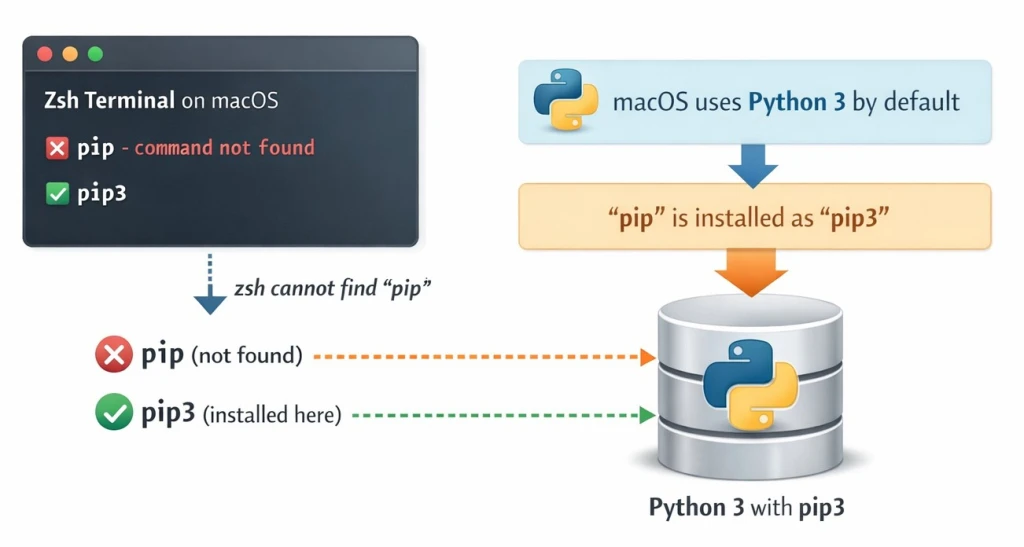
Fix 1: Use pip3 instead of pip (Most Common)
On macOS, Python 3 is the default and pip is installed as pip3.
pip3 --versionIf this works, you can install packages like this:
pip3 install requestsOr use the safest method:
python3 -m pip install requestsThis avoids PATH and shell issues completely.
Fix 2: Install pip on macOS using get-pip.py
On Ubuntu or Debian, install the packaged tool with
apt—see pip command not found on Ubuntu for python3-pip and verification steps before you reach for get-pip.py.
If pip is not installed at all on macOS or a minimal Linux image, install it manually.
Download the installer:
Download the file with curl; the curl command compares -O, -L, -fsSL, and -o output options.
curl https://bootstrap.pypa.io/get-pip.py -o get-pip.pyRun it using Python 3:
python3 get-pip.pyVerify installation:
pip3 --versionPython 3 must already be installed for this method.
Fix 3: Add pip to PATH in zsh (macOS)
Sometimes pip exists but zsh cannot find it.
Check your PATH:
echo $PATHFind pip and python paths:
Check which interpreter or CLI is first on PATH with which; see the which command before changing virtualenv or npm global installs.
which pip3
which python3
Common pip locations on macOS:
/usr/local/bin/Library/Frameworks/Python.framework/Versions/3.x/bin
Edit your zsh config:
nano ~/.zshrcAdd (adjust paths if required):
export PATH="/usr/local/bin:/Library/Frameworks/Python.framework/Versions/3.x/bin:$PATH"Apply changes:
source ~/.zshrcVerify:
pip3 --versionFix 4: Reinstall pip using Homebrew (Recommended)
If you want the cleanest and safest setup, use Homebrew.
Install Homebrew (if not installed):
/bin/bash -c "$(curl -fsSL https://raw.githubusercontent.com/Homebrew/install/HEAD/install.sh)"Install Python (includes pip):
brew install pythonVerify:
python3 --version
pip3 --version
Homebrew manages PATH automatically, avoiding most zsh issues.
Fix 5: pip not found inside a virtual environment
Each virtual environment has its own pip.
Activate your virtual environment:
source /path/to/venv/bin/activateCheck pip:
pip --versionIf pip is missing inside the environment, install it:
python -m ensurepip --upgradeOr using get-pip.py:
curl https://bootstrap.pypa.io/get-pip.py -o get-pip.py
python get-pip.py
Which fix should you use?
- New macOS user → Fix 4 (Homebrew)
- pip3 works but pip fails → Fix 1
- pip installed but not found → Fix 3 (PATH)
- Virtual environment issue → Fix 5
- pip completely missing → Fix 2
Verify the fix
After applying any fix, confirm:
pip3 --version
python3 -m pip --version
If these commands work, the error is resolved.
Why macOS shows this error so often
- macOS ships with zsh as default shell
- Python 2 is deprecated
pipbinary is no longer created by default- Python frameworks install pip outside default PATH
Using python3 -m pip avoids all of these problems.
Final recommendation
For long-term stability on macOS, always use:
python3 -m pip install <package>This works across:
- zsh
- Homebrew Python
- system Python
- virtual environments
Summary
On macOS, the “zsh: command not found: pip” error usually occurs
because pip is installed as pip3 or is missing from the PATH. Using
python3 -m pip works reliably across system Python, Homebrew, and
virtual environments. If the quick fix fails, reinstalling Python with
Homebrew or fixing PATH resolves the issue.
References
- Official pip installation guide – Python Packaging Authority
- Python package installation documentation – Python.org
