If you no longer need the Go programming language (Golang) on your system, you may want to remove it completely to free space or install a different version. The exact uninstall method depends on how Go was originally installed—using a tarball archive, package manager, Homebrew, or Windows installer.
This quick reference shows the most common commands to uninstall Golang from Linux, macOS, and Windows systems.
Golang Uninstall Quick Reference (Cheat Sheet)
| Operating System | Installation Method | Command |
|---|---|---|
| Linux | Official tarball | sudo rm -rf /usr/local/go |
| Ubuntu / Debian | apt package manager | sudo apt remove golang-go |
| Ubuntu / Debian (complete removal) | apt purge | sudo apt purge golang-go |
| RHEL / Rocky / AlmaLinux | dnf package manager | sudo dnf remove golang |
| Older CentOS / RHEL | yum package manager | sudo yum remove golang |
| macOS | Official pkg installer | sudo rm -rf /usr/local/go |
| macOS | Homebrew | brew uninstall go |
| Windows | MSI installer | msiexec /x go<version>.windows-amd64.msi |
Package installs and updates in this section use dnf command.
Pre-requisite: Identify How Golang Was Installed
Before uninstalling Go, it is useful to determine how Go was installed on the system. The removal steps differ depending on whether Go was installed from a tarball archive, package manager, or system installer.
Check Go binary location using which go
First locate the Go executable using:
Verify the toolchain binary on PATH with which; the which command documents shadowing between manual installs and distro packages.
which goExample output:
/usr/local/go/bin/goThis indicates that Go was installed manually from the official tarball in /usr/local/go.
If the output points to another directory such as /usr/bin/go, it may have been installed using a package manager.
Detect Go installation directory using go env
You can also check Go's internal configuration:
go env GOROOTExample:
/usr/local/goThis shows the main installation directory that should be removed when uninstalling Go.
Identify package manager installations
On Linux systems, Go may have been installed using a package manager.
You can verify this using:
Debian / Ubuntu
List files shipped by a package with dpkg -L; the dpkg command shows how to locate binaries and configuration paths.
dpkg -l | grep golangRHEL / Rocky / AlmaLinux
rpm -qa | grep golangIf Go appears in the output, it should be removed using the corresponding package manager instead of deleting directories manually.
Uninstall Golang Installed from Official Tarball
The most common installation method for Go on Linux and macOS is downloading the official tar.gz archive from the Go website and extracting it into /usr/local.
In this case, uninstalling Go simply requires removing the extracted directory.
Determine Go installation directory
First check where the Go binary is located:
which goExample output:
/usr/local/go/bin/goYou can also verify the Go installation directory using:
go env GOROOTExample output:
/usr/local/goThis directory contains the Go compiler, runtime, and standard library.
Remove Go installation directory manually
Delete the Go installation directory:
sudo rm -rf /usr/local/goThis command removes:
- Go compiler
- Standard library
- Runtime files
- Go binaries
Delete Go binary path from environment variables
If Go was added to your PATH manually, remove the entry from your shell configuration file.
Example entry to remove:
export PATH=$PATH:/usr/local/go/binOpen your shell configuration file:
nano ~/.bashrcRemove any lines referencing:
/usr/local/go/bin
GOROOT
GOPATH
Reload shell configuration after removal
After updating the configuration file, reload your shell settings:
source ~/.bashrcFinally verify Go was removed:
go versionIf Go was successfully uninstalled, the system should return:
command not foundUninstall Golang Using apt on Ubuntu or Debian
If Golang was installed using the APT package manager, you should remove it using APT rather than deleting directories manually. This ensures that the package database remains consistent and avoids leftover configuration files. For a fresh golang-go or go.dev tarball install on Debian, start from install Go on Debian.
Check if golang-go package is installed
First verify whether the Go package is installed using:
dpkg -l | grep golangExample output:
ii golang-go 2:1.20~1ubuntu1 amd64 Go programming language compilerYou can also check the installed Go version:
go versionRemove Go using apt remove
To uninstall the Go compiler while keeping configuration files:
sudo apt remove golang-goThis removes the golang-go package but may leave configuration files on the system.
Completely purge Go packages using apt purge
To remove Go completely including configuration files:
sudo apt purge golang-goYou can also remove unused dependencies installed along with Go:
sudo apt autoremoveAfter removal, verify that the Go command is no longer available:
go versionUninstall Golang Using dnf or yum (RHEL, Rocky, AlmaLinux)
On Red Hat based Linux distributions such as RHEL, Rocky Linux, AlmaLinux, and CentOS, Golang is typically installed using dnf or yum command.
Check installed Golang packages
First check whether Golang packages are installed:
rpm -qa | grep golangExample output may include:
golang
golang-bin
golang-src
Remove Go compiler packages
Remove the Golang packages using dnf:
sudo dnf remove golang golang-bin golang-srcOn older systems using yum:
sudo yum remove golangThis removes the Go compiler and related packages installed through the package manager.
Clean unused dependencies
After uninstalling Go, you can remove unused dependencies:
sudo dnf autoremoveFinally verify that Go was removed:
go versionIf Go was successfully removed, the command should return command not found.
Uninstall Golang on macOS Systems
On macOS, Golang can be installed using the official PKG installer or package managers like Homebrew. The uninstall process depends on the installation method.
Remove Go installed using official pkg installer
If Go was installed using the official installer, the installation directory is typically:
/usr/local/goRemove the directory using:
sudo rm -rf /usr/local/goDelete Go installation directory
After removing the main installation directory, verify whether Go binaries still exist:
which goIf the command returns no output, the Go compiler has been successfully removed.
Remove Go PATH configuration
Some installations add Go to the system PATH through shell configuration files.
Check your shell configuration files:
~/.bash_profile~/.zshrc~/.bashrc
Example entry that may exist:
export PATH=$PATH:/usr/local/go/binRemove this line and reload your shell configuration:
source ~/.zshrcFinally confirm that Go is no longer installed:
go versionUninstall Golang Installed with Homebrew
Many macOS users install Golang using Homebrew, a popular package manager for macOS. In this case, Go should be removed using Homebrew commands rather than deleting directories manually.
Check Go installation with brew list
First verify whether Go is installed using Homebrew:
brew list | grep goYou can also check detailed package information:
brew info goIf Go is installed using Homebrew, it will appear in the output along with its installation path.
Remove Go using brew uninstall
To uninstall Golang installed with Homebrew:
brew uninstall goThis command removes the Go compiler and all related files managed by Homebrew.
If you also want to remove unused dependencies:
brew autoremoveVerify Go removal after Homebrew uninstall
After uninstalling Go, verify that the go command is no longer available:
go versionYou can also confirm that Go is no longer installed via Homebrew:
brew list | grep goIf the uninstall was successful, these commands should return no results.
Uninstall Golang on Windows
On Windows systems, Golang is typically installed using an MSI installer downloaded from the official Go website. The easiest way to remove Go is through the Windows application management interface. To install Go again after removal, follow install Go on Windows.
Remove Go using Windows Apps and Features
Follow these steps to uninstall Go:
- Open Settings on Windows.
- Navigate to Apps → Installed Apps (or Apps & Features).
- Locate Go Programming Language in the list.
- Click the application and select Uninstall.
- Follow the prompts to complete the removal process.
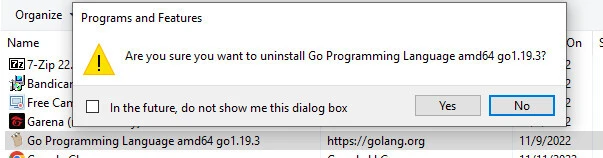
This removes the Go compiler and associated files installed by the MSI package.
Uninstall Go using command line with msiexec
You can also uninstall Go using the Windows command line.
Open Command Prompt as Administrator and run:
go versionExample Output:
go version go1.21.5 windows/amd64Next execute the following command to trigger the uninstall:
msiexec /x go<version>.windows-amd64.msiReplace <version> with the installed Go version.
Example:
msiexec /x go1.21.5.windows-amd64.msiThis command silently removes the installed Go package.
Remove Go environment variables in Windows
The Go installer typically adds Go to the system PATH.
To remove these entries:
- Open System Properties.
- Click Environment Variables.
- Locate the Path variable under System variables.
- Remove any entries referencing:
C:\Program Files\Go\binAfter updating the environment variables, restart your terminal to apply the changes.
Remove Remaining Golang Environment Variables
After uninstalling Golang, some systems may still contain environment variables pointing to old Go directories. Cleaning these ensures that the system no longer references removed Go binaries.
Remove GOPATH and GOROOT entries from shell profiles
Check your shell configuration files for Go-related variables.
Common entries include:
export GOROOT=/usr/local/go
export GOPATH=$HOME/go
export PATH=$PATH:/usr/local/go/bin
Remove these lines from the configuration files.
Clean Go paths from bashrc, zshrc, and profile files
Open your shell configuration file using a text editor.
Examples:
nano ~/.bashrcor
nano ~/.zshrcDelete any lines referencing Go installation directories such as:
/usr/local/go/bin
GOROOT
GOPATH
Reload shell configuration
After editing the configuration files, reload the shell environment:
source ~/.bashrcor for Zsh:
source ~/.zshrcFinally verify that Go is no longer available:
go versionIf Golang was removed successfully, the system should return command not found.
Verify Golang Was Completely Removed
After uninstalling Golang, it is recommended to perform a few verification checks to ensure that the Go compiler, runtime, and related configuration files have been fully removed from the system.
Check Go command availability
First verify whether the go command still exists:
go versionIf Golang was removed successfully, the terminal should return:
command not foundYou can also check whether the Go binary still exists in the system PATH:
which goIf no path is returned, the Go executable is no longer available.
Confirm removal of Go directories
Next verify that the Go installation directory has been removed.
Common installation paths include:
| Operating System | Default Go Installation Path |
|---|---|
| Linux | /usr/local/go |
| macOS | /usr/local/go |
| Windows | C:\Program Files\Go |
You can check if the directory still exists:
ls /usr/local/goIf the directory does not exist, the Go runtime and standard library have been successfully removed.
Validate environment variables cleanup
Finally check that no Go-related environment variables remain configured.
Run:
env | grep GOIf Golang was fully removed, this command should return no results.
If variables such as GOROOT or GOPATH still appear, remove them from your shell configuration files such as:
~/.bashrc~/.bash_profile~/.zshrc
Then reload the shell:
source ~/.bashrcTroubleshooting Golang Removal Issues
Sometimes the go command may still appear even after uninstalling Golang. This usually happens when multiple installations exist or environment variables still reference old paths.
Go command still exists after uninstall
If go version still works after uninstalling, it means another Go installation is still present on the system.
Check where the binary is located:
which goIf a path is returned, delete the corresponding directory or uninstall the package using the appropriate package manager.
Multiple Go installations causing conflicts
In some systems, Go may be installed using multiple methods such as:
- Official tarball installation
- Package manager installation
- Homebrew installation (macOS)
Check for multiple Go directories:
find / -name go -type d 2>/dev/nullRemove any remaining Go installation directories that are no longer needed.
PATH still pointing to old Go directory
If the Go binary was removed but the PATH still contains the Go directory, the shell may attempt to locate Go in a non-existent location.
Check your PATH variable:
echo $PATHIf you see entries such as:
/usr/local/go/binRemove them from your shell configuration files and reload your environment.
Frequently Asked Questions
How do I uninstall Golang completely?
To uninstall Golang, remove the Go installation directory such as /usr/local/go, delete Go environment variables like GOROOT and GOPATH from your shell profile, and verify that the go command is no longer available.
Does uninstalling Go delete my Go projects?
No. Removing Go only deletes the compiler and runtime. Your Go project source code and modules remain unchanged unless you delete them manually.
Where is Golang installed on Linux?
When installed from the official tarball, Golang is usually installed in /usr/local/go. Package manager installations may place it in /usr/lib/go or similar directories.
How do I uninstall Go on Ubuntu?
If Go was installed using apt, you can remove it using 'sudo apt remove golang-go'. If it was installed from the official tarball, delete the /usr/local/go directory.
How do I verify Go was removed?
Run 'go version' or 'which go'. If Go was removed correctly, the command should return 'command not found'.
Summary
Uninstalling Golang involves removing the Go compiler, runtime files, and related environment variables from your system. The exact steps depend on how Go was installed—using a tarball archive, a package manager such as apt or dnf, Homebrew on macOS, or the Windows MSI installer.
In most cases, the process includes deleting the Go installation directory, removing Go-related PATH entries, and verifying that the go command is no longer available. Your existing Go projects and source code remain unaffected by uninstalling the Go compiler.
Following the verification and troubleshooting steps in this guide ensures that Golang is fully removed from Linux, macOS, or Windows systems without leaving residual configuration files.
Official Documentation
For more details about installing and managing Golang environments, refer to the official Go documentation: